
Image file formats
Read more about image file formats—JPG, PNG, and WebP for compression, quality, and transparency, plus when to pick each for web, print, and export in PictorX.

What image file formats are—and why they matter
An image file format is the container and encoding that stores your pixels (or vectors). The choice decides how much quality you keep, how small the file gets, whether transparent areas survive, and which apps or browsers can open the result. Compression can be lossy (discards detail to shrink size) or lossless (keeps every pixel). Transparency needs an alpha channel—JPEG cannot provide it. Web delivery favors small files and wide browser support; print and archival work often prefer lossless masters or TIFF. In PictorX, pick the export that matches the job: a social photo, a logo cutout, or a sharp graphic on a colored page.
JPG / JPEG: lossy photos, small files
JPEG (often shortened to JPG) is the classic photo format. Lossy compression removes subtle detail people rarely notice, so camera shots and continuous-tone images become much smaller than an uncompressed bitmap. That thrift comes with trade-offs: no alpha transparency (white or solid backgrounds only), and blocky or ringing artifacts if you crush quality too far or re-save the same JPEG many times. Use JPEG for photographs, hero images, and email attachments when you do not need see-through pixels. Avoid it for logos with sharp text, UI chrome, or cutouts that must sit on arbitrary backgrounds.

PNG: lossless detail and transparency
PNG stores pixels losslessly and can keep a full alpha channel. That makes it ideal for screenshots, UI, stickers, logos, and any subject you removed from its background in PictorX. Edges stay crisp; flat colors stay exact. The cost is size: photographic PNGs are often much larger than JPEG or lossy WebP at similar visual quality. Prefer PNG when transparency or pixel-perfect graphics matter more than kilobytes. After background removal, export PNG (not JPEG) so the checkerboard truly means transparent.
WebP: modern web size wins
WebP is a web-focused format that can run in lossy or lossless modes and supports transparency. In many cases a lossy WebP is clearly smaller than JPEG at a similar look, and a lossless or alpha WebP can beat PNG for graphics. Browser support is now broad on current Chrome, Edge, Firefox, and Safari, but always check older clients or email workflows if you ship a single asset everywhere. Use WebP when you control the page and want faster loads; keep JPEG/PNG fallbacks if you must support legacy viewers. PictorX workflows that already produce PNG cutouts or resized photos are natural candidates to compare as WebP when your destination allows it.
GIF, TIFF, SVG, and AVIF in brief
GIF is limited to 256 colors and is remembered mainly for simple animation—not for high-quality photos. TIFF is a flexible print and archive container, often lossless, still common in publishing pipelines. SVG is vector, not a photo bitmap: logos and icons stay sharp at any size (see also raster vs vector). AVIF is a newer highly efficient web format with growing support; treat it like WebP—excellent when your audience’s browsers are current. You rarely need all of these daily; know them so odd exports and client requests make sense.
When to pick JPG, PNG, or WebP
Photographs for social, blogs, and general sharing → JPEG or lossy WebP. Graphics, text, screenshots, stickers, and anything with transparency → PNG or lossless/alpha WebP. Maximum compatibility with older tools → JPEG for photos, PNG for cutouts. Print shops that ask for a master → ask whether they want TIFF, high-quality JPEG, or PDF; do not assume WebP. If you will edit again, keep a layered PictorX project or a lossless master and only crush to JPEG/WebP for the final publish step.
Export and save tips in PictorX
Remove a background, then export PNG so alpha survives—JPEG will invent an opaque backdrop. Use Move & Resize (and crop) before export so you are not shipping unused pixels. Logo and SVG flows stay vector when you save as SVG; rasterize to PNG only when the destination needs pixels. For photos, prefer a high-quality JPEG or WebP once edits are done rather than bouncing JPEG→edit→JPEG repeatedly. Transparent PNG maker and background remover landings walk the cutout path; raster vs vector explains when SVG beats any bitmap.
Frequently asked questions
What is the difference between JPG, PNG, and WebP?
JPEG is lossy and great for photos but has no transparency. PNG is lossless and supports alpha—best for graphics and cutouts, often larger. WebP can be lossy or lossless with transparency and usually smaller files, with excellent support on modern browsers.
Does JPG support transparency?
No. JPEG cannot store an alpha channel. If you need see-through pixels for logos, stickers, or product cutouts, export PNG or another alpha-capable format such as WebP.
Is WebP safe to use everywhere?
Current major browsers support WebP well. Email clients, some older apps, and certain CMS pipelines may still prefer JPEG or PNG. When in doubt, offer a fallback or check your target platform.
Which format should I export from PictorX?
Photos without transparency → JPEG or WebP. Cutouts, logos, and UI with transparency → PNG (or WebP if your destination accepts it). Scalable logos and icons → SVG when you work with vectors. Keep an editable project when you will change the design again.
Related tools

Free transparent PNG maker
Make a transparent PNG free online. Remove backgrounds and export clear PNGs with PictorX for logos, products, and stickers.
Free AI background remover
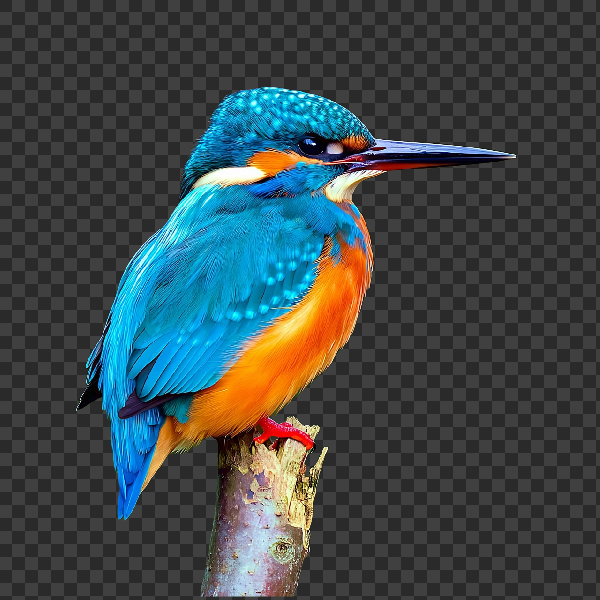
Remove image backgrounds free in your browser with PictorX. On-device AI, no upload to our servers, no credit card. Clean transparent PNGs in seconds.

Open, edit and save SVG files
Open an SVG in Pictorx and it is converted into editable layers.

Raster vs vector images
Raster (bitmap) vs vector graphics: pixels, DPI/PPI, JPEG/PNG/WebP vs SVG/PDF/AI/EPS, scaling, file size, and when to use each in PictorX.
Free online logo maker
Design a simple logo free online with PictorX. Combine shapes, text, and icons—then export PNG for your brand.

Make a die-cut sticker from any photo
Turn a photo into a die-cut sticker in your browser. On-device AI cuts out the person or object, then adds a white outline, shadow, holographic foil, or a colored rim. Export a transparent PNG.
Ready to try it?
Open PictorX in your browser — no install, no credit card required to start.
Make a transparent PNG