
Mosaic
Color
Gap
Output
Photomosaic maker
Turn a photo into a mosaic made of many small photos. Each cell of the picture gets the tile photo that matches it best, not only by its color but by where its light and dark parts are, and the same photo is kept from repeating close by. Use the example photos, your own holiday or family photos, or variations of the photo itself, set the number of tiles and how closely the colors match, and save a large picture or keep editing the tiles, the color match and the original on layers of their own. Open a photo, drop it on the picture or pick an example: it is rebuilt from many small photos. Pick the tile photos, set Tiles across, Color match and Original overlay, and zoom in to see the tiles. Shuffle gives another arrangement. Your photos stay on your device.
Як це працює
- Open a photo, drop it on the picture, or start with the example.
- Pick the tile photos: the examples, your own photos (Add photos, several at once) or variations of this photo.
- Set Tiles across, the tile shape and Variety, and press Shuffle for another arrangement.
- Raise Color match and Original overlay until the photo shows from afar, then save the picture at the size you want or open it in the editor with each part on a layer of its own.
Matched by color and layout
Every tile photo is analysed once: its average color and a three-by-three grid of colors, in the CIELAB color space that follows how we see color. Each cell of your photo is measured the same way, so a tile with a bright sky at the top goes where your photo is light at the top, and edges and shapes come through, not only colors. Each photo is also tried mirrored. Variety keeps the same photo from appearing again within that many cells, and the same settings always give the same mosaic; Shuffle or Variation gives another one.
Tiles up close, your photo from afar
Color match shifts each tile's colors towards its cell's, so the mosaic reads as your photo even with few tile photos, while every tile still shows its own picture. Original overlay lays your photo faintly over the tiles. Zoom in on the picture to see the tiles, choose the pixels per tile for a large print, and add a gap in any color for a grout line. Your photos stay in your browser and are not uploaded.
Поширені запитання
How do I make a photomosaic?
Open your photo on this page or drop it on the picture; it is rebuilt from the example photos straight away. Pick Your photos and Add photos to use your own as tiles, set Tiles across and Color match, then save the picture. The same app is in the editor under Apps → Photo → Photomosaic.
How many tile photos do I need?
The more different photos, the better the mosaic: 50 to a few hundred with different colors work well. Each photo is also used mirrored, Color match shifts the tiles' colors towards the picture, and with fewer than eight photos lighter, darker and recolored variations are added, so even a handful works.
Why does the same photo appear more than once?
A mosaic of thousands of cells has to repeat photos. Variety sets how far apart the same photo must be: raise it to spread repeats out, or add more tile photos. When there are too few photos to keep them that far apart, the photo used longest ago nearby is taken.
How large can I save the mosaic?
Pixels per tile sets the size: 60 tiles across at 32 pixels per tile is 1920 pixels wide, at 96 pixels per tile 5760. The output size is shown under the slider, and Save also offers smaller sizes. The long side is at most 8000 pixels.
Can I keep editing the result?
Yes. The pencil opens it in the PictorX photo editor with the gap, the tiles, the color match and the original on layers of their own, so you can fade the color match, switch off the original or recolor the gap.
Схожі інструменти
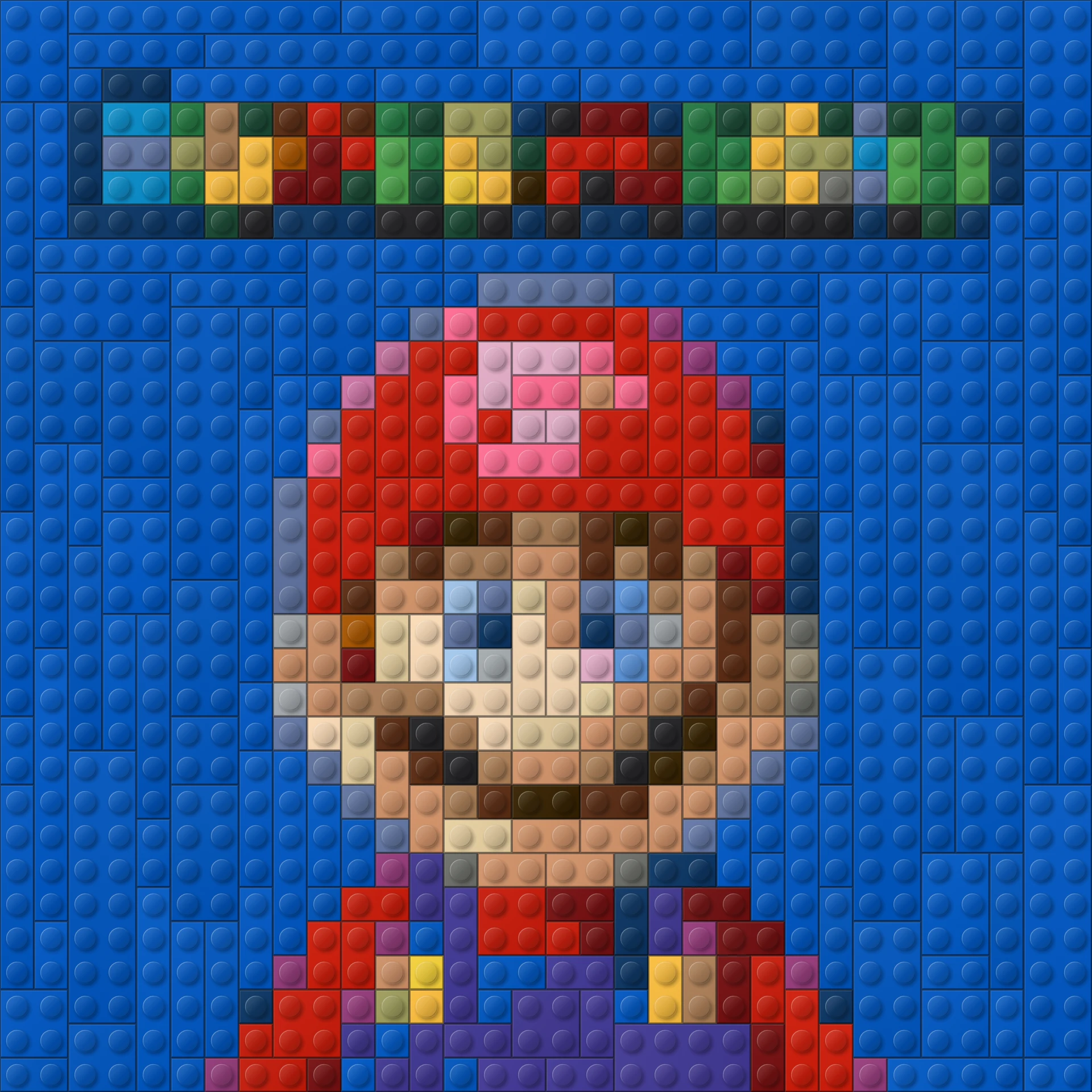
Конструктор мозаїки Lego - ваше фото з цеглинок
Перетворіть своє фото на мозаїку LEGO онлайн: виберіть розмір у шипах, справжні кольори LEGO і пластини чи круглі плитки, подивіться на неї як на справжні цеглинки й збережіть схему складання зі списком деталей. Безкоштовно.
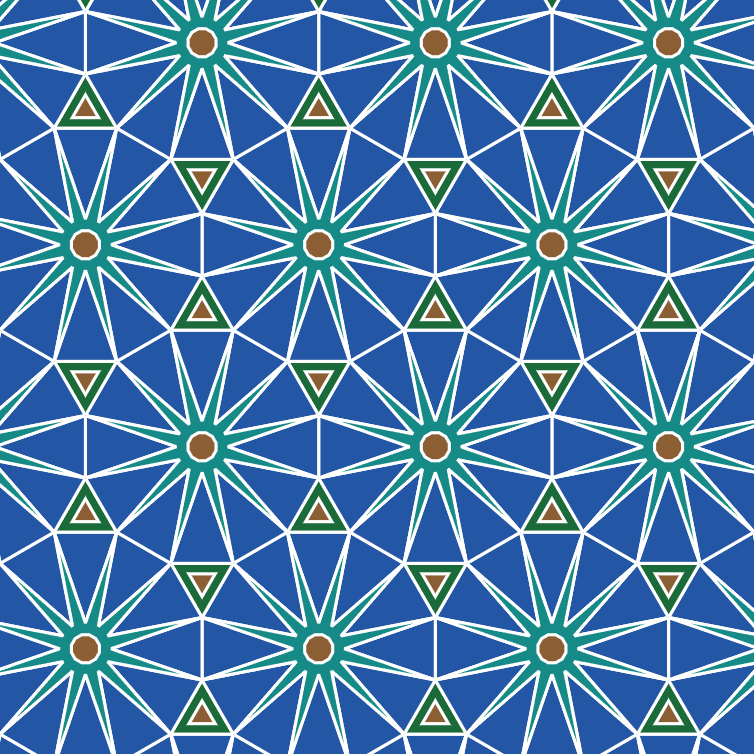
Конструктор теселяцій
Покривайте площину правильними й архімедовими паркетами. Налаштовуйте масштаб і кольори та вигинайте краї квадратів у стилі Ешера — потім збережіть PNG.
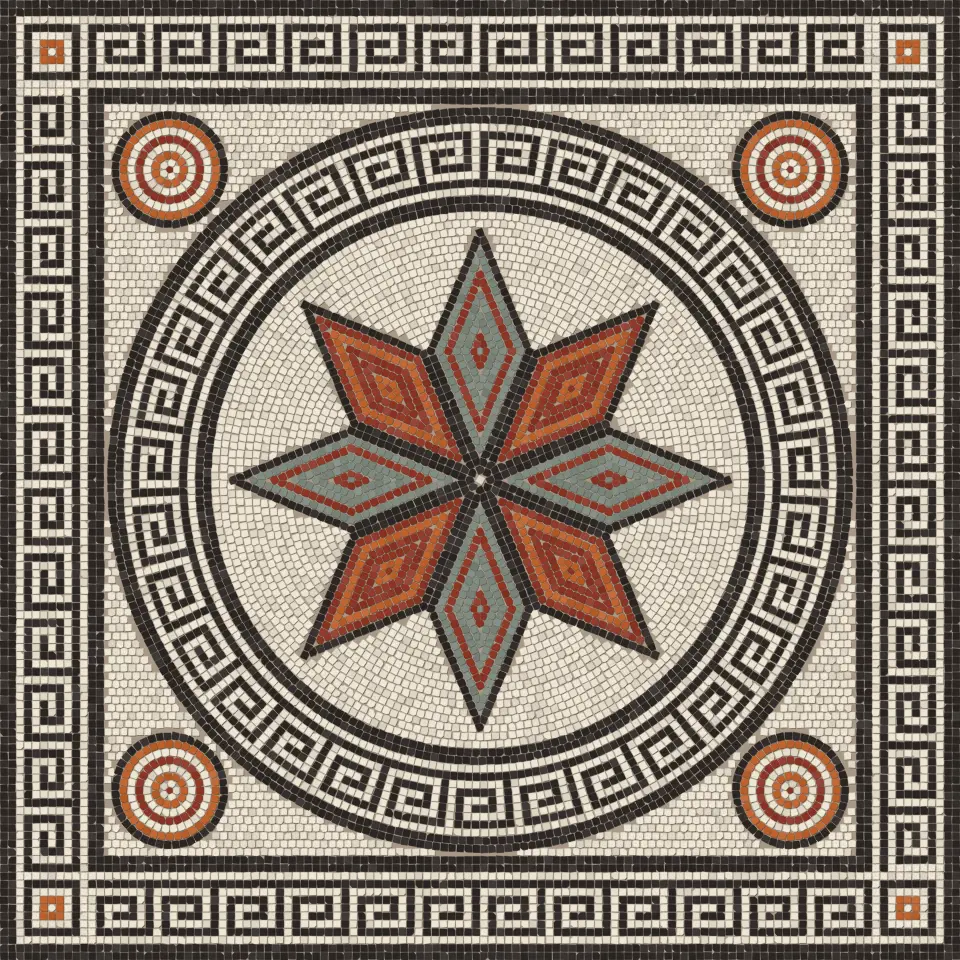
Конструктор римської мозаїки
Створіть римську мозаїчну підлогу онлайн: оборотні куби, луска, восьмикутники, вузли Соломона чи медальйон в обрамленні меандру, гільйоша чи біжучої хвилі, викладені дрібними камінцями в затирці. Збережіть PNG чи SVG.
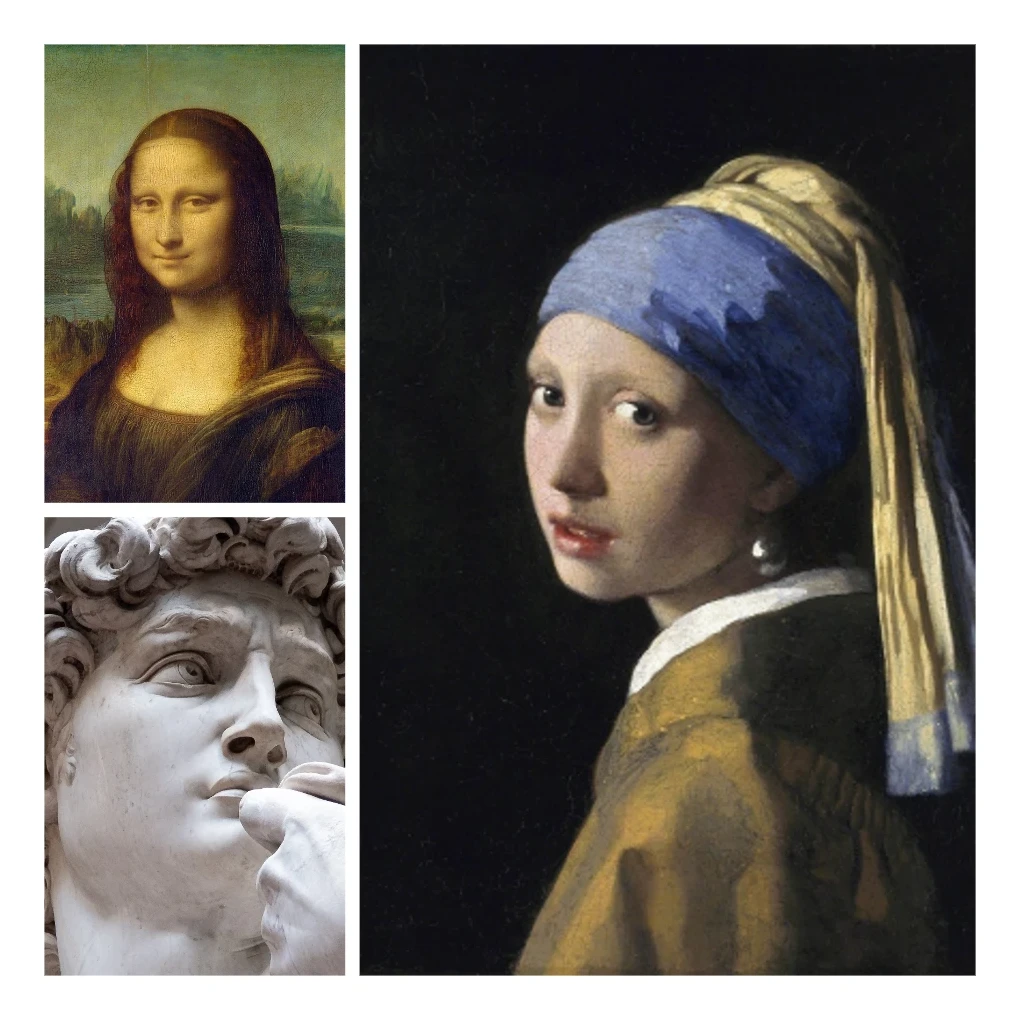
Фотоколаж
Створюйте фотоколажі безкоштовно онлайн у PictorX. Об'єднайте від 2 до 20 фотографій, виберіть макет і експортуйте.
Готові спробувати?
Відкрийте PictorX у браузері — без встановлення і без кредитної картки.
Перейти до редактора