
Data format converter
Paste JSON, YAML, XML or CSV, or open a file, and read the same data in the format you need as you type. The input format is detected by itself, an error is shown at its line and column with the line marked, and you choose the indent, sorted keys, the XML root element and the CSV delimiter and header row. Copy the result, download it with the right extension, or swap it into the input to convert it again. Everything runs in your browser. Paste or type data on the left, open a file or drop one there. The format is detected by itself, or choose JSON, YAML, XML or CSV, and the result in the format you pick follows as you type. An error shows its line and column and marks the line; Show jumps to it. Swap makes the result the new input. Your input and settings are kept in this browser.
How it works
- Paste or type your data on the left, open a file or drop one there; the format is detected by itself, or choose JSON, YAML, XML or CSV.
- Pick the target format on the right and, in the panel, the indent, Sort keys, the XML root element and the CSV options.
- Fix an error at the line and column shown, then copy or download the result, or press Swap to make it the new input.
How the formats map onto each other
JSON and YAML share one model of objects, lists, strings, numbers, booleans and null, so they convert both ways. XML is read with the usual convention: attributes become keys starting with @, text beside child elements becomes #text, and repeated elements become a list, so <person id="1"><name>Ada</name></person> turns into {"person": {"@id": 1, "name": "Ada"}}. Writing XML needs one root element: data with a single top key uses it, anything else is wrapped in the root element you name.
CSV, tables and flattening
A CSV file is one table, so a list of records becomes the rows and the keys the header. Nested values are flattened into dotted column names such as address.city, and records with different keys leave empty cells. Reading CSV, the delimiter (comma, semicolon or tab) is detected, quoted fields may hold commas, quotes and line breaks as in RFC 4180, and Detect numbers turns 42 and true into a number and a boolean while a value with a leading zero, like a postcode, stays text.
Frequently asked questions
Why are some strings quoted in the YAML output?
Quotes keep a string a string when, written plain, it would read back as something else: true, null or 42, the words yes, no, on and off (booleans in older YAML 1.1 readers, so the country code NO stays text), a date such as 2024-05-01, or text that starts with a special character or contains ': ' or ' #'. Everything else is written without quotes.
Which parts of YAML are supported?
The parts used in most configuration files: mappings, lists, block and flow style, nested structures, comments, single and double quoted strings with escapes, multi-line strings with | and >, and numbers, booleans and null as in YAML 1.2. Anchors and aliases (& and *), tags (!), merge keys (<<), complex keys (?) and several documents in one file are not supported, and the converter says so at the line where they appear.
How do I convert JSON to CSV?
Paste a JSON array of objects, choose CSV as the target, and each object becomes a row with its keys as the header. Nested objects and lists are flattened into dotted column names, such as address.city or tags.0, and a note under the result says so. If the list sits inside an object, as in {"people": [...]}, it is found and used. Choose a comma, semicolon or tab, and turn the header row off for a list of lists.
Why does my XML have <root> or <item> elements?
Because an XML document needs exactly one root element and every value needs a name. When the data has one top key, that key becomes the root; otherwise it is wrapped in the root element named in the panel, root by default. Items of a list at the top get the name item, and a list inside an object repeats the element with its key's name.
Related tools

How JSON, YAML, XML and CSV work
How the four common data formats work: JSON's types, YAML's indentation and its pitfalls, XML's elements and attributes, CSV's quoting rules, and what changes when you convert between them.

JSON formatter
A free JSON formatter and validator: beautify or minify JSON, find the exact line and column of an error, sort keys, browse a collapsible tree, copy paths and convert arrays to CSV, all in your browser.
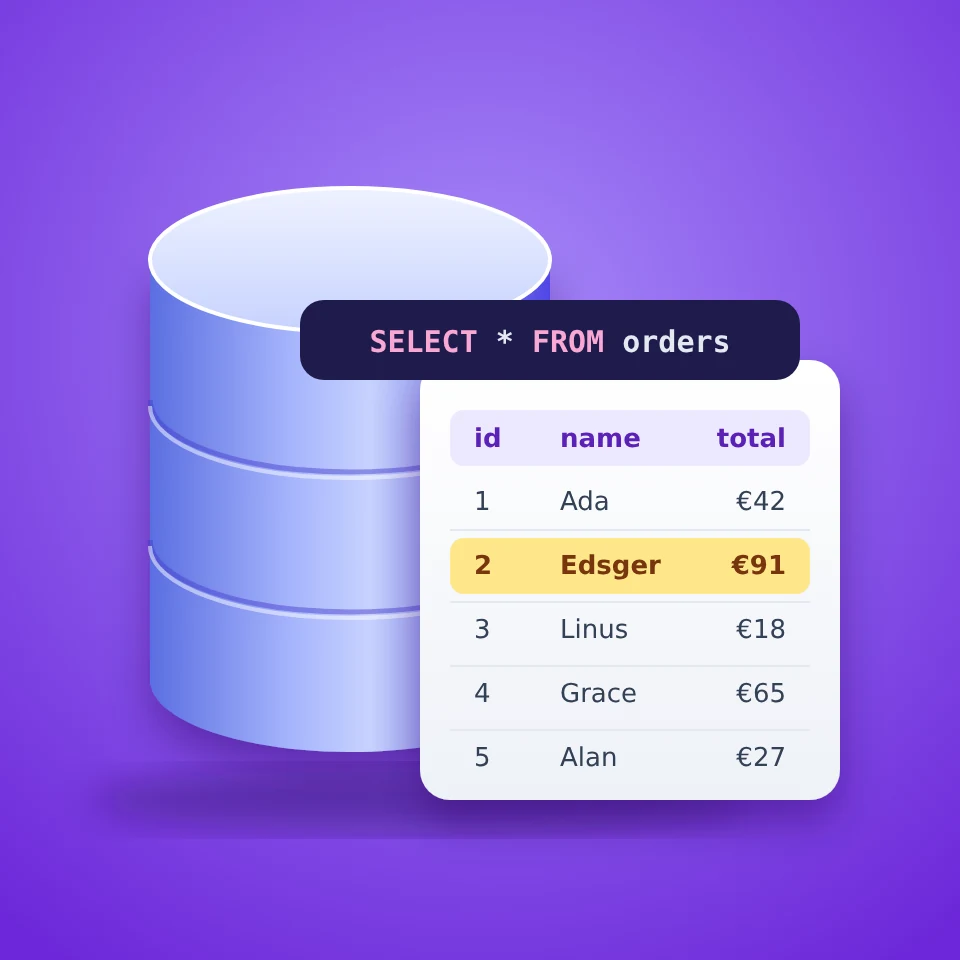
SQL query builder
A free visual SQL query builder: pick tables, columns, joins, filters, grouping and sorting, get formatted SQL for MySQL, PostgreSQL, SQLite or SQL Server, and run it on sample data or your own CSV in the browser.
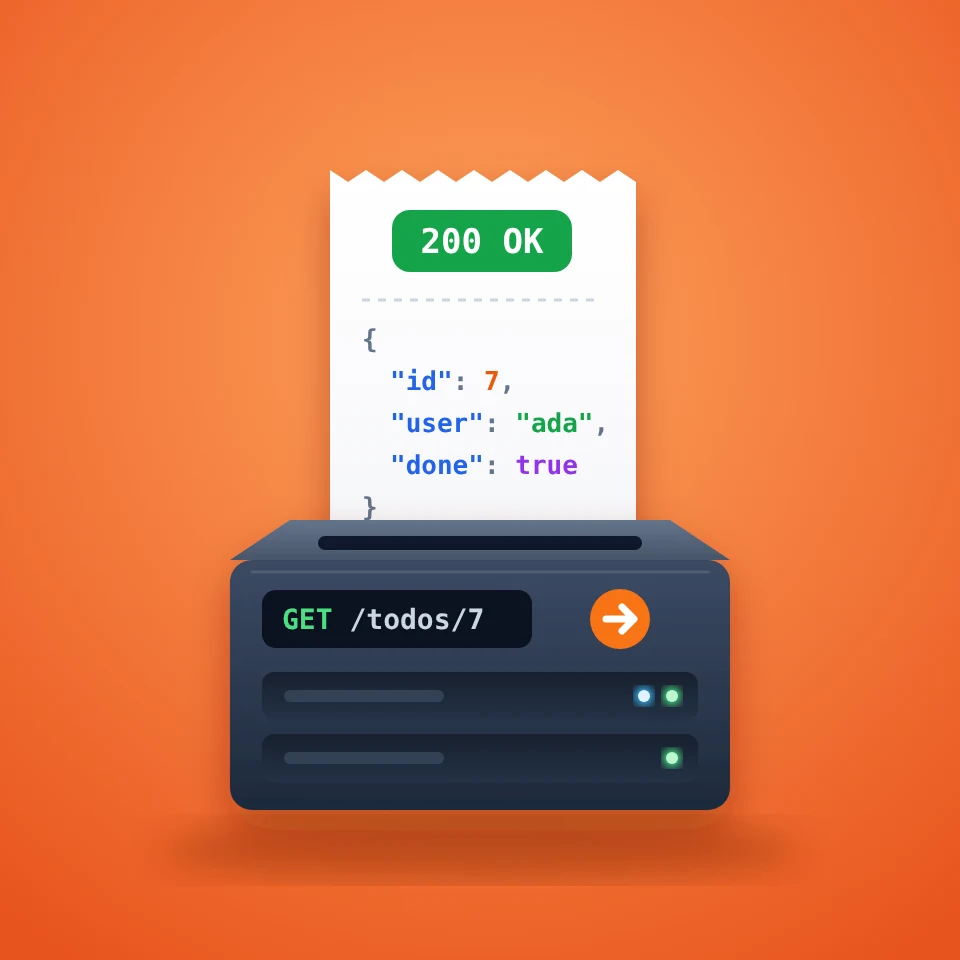
API Tester
A free online API tester: send GET, POST, PUT, PATCH and DELETE requests from your browser with query parameters, headers, a JSON body and auth, then read the status, time, headers and formatted response.
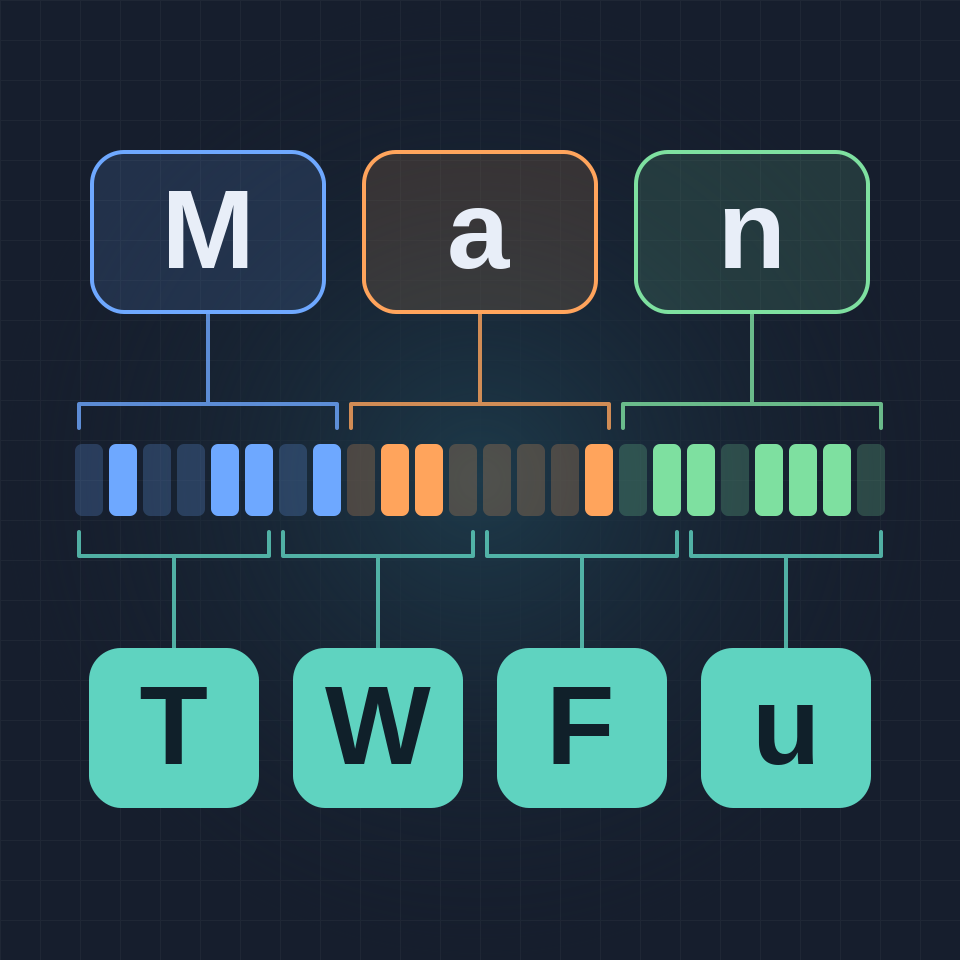
Base64 Encoder
A free online Base64 encoder and decoder: convert text to Base64 and back as you type, with UTF-8, URL-safe Base64, padding, MIME line breaks, files to data URIs and a preview of decoded images.
Ready to try it?
Open PictorX in your browser — no install, no credit card required to start.
Go to Editor