
Nothing is sent until you press Send.
The requests you send appear here.
API Tester
Try a REST API without installing anything. Choose the method, enter the URL, add query parameters, headers, a JSON, text or form body and Basic or Bearer authentication, and press Send. The request goes straight from your browser to the API, and you see the status code, the time in milliseconds, the size, the response headers and the body, with JSON as a collapsible, highlighted tree. Your last 20 requests are kept in this browser, and every request copies as a cURL command or as JavaScript fetch code. Choose a method, enter a URL and press Send (or Enter in the URL field, or Ctrl+Enter). Add query parameters, headers, a body or authentication in the tabs; the parameters stay in sync with the URL. The status, time, size, headers and body of the response appear below, and every request you send is kept in the history.
How it works
- Choose the method, such as GET or POST, and enter the URL; query parameters in the URL appear as rows and stay in sync.
- Add headers, a JSON, text or form body, or Basic or Bearer authentication in the tabs, then press Send.
- Read the status, time, size, headers and body of the response, reopen earlier requests from the history and copy a request as cURL or fetch code.
Straight from your browser
The request is made with the browser's own fetch, so it never passes through this site's server and works for APIs on your own computer, such as http://localhost:3000. Because the browser makes it, the server has to allow cross-origin requests (CORS) for the page to read the answer. When it does not, the tester says so and explains why, and Copy as cURL gives you the same request for a terminal, where CORS does not apply.
Readable responses
The status code is coloured by its class: green for 2xx success, blue for 3xx redirects, orange for 4xx client errors and red for 5xx server errors. JSON is shown as a tree in which every object and array folds up and shows how many keys or items it holds, with strings, numbers, booleans and null in their own colours. Switch to Raw to see the body exactly as it arrived, and copy either version.
Frequently asked questions
Do I have to set the Content-Type header myself?
No. When you choose a body, the matching Content-Type is added unless one of your header rows already sets it: application/json for JSON, application/x-www-form-urlencoded for Form and text/plain; charset=utf-8 for Text. A JSON body is checked before it is sent, and since GET carries no body, choosing one switches the method to POST.
Does my request go through your server?
No. The browser sends the request straight to the URL you enter, with its own fetch function, and reads the answer itself. This site adds no proxy and never sees your requests, tokens or responses. The draft and the history are kept only in your browser's local storage.
Why does my request fail with a CORS error?
Browsers only let a web page read a response from another website when that server allows it with an Access-Control-Allow-Origin header. Many APIs are meant to be called from servers, not browsers, and do not send it, so the browser blocks the response even though the request reached the server. Copy the request as cURL and run it in a terminal, use an API that supports CORS, or enable CORS on your own server.
Why are some headers missing?
Browsers set some request headers themselves and ignore a page's values for them, such as Host, Cookie, Origin, Referer, Content-Length and User-Agent; the tester marks them. In the response, a cross-origin server only exposes a few simple headers unless it lists others in Access-Control-Expose-Headers.
Can I test an API on localhost?
Yes. Because the request comes from your own browser, it can reach a server on your computer, such as http://localhost:8080, as long as that server answers with CORS headers for this site. From an https page, browsers block plain http addresses on other hosts as mixed content, but allow localhost.
Related tools
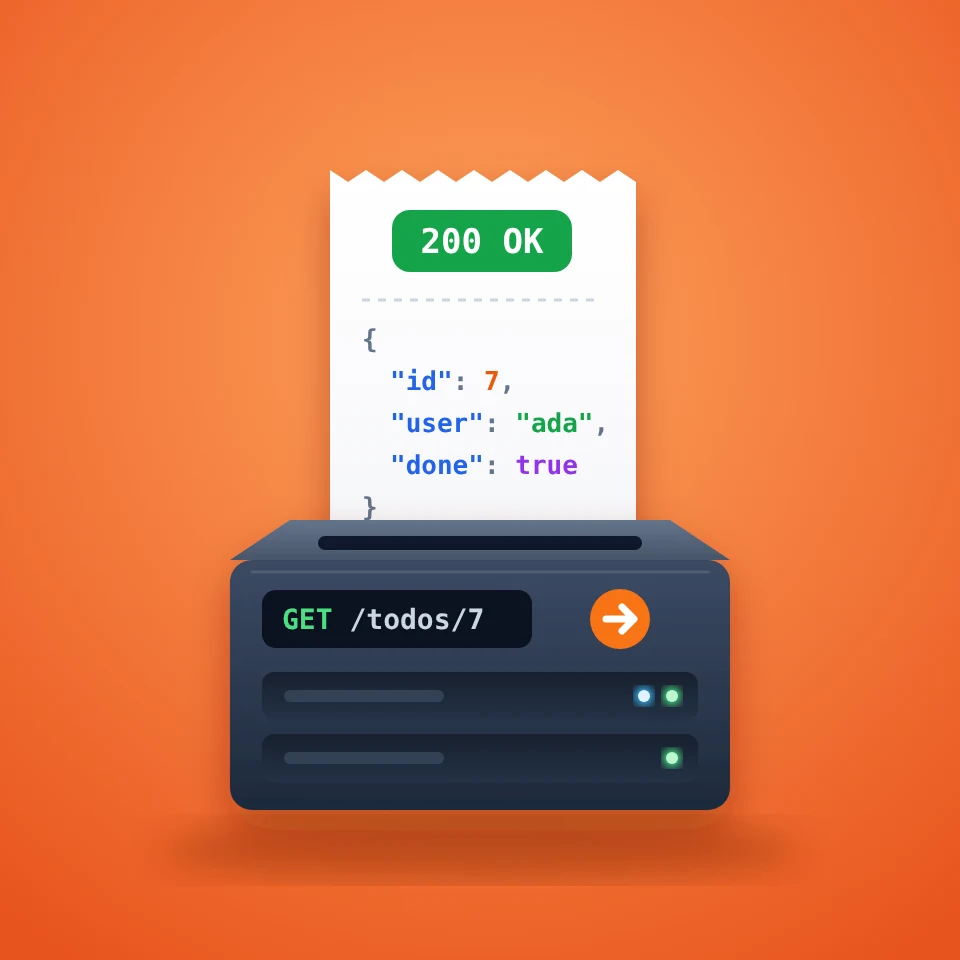
How HTTP API requests work
How an HTTP API request works: methods such as GET and POST, the URL and query string, headers, JSON bodies, status codes, authentication and why browsers block some responses (CORS).

JSON formatter
A free JSON formatter and validator: beautify or minify JSON, find the exact line and column of an error, sort keys, browse a collapsible tree, copy paths and convert arrays to CSV, all in your browser.
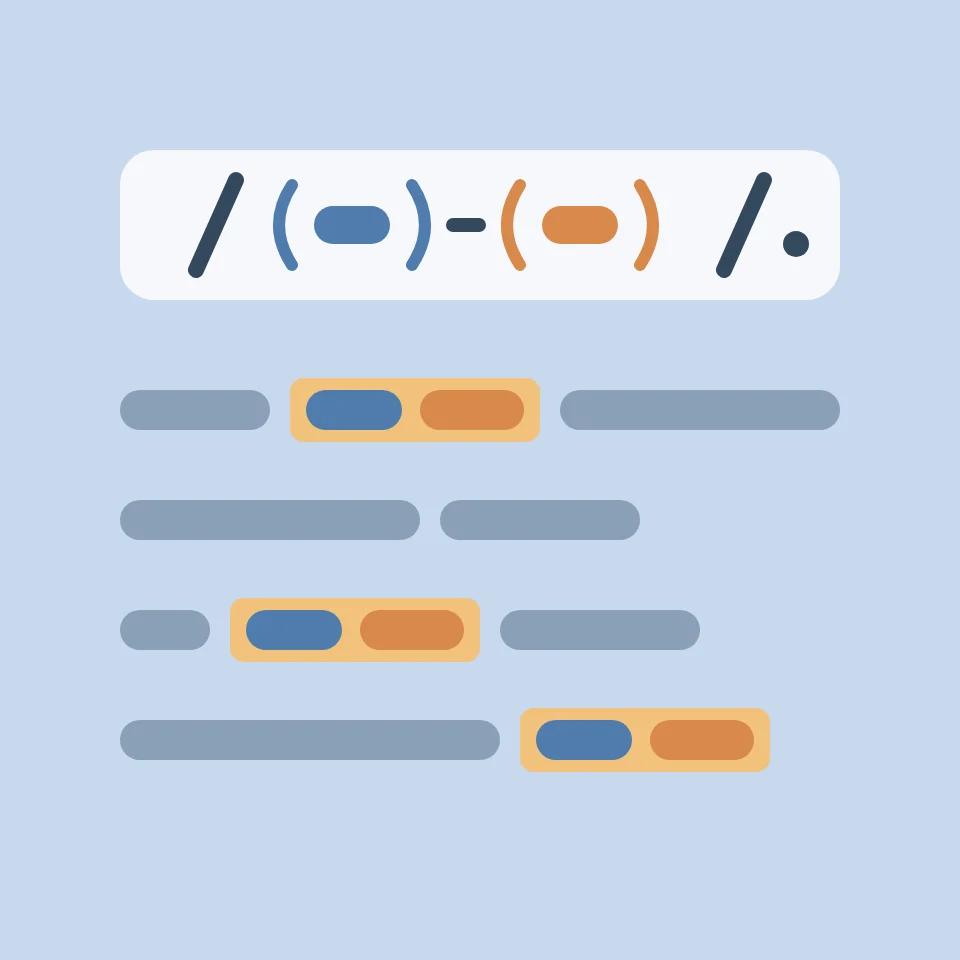
Regex tester
A free online regex tester: see every match and capture group as you type, try a replacement with $1 or $<name>, split text, and read your pattern explained piece by piece, with JavaScript flags and examples.
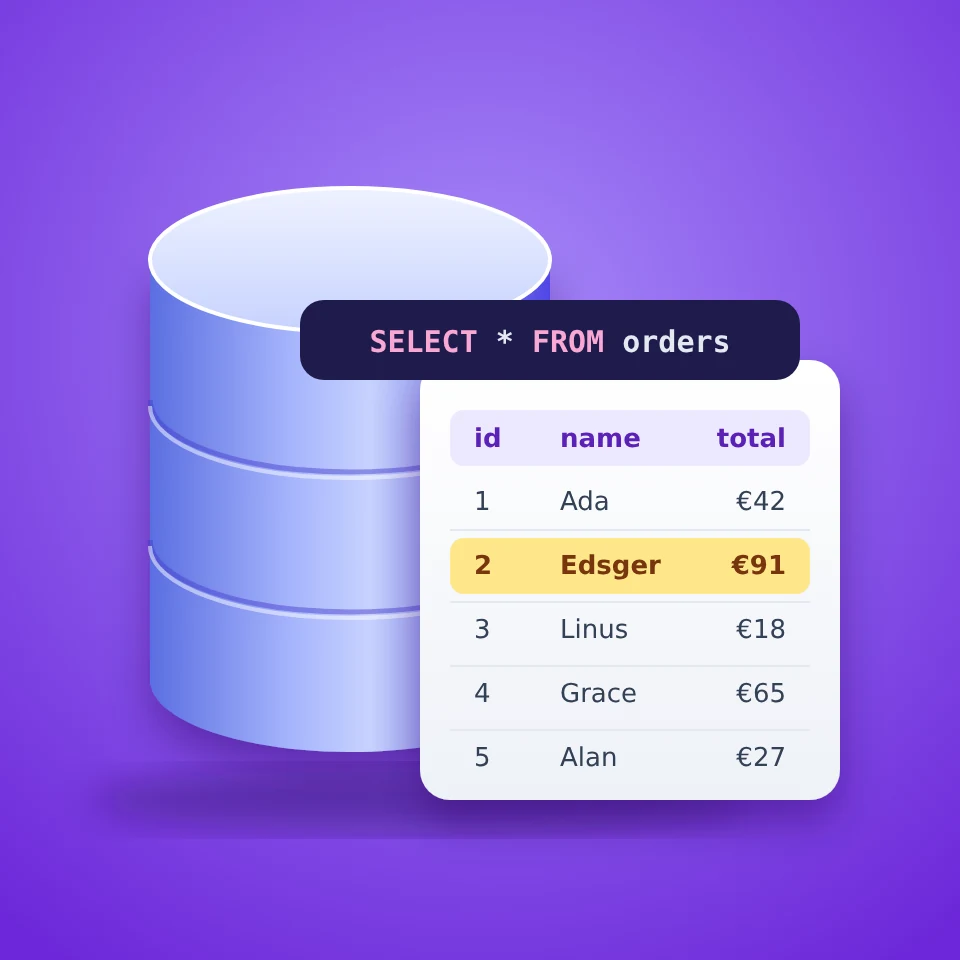
SQL query builder
A free visual SQL query builder: pick tables, columns, joins, filters, grouping and sorting, get formatted SQL for MySQL, PostgreSQL, SQLite or SQL Server, and run it on sample data or your own CSV in the browser.
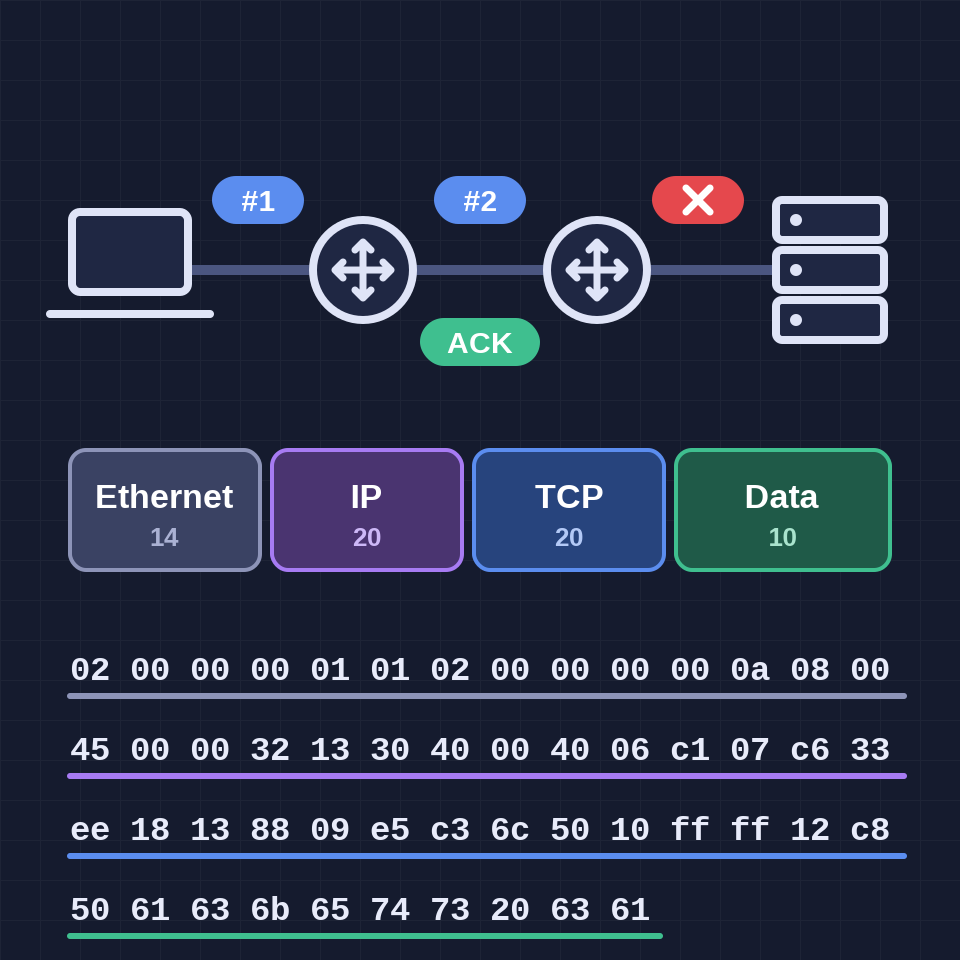
Network packet visualizer
Watch a message travel as packets from a client through routers to a server. See the TCP three-way handshake, acknowledgments, lost packets and retransmissions, compare TCP with UDP, and open every packet down to the bytes of its Ethernet, IP and TCP headers.
Ready to try it?
Open PictorX in your browser — no install, no credit card required to start.
Go to Editor