
Choose a snippet in the list, or press New.
Code Snippet Manager
Keep the bits of code you reuse in one place: a SQL query, a shell one-liner, a regular expression, a block of configuration. Save each snippet with a title, a language and tags, find it again by searching its title, code or tags or by filtering on a language or tag, and copy it in one click. The code is shown with syntax highlighting and line numbers, and the whole library can be exported to a JSON file and imported again. Nothing leaves your browser. Press New, give the snippet a title, a language and tags, paste or type the code and press Save. Search looks in titles, code and tags; filter by language or tag, and sort by last edited, title or language. Copy puts the code on the clipboard in one click, the star pins a snippet to the top, and a deleted snippet comes back with Undo.
How it works
- Press New, enter a title, choose the language, add a few tags and paste the code, then press Save.
- Find a snippet by typing in Search, or filter the list by language or tag and sort it by last edited, title or language.
- Select a snippet to read it with syntax highlighting, copy it in one click, edit, duplicate, pin or delete it, and export the library with Save as JSON.
Why keep a snippet library
Most programmers solve the same small problems again and again: the date format string, the git command that undoes a commit, the SQL join for the monthly report, the CSS that centres a box. Looking for them on the web or in old projects takes minutes every time. A snippet library keeps the versions you trust, with a title that says what they do and tags that say where they belong, so finding one takes seconds. Pin the ones you use every day to keep them at the top of the list.
Search, tags and languages
Search looks for every word you type in the title, the tags, the language and the code itself, so "join report" finds the SQL query tagged report even when its title says something else. Tags are free words separated by commas, up to twelve per snippet, and a click on a tag shows only the snippets that have it. The language sets the colours of the syntax highlighting and the indent that the Tab key inserts: two spaces for JavaScript, four for Python and C#, a tab for Go.
Frequently asked questions
How long can a snippet be?
Up to 200,000 characters of code, with up to 12 tags. Code longer than 100,000 characters is shown as plain text without syntax colours. For long lines, turn on Wrap long lines so you can read them without scrolling sideways.
How do I move my snippets to another computer?
Press Save as JSON to download the library as a file, then open the Code Snippet Manager on the other computer and press Open JSON. Snippets that are already there, recognised by their id, are skipped, so importing the same file twice does not create duplicates.
Which languages are highlighted?
JavaScript, TypeScript, Python, C#, Java, Kotlin, Swift, C, C++, Go, Rust, PHP, Ruby, SQL, HTML, CSS, JSON, YAML, Bash, PowerShell and Markdown, plus plain text. The highlighter colours keywords, strings, comments, numbers, types and function names to make the code easier to read; it does not check that the code runs.
Can I undo a delete?
Yes. After a delete a bar with Undo appears, and the toolbar's Undo and Redo, or Ctrl+Z and Ctrl+Y, step back and forth through every change: saves, duplicates, pins, deletes and imports.
Related tools
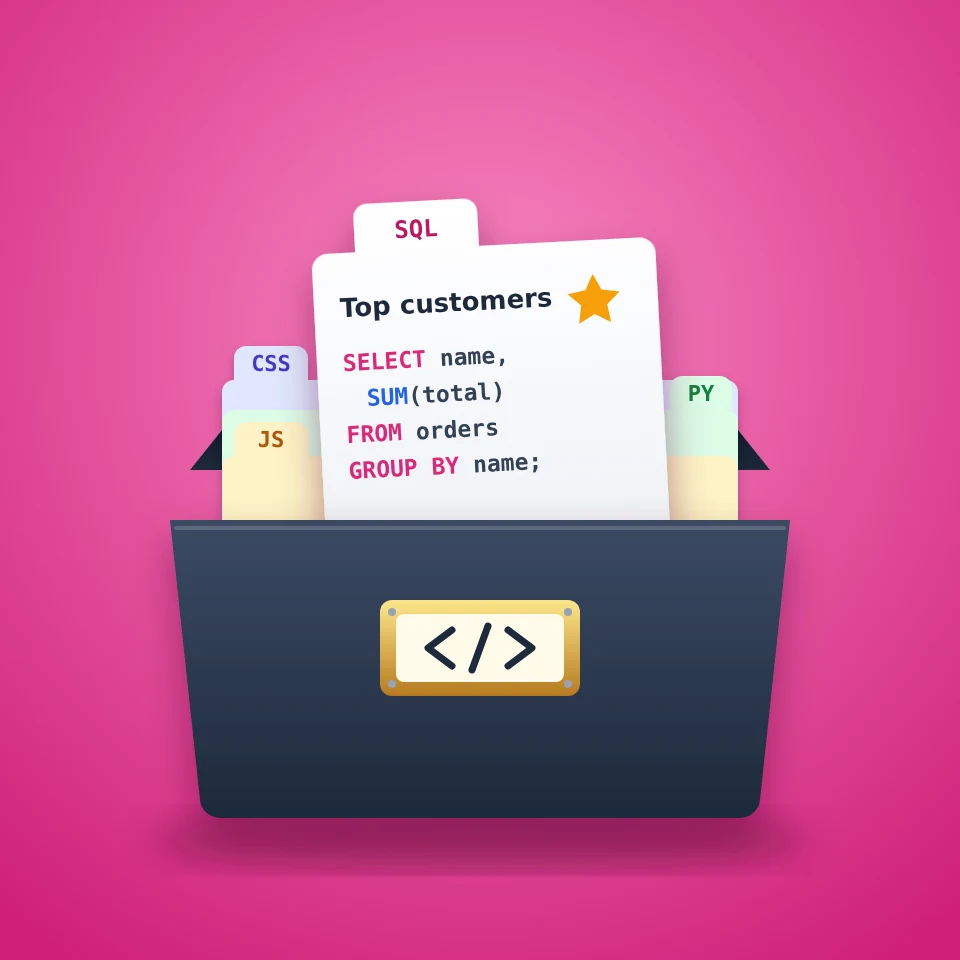
How to manage code snippets
What a code snippet is, why developers keep a snippet library, how to name and tag snippets, how syntax highlighting works, and how to keep snippets safe.

Regex tester
A free online regex tester: see every match and capture group as you type, try a replacement with $1 or $<name>, split text, and read your pattern explained piece by piece, with JavaScript flags and examples.

JSON formatter
A free JSON formatter and validator: beautify or minify JSON, find the exact line and column of an error, sort keys, browse a collapsible tree, copy paths and convert arrays to CSV, all in your browser.
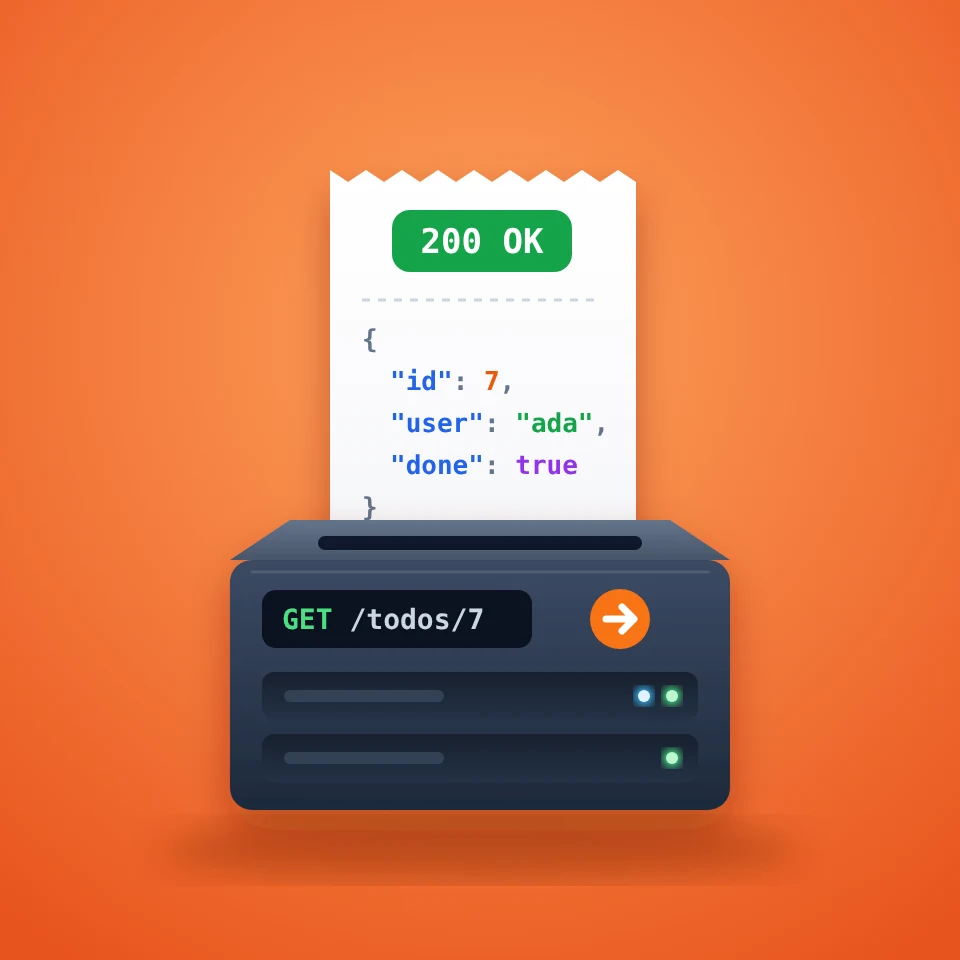
API Tester
A free online API tester: send GET, POST, PUT, PATCH and DELETE requests from your browser with query parameters, headers, a JSON body and auth, then read the status, time, headers and formatted response.
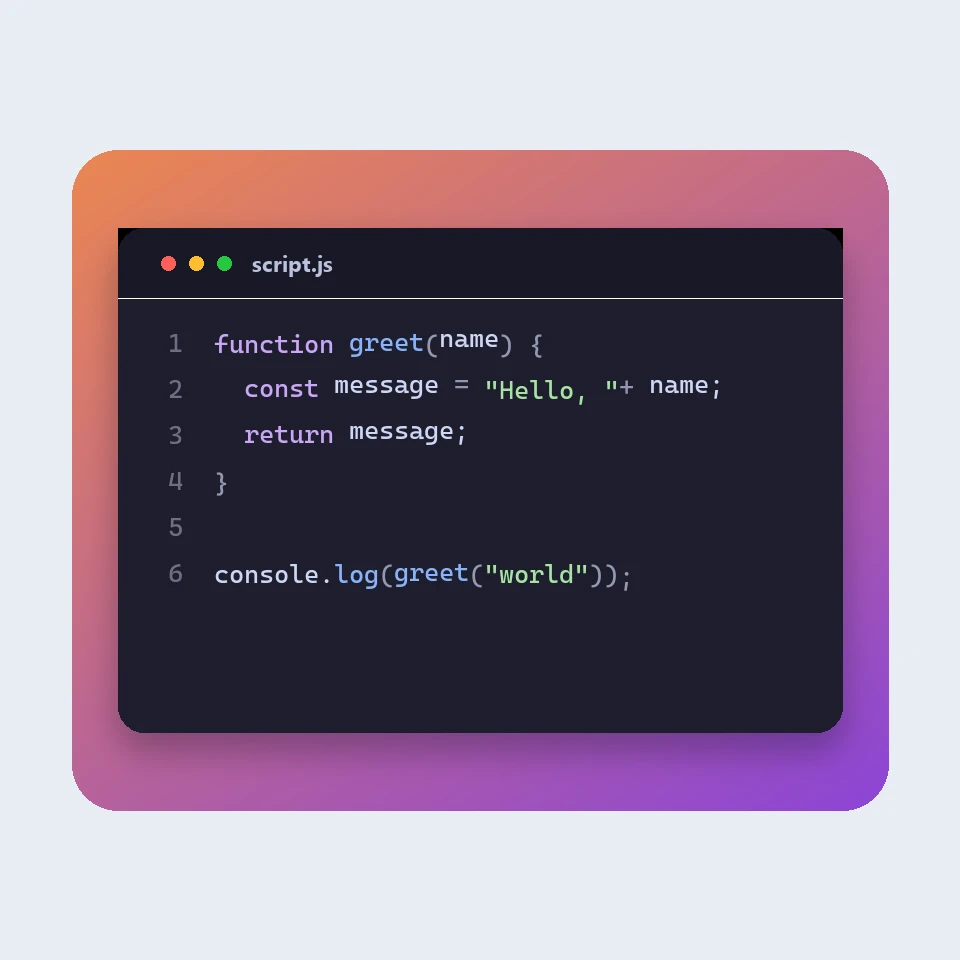
Code to Image
Turn a code snippet into a picture with a language theme, a window frame and a backdrop, then save a PNG for a slide or a post.
Ready to try it?
Open PictorX in your browser — no install, no credit card required to start.
Go to Editor