
Photos
Letters
Style
Letter photo collage maker
Write a name, a word, an age or a year and fill every letter with a photo, or fill a heart, a circle or a star with a mosaic of your photos. Pick a bold or a rounded font, an outline and a shadow, keep the background transparent or give it a colour, and save a picture for a birthday, an anniversary or a nursery wall. Type a name, a word, an age or a year, or pick a heart, a circle or a star, and fill it with your photos. One photo per letter gives every letter a photo of its own; Photo mosaic fills the shape with rows of small square photos (Tiles sets how many across, Photos how many different photos take turns); One photo puts a single photo through the whole shape. Pick a font, the letter spacing, an outline and a shadow, and a transparent or coloured background.
How it works
- Type a name, a word or a number, or pick the heart, the circle or the star.
- Choose how the photos fill it: one photo per letter, a mosaic of photos or one photo through the whole shape.
- Open your photos or drop them on the picture; click a letter or a tile and drag to move its photo.
- Pick the font, the outline, the shadow and the background, then save a PNG or open the layers in the editor.
Every letter its own photo
With One photo per letter each letter of the text shows a photo of its own: a name with a photo of each grandchild, a year with one photo per season, or LOVE with four favourite moments. Click a letter to pick it, drag to move its photo inside, zoom in with the slider or the mouse wheel, and drop it on another letter to swap the two.
A heart full of photos
Photo mosaic fills the shape with small square photos in rows, the way a heart collage on a wedding card or a memorial board looks. Tiles sets how many fit across; your photos take turns, so twelve photos give a varied mosaic. The heart, the circle and the star work the same way, and so do letters and numbers.
Ready for a print or a post
A bold font gives the photos the most room; an outline and a soft shadow make the letters stand off the background. Keep the background transparent for a PNG that sits on any design, or give it a colour. The pencil opens the collage in the PictorX editor with each letter or each photo, the outline and the shadow on layers of their own.
Frequently asked questions
How do I make a photo collage in the shape of a letter?
Type the letter, the name or the number in Text, keep Fill on One photo per letter and open your photos: every letter gets one. For a single letter or initial, Photo mosaic fills it with many small photos instead.
Can I make a heart photo collage?
Yes. Pick Heart under Shape and Photo mosaic under Fill: the heart fills with rows of your photos. One photo puts a single photo through the whole heart.
How many photos can I use?
Up to twelve. With more letters or tiles than photos the photos take turns, so a mosaic is never empty; the example photos fill the gaps until you open your own.
Can I make a birthday number with photos?
Yes. Type the age, such as 18, 30 or 50, and pick a bold font. Each digit gets a photo, or a mosaic of photos with Photo mosaic.
Which font works best for a letter collage?
Bold, wide letters leave the most room for the photos: Heavy and Rounded suit names and short words, Condensed fits a longer name. Script makes thin, elegant letters that look best with a short word.
Can I keep editing the collage?
Yes. The pencil opens it in the PictorX editor with the background, the shadow, every letter or photo and the outline on layers of their own. In the editor, Apps ▸ Collages ▸ Letter Photo Collage makes one from the photos in your document.
Related tools
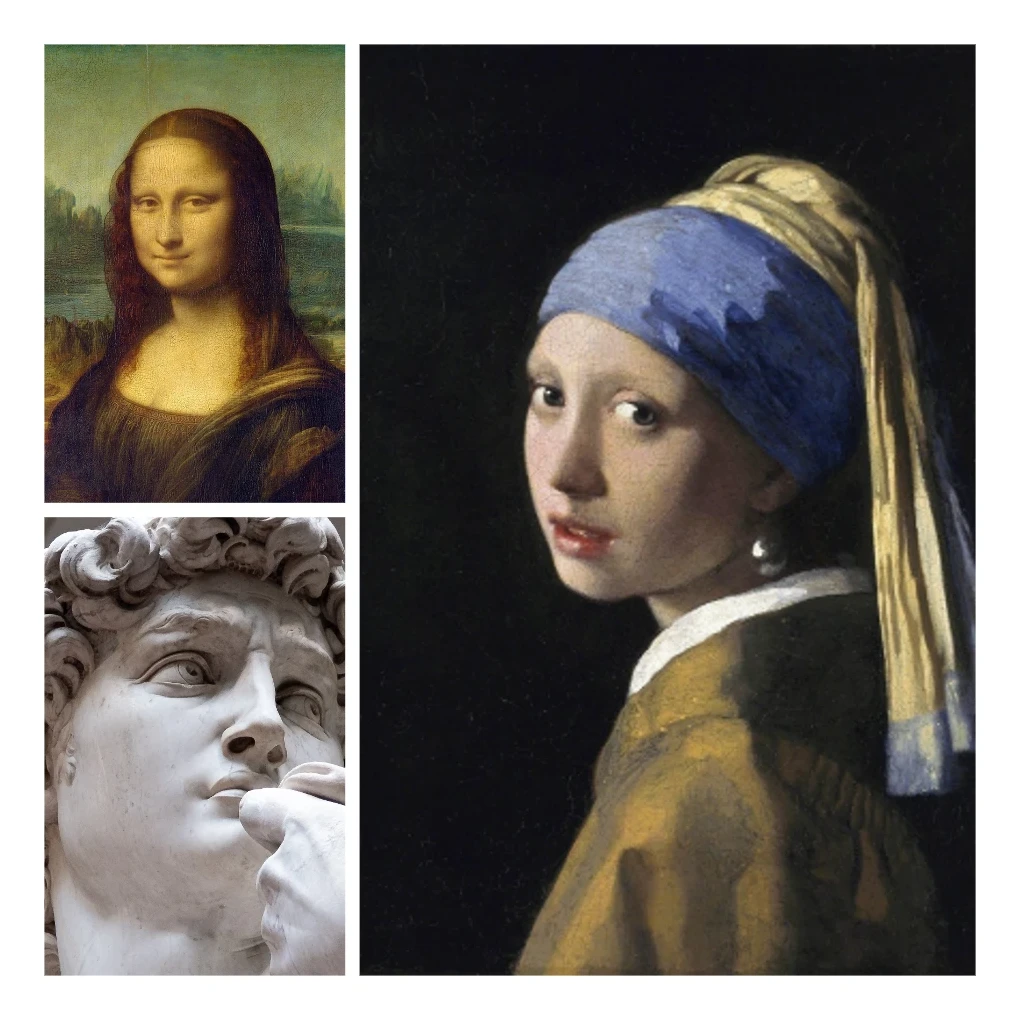
Photo collage
Make photo collages free online with PictorX. Combine 2 to 20 photos, pick a layout, and export.
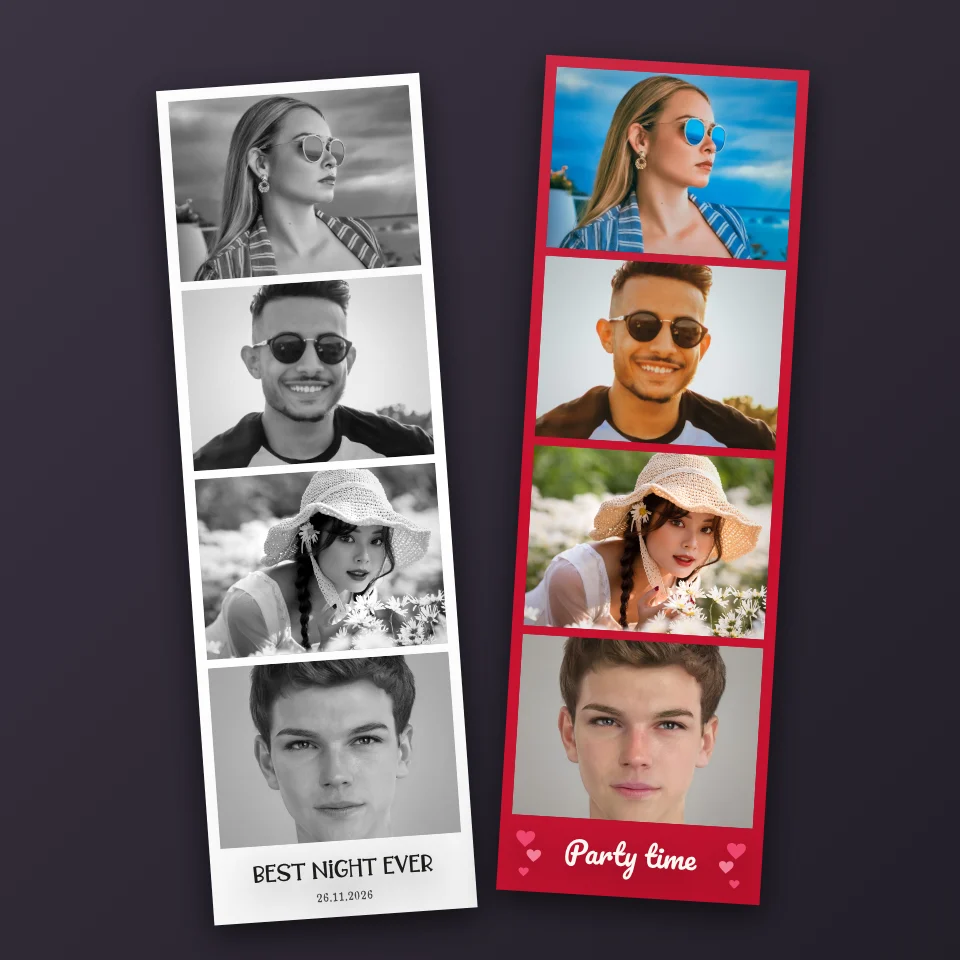
Photo booth strip maker
Make a photo booth strip online: two to four photos on a strip with a caption and a date, in colour, black and white or sepia. Free, in your browser, ready to print or post.
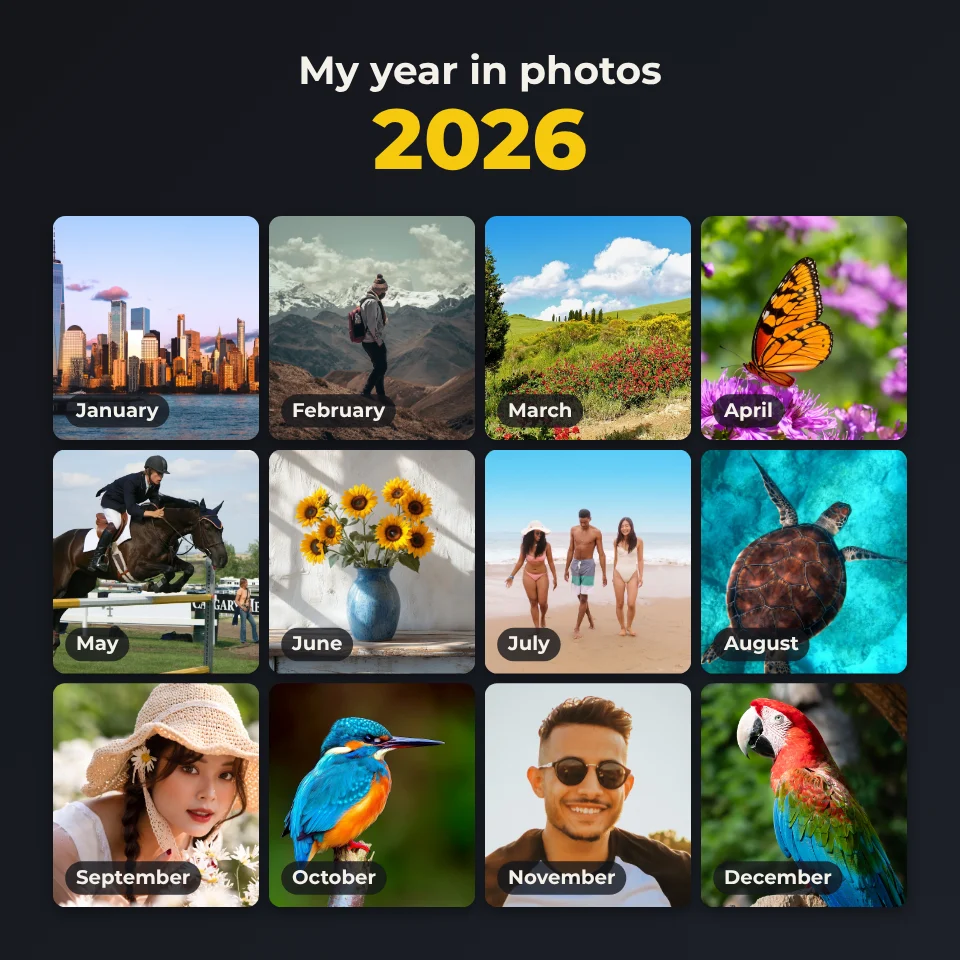
Year in review collage maker
Make a year in review collage: your best photo of every month in a grid under the year, with month names, captions and a large photo of the year. Free, for Instagram or print.
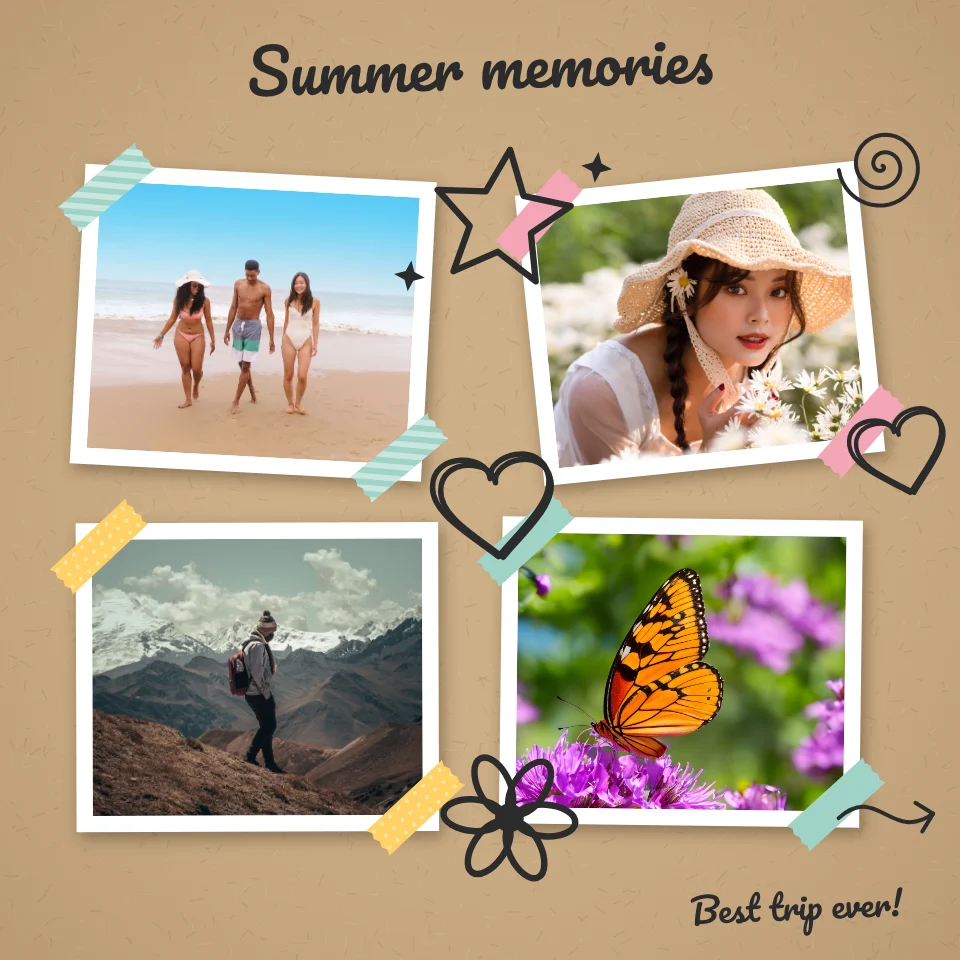
Scrapbook page maker
Make a digital scrapbook page: your photos on patterned paper with washi tape, photo corners, doodles and a handwritten title. Free, in your browser, every piece on its own layer.
Magazine Cutout Letters Generator
Free magazine letters and scrapbook font generator: type a word and get ransom-note cutout letters in 26 looks and wave or arc layouts. Download a PNG or copy it.
Ready to try it?
Open PictorX in your browser — no install, no credit card required to start.
Go to Editor