

Free AI background remover
Cut out subjects and create transparent PNGs without installing software. PictorX runs background removal in your browser—so your photos stay private—then lets you keep editing with layers, effects, and templates. Open a picture or use the sample, then click Start.
How it works
- Open PictorX in your browser and load a photo.
- Choose Remove background from the AI tools.
- Review the cutout, then export a transparent PNG or continue designing.
How to remove a background in PictorX
Open PictorX in your browser, load a photo, and choose the Remove background tool. The AI separates subject from backdrop so you can export a transparent PNG or drop the cutout onto a new design. Because processing happens on your device, you do not need an account or credits to try it. Stay in the same workspace to add text, swap backdrops, or open a template around your cutout.
Best uses for transparent cutouts
Product shots for Etsy and Shopify, profile pictures, YouTube thumbnails, presentation slides, and collage layouts all benefit from a clean cutout. After removal, replace the backdrop with a solid brand color, a gradient, or a lifestyle scene. Sellers often keep a library of cutouts so listing updates take minutes instead of reshoots.
Why choose a free online background remover
Desktop tools are powerful but slow to start. PictorX gives you an instant browser workflow: remove the background, refine edges with other edit tools, then design the final graphic in the same workspace—no round-trips between apps. That matters when you are batching product photos or iterating on social creatives under a deadline.
Tips for cleaner edges
Start with a reasonably sharp photo and good contrast between subject and backdrop. Slightly soft phone photos still work, but busy backgrounds or hair against similar colors may need a second pass. After removal, zoom in on edges and use repair, clone, or brush tools if a small fringe remains.
Frequently asked questions
Do my images leave my device?
Background removal runs with on-device AI in supported browsers, so photos are not uploaded to PictorX servers for that step.
Can I export a transparent PNG?
Yes. After removal, export your cutout as a PNG with transparency or continue designing in PictorX.
Does it work on product photos?
Yes. It is commonly used for marketplace listings, catalog shots, and social ads where a clean cutout is required.
Can I replace the background after I remove it?
Yes. Drop the cutout onto a solid color, a lifestyle scene, a template, or use Replace background to try a new setting in the same workspace.
Related tools

Free transparent PNG maker
Make a transparent PNG free online. Remove backgrounds and export clear PNGs with PictorX for logos, products, and stickers.
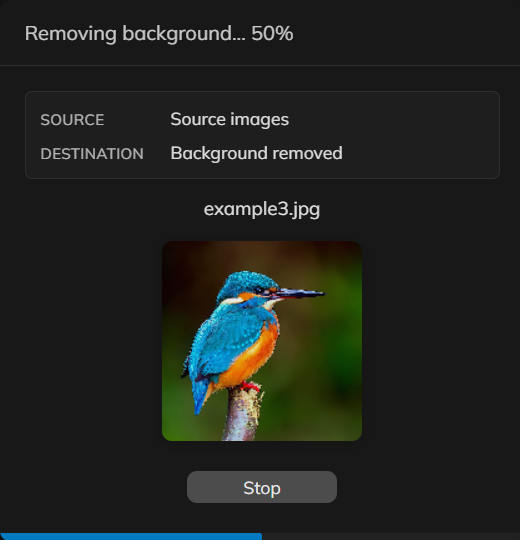
Remove backgrounds from many photos at once
Remove backgrounds from a set of product or portrait photos in PictorX. Same on-device cutout, applied across many files.
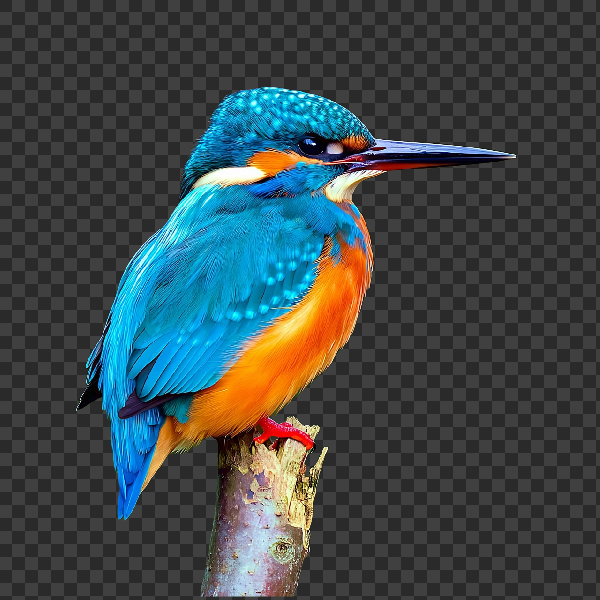
Remove backgrounds on your device
Cut out subjects with on-device AI in PictorX. Photos stay in your browser—no upload to our servers.

AI models
What AI and AI models are, how they power photo editing—background removal, inpainting, enhance, uncrop—and how PictorX runs many tools on-device.
Image file formats
JPG vs PNG vs WebP: compression, quality, transparency, browser support, and when to use each format for web and print in PictorX.
Ready to try it?
Open PictorX in your browser — no install, no credit card required to start.
Go to Editor