
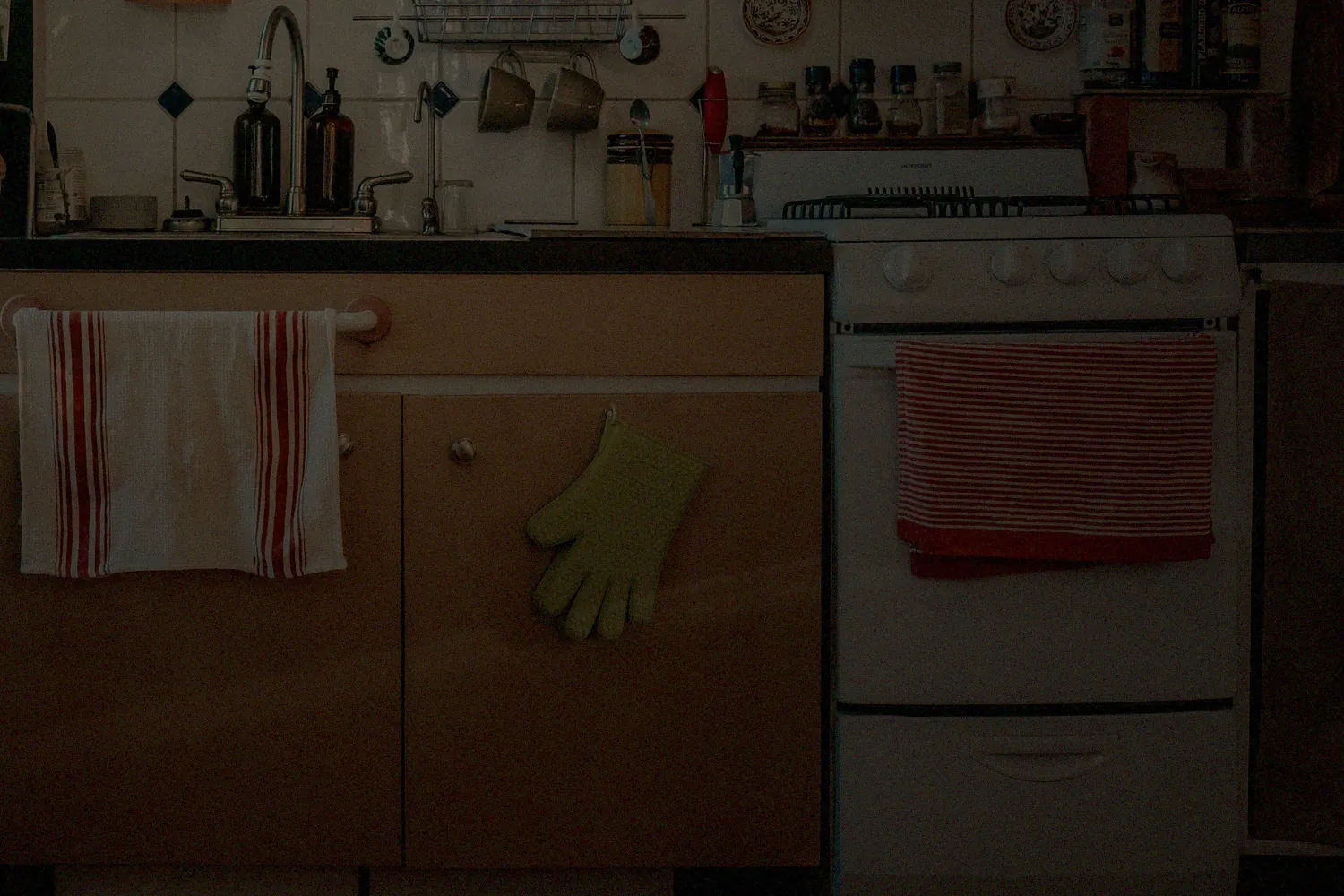
Open a dark photo, or use the sample. It is brightened at once; Brightness, Denoise, Contrast and Saturation change the result as you move them.
Fix a dark photo
Low-light fix brightens photos taken in a dim room, at night or against the light. It works out how much light fell on each part of the picture and lifts the dark parts much and the bright parts hardly at all, so a lamp or a window does not burn out while the shadows open up. The noise that brightening brings up is smoothed away, the orange or blue cast of lamps is corrected, and the colors keep their hue. It runs at once on your device, with nothing to download. Open a dark photo, or use the sample. It is brightened at once; Brightness, Denoise, Contrast and Saturation change the result as you move them.
How it works
- Open a dark photo, or use the sample. It is brightened at once.
- Set Brightness for how light it gets and Denoise for how much grain is smoothed away.
- Adjust Contrast and Saturation, keep Protect highlights and Fix color cast on, then save or keep editing.
Bright where it was dark, not where it was lit
Turning up the brightness of a dark photo lifts everything by the same amount, so a lamp or a window burns out before the shadows can be seen. Low-light fix first estimates the light that fell on each part of the picture, the Retinex idea behind methods such as LIME: each pixel's brightest channel, smoothed along the edges of the photo. The light is then lifted along a curve that raises dim light much and bright light little, and each pixel is brightened by the same factor in red, green and blue, so the colors keep their hue. A photo that is already bright is hardly changed, and Protect highlights rolls the brightest parts off softly instead of clipping them.
Less noise, natural colors
A dark photo hides its sensor noise in the shadows; brightening brings it out as grain and colored blotches. Denoise smooths the grain with an edge-aware filter and the colored blotches more strongly, both most where the photo was brightened most, so edges and textures stay. Street lamps and bulbs make night photos orange: Fix color cast balances the colors from the bright, near-neutral parts of the picture. Contrast and Saturation bring back the depth and the color that lifting the shadows softens.
Frequently asked questions
How do I brighten a dark photo?
Open the photo: it is brightened at once. Set Brightness and Denoise, keep Protect highlights and Fix color cast on, and save. In the editor it is under AI → Image → Low-light fix.
Why not just turn up the brightness?
A brightness or exposure slider lifts every pixel by the same amount, so the parts that were already lit burn out to white before the shadows show. Low-light fix lifts each part according to the light that fell on it: much in the shadows, little where it was bright.
Why does my brightened photo look grainy?
Every camera records noise, and in a dark photo it hides in the shadows. Brightening brings it out. Raise Denoise to smooth it away; very high values make fine textures softer, so find the balance for your photo.
Does it use an AI model?
No download is needed: the light, the noise and the color cast are all worked out from your photo with image-processing methods (Retinex illumination estimation, guided filtering and a shades-of-grey white balance), so it runs at once on any device and your photo never leaves it.
Can it fix a photo that is completely black?
Only what the camera recorded can be brought back. Where the shadows are pure black there is nothing to lift; a photo that is just dark, even very dark, usually has plenty of detail hidden in it.
Related tools
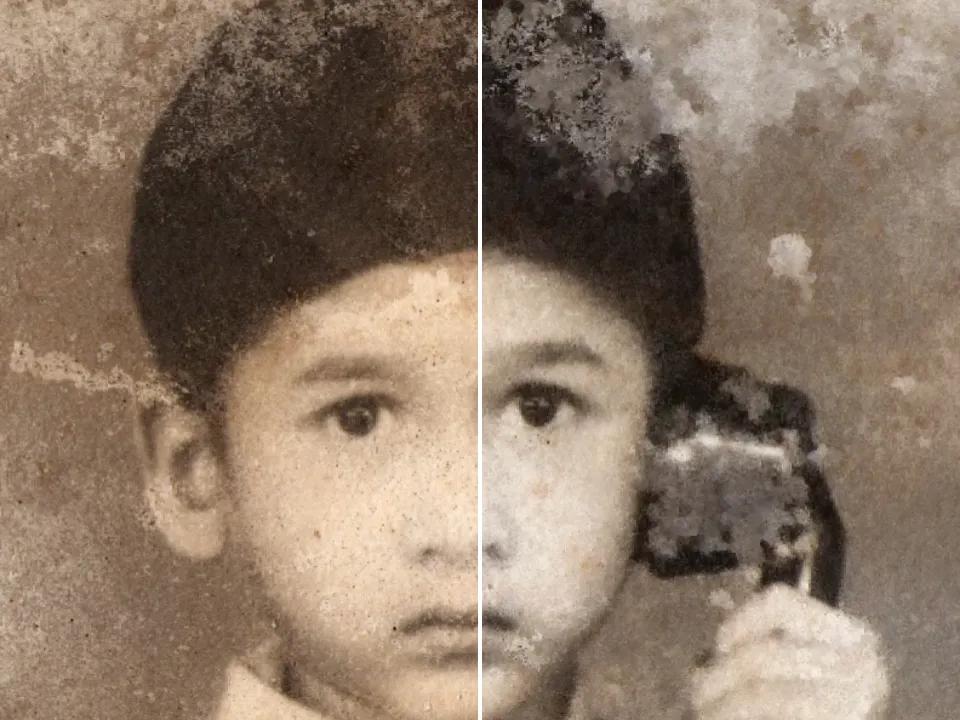
Restore an old photo
Restore old photos in your browser: scratches, dust and cracks are found and filled, grain and fading are fixed, and on-device AI can add natural colors. Free, and your photo is not uploaded.
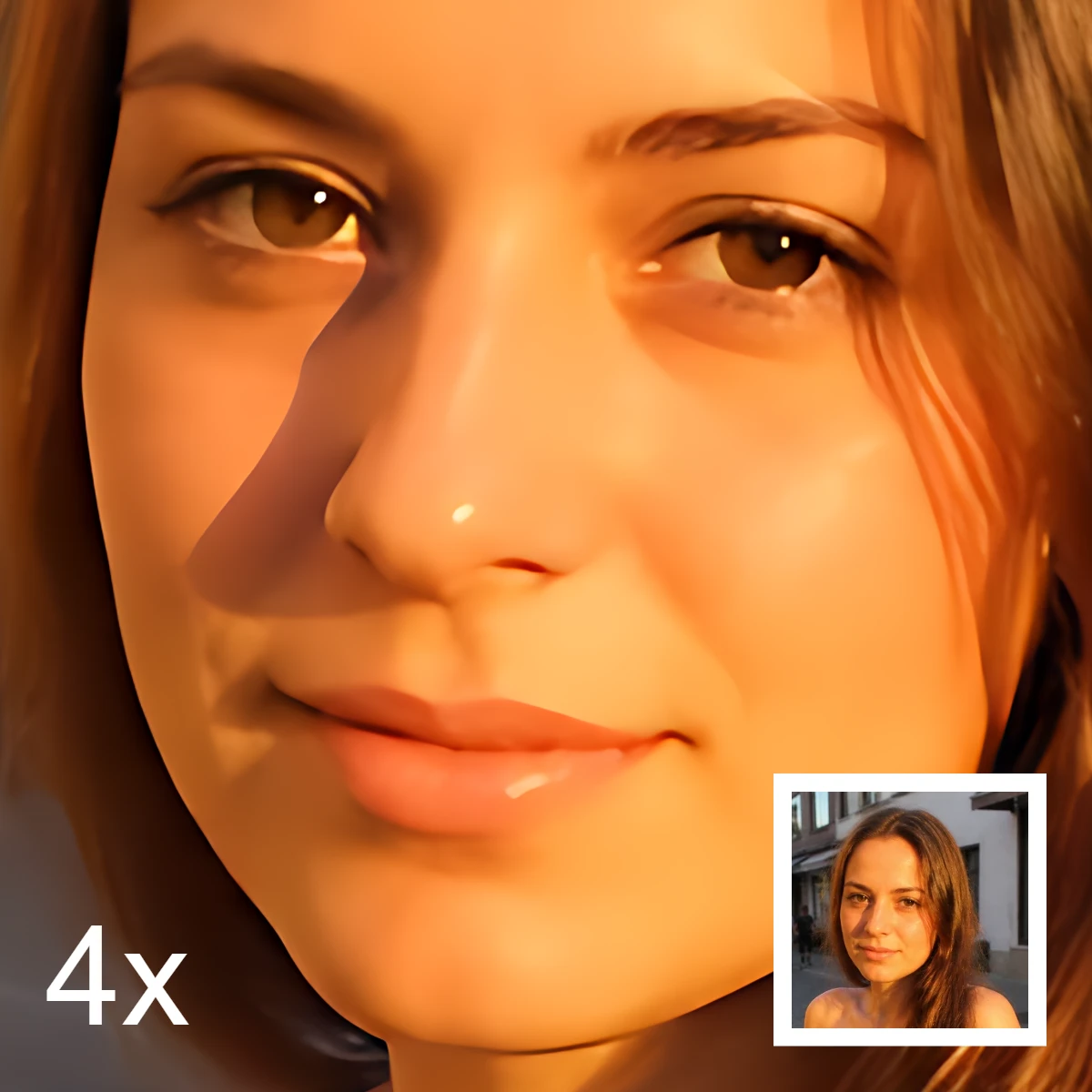
Enhance and upscale photos on your device
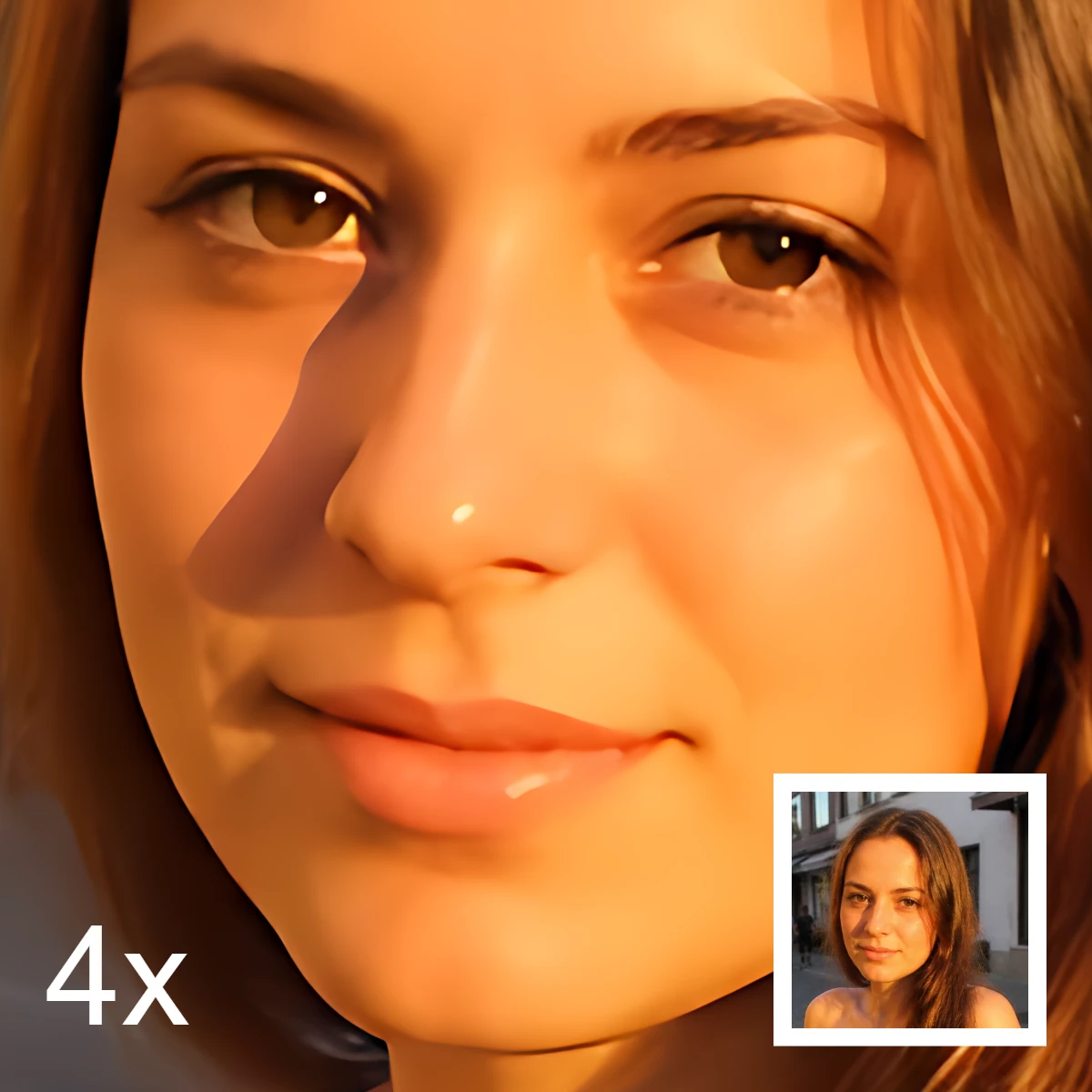
Sharpen and upscale photos in your browser with on-device Real-ESRGAN. Choose 1×, 2×, or 4×.
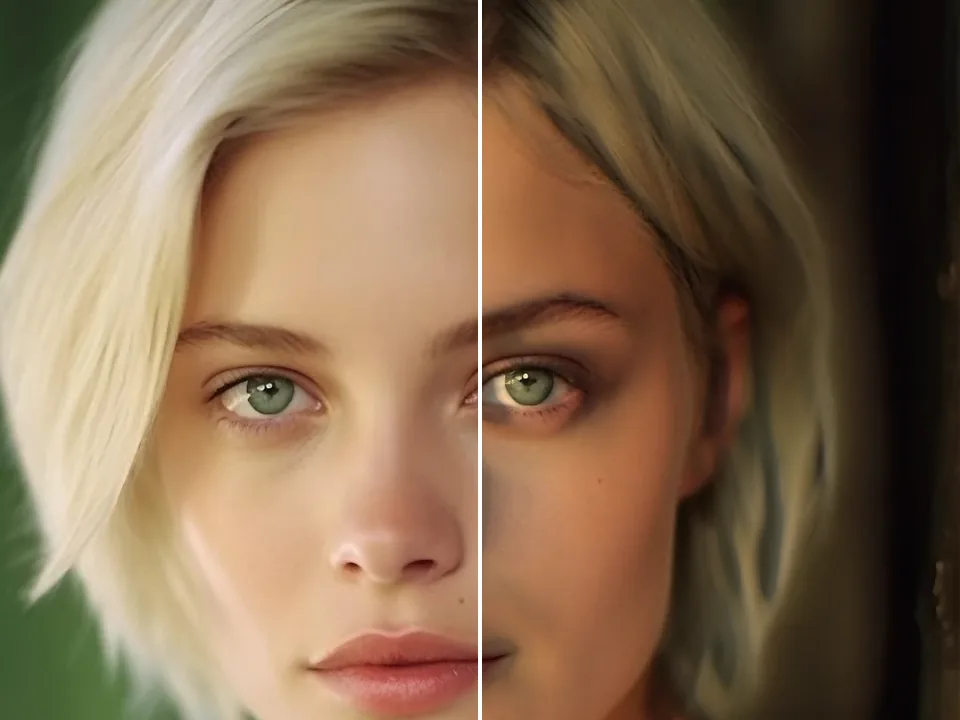
Relight a photo
Change the lighting of a photo in your browser: on-device AI finds the depth, so a new sun or lamp lights the shapes from any side, warm or cool, with soft shadows. Free, and your photo is not uploaded.
AI image editing
What is AI image editing? How it differs from retouching, the main jobs (cutouts, object removal, enhance, repair, uncrop), on-device privacy and limits.
Ready to try it?
Open PictorX in your browser — no install, no credit card required to start.
Go to Editor