

Try a mosaic look below, or open your own picture.
Stone Mosaic
Turn a photo into a mosaic of real stones, not a grid of pixels. PictorX sets the picture in small square stones on a hand-laid grid, each stone one colour, a little lighter or darker than its neighbours and bevelled so it catches the light, all set in grout. Where the picture has an edge, the rows of stones turn to follow it, the way a mosaicist lays them round a face or a wave. Choose the stone size and the grout colour, then keep editing in the same workspace. Try a mosaic look below, or open your own picture.
How it works
- Open this page and try a mosaic look on the sample, or open your own photo.
- Pick small, classic or large stones, a light, dark or gold grout, and whether the stones follow the edges.
- Save the mosaic, or keep editing with layers, text, and other effects in PictorX.
A mosaic, not a pixelation
A pixelate filter cuts the photo into a rigid grid of flat squares. Stone Mosaic lays it the way a mosaicist does: stones on a slightly uneven grid with grout between them, each stone one colour from a stone's limited range, a little lighter or darker than the next, bevelled so the light catches its upper edge. Around the picture's shapes the stones turn, so the rows flow along a face, a shell or a wing (the andamento of a Roman mosaic), while calm areas stay in straight rows.
Stones, grout and edges you control
Tile size sets how many stones the picture gets: small stones keep detail, large ones read like a floor mosaic. Grout color changes the whole mood: warm grey like mortar, dark for a jewel-like look, gold for Byzantine glass. Turn off Follow edges for a strict grid. The same mosaic is a style in the Fractal generator and the tessellation makers, and in the editor it is under Filters, Stylize, and in the Effect Brush, so you can paint the mosaic onto part of a photo.
Looks in this set
Frequently asked questions
How is this different from the Mosaic pixelate filter?
The pixelate Mosaic turns the photo into a grid of flat squares. Stone Mosaic sets it in separate stones with grout between them, each stone bevelled and slightly varied in colour, and turns the stones to follow the picture's edges like a real mosaic.
Can I change the stone size and the grout?
Yes. Tile size sets the stones from 4 to 100 pixels, and Grout color can be any colour: warm grey, dark, gold, or your own.
What does Follow edges do?
With Follow edges on, the stones turn to run along the outlines in the picture, so rows flow round shapes as in a Roman mosaic. Turn it off for a straight grid of stones.
Does the mosaic run in my browser?
Yes. PictorX makes the mosaic in your browser, so the photo is not uploaded to PictorX servers for this step.
Related tools
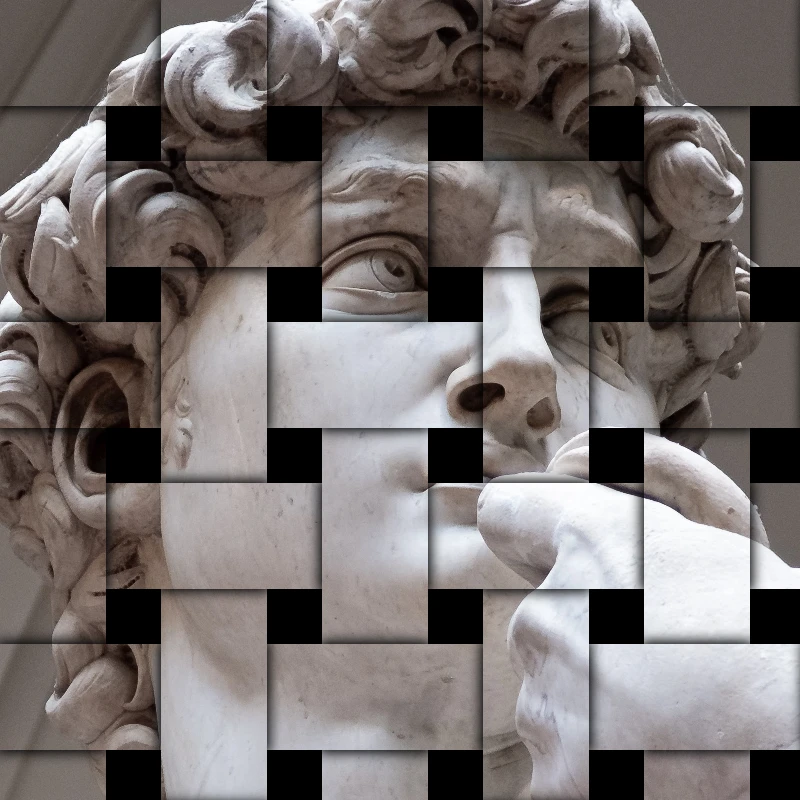
Stylize effects
Add shatter, glitch, fire, emboss, vignette, and other studio stylize looks to photos.
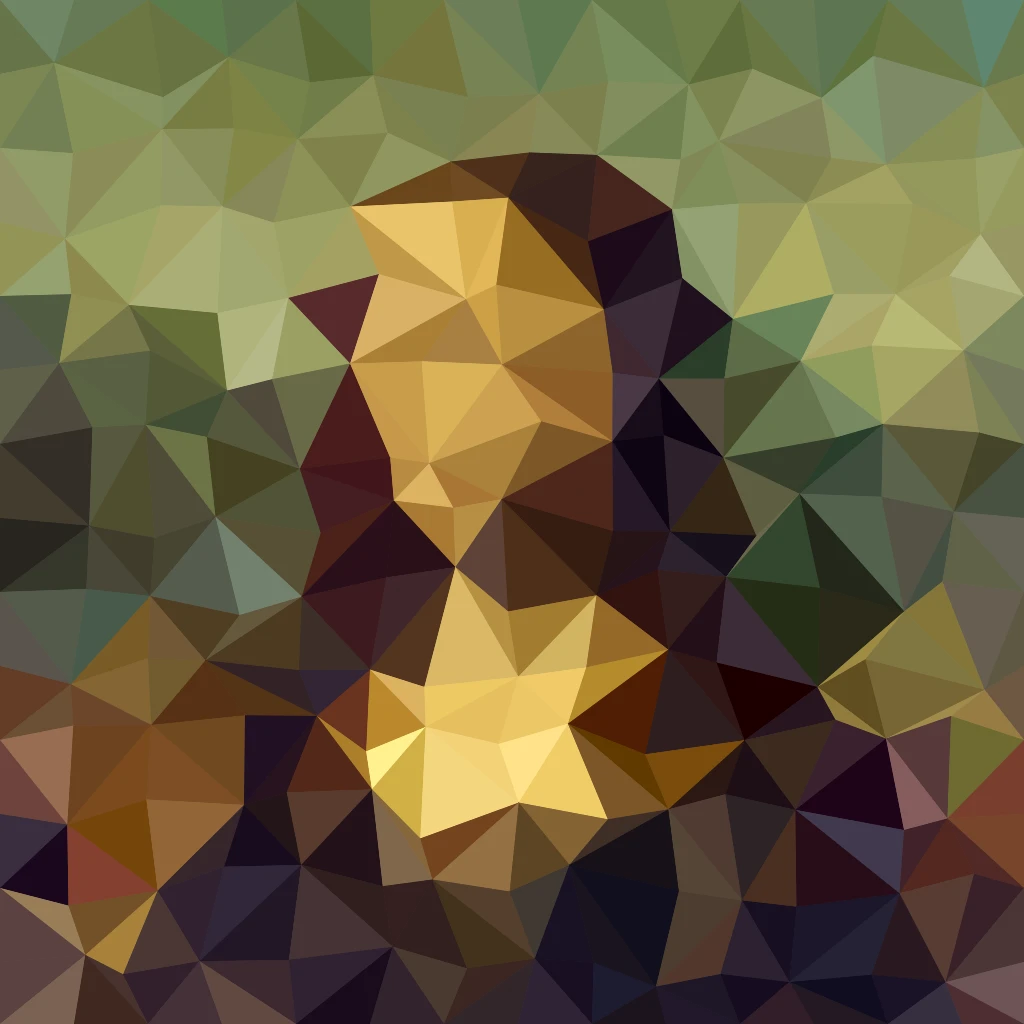
Pixelate effects
Turn photos into mosaic tiles, hexagons, crystals, low-poly art, halftone dots, and retro arcade palettes.
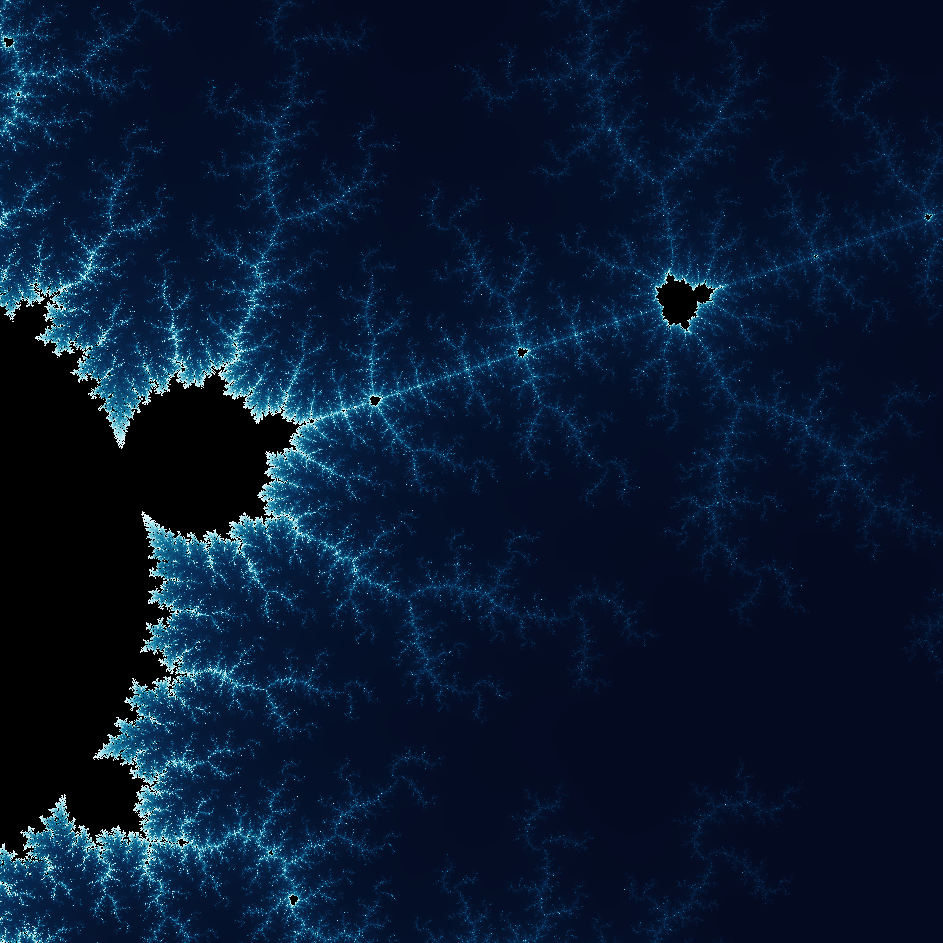
Fractal generator: zoom into Mandelbrot, Julia and Newton fractals
Free online fractal generator: zoom about 5 trillion times into the Mandelbrot set, Julia and Newton fractals, jump to 64 famous spots and save a PNG.
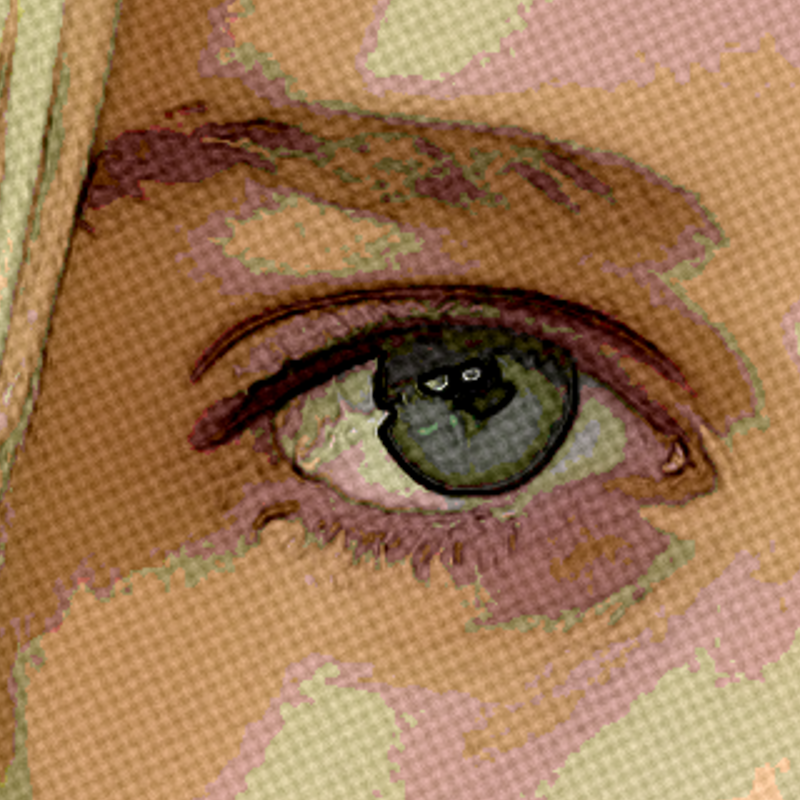
Artistic effects
Transform photos with oil painting, watercolor, pencil, comic ink, pastels, paper cut-out, and other studio art looks.
Ready to try it?
Open PictorX in your browser — no install, no credit card required to start.
Go to Editor