

Try a mosaic look below, or open your own picture.
Grid mosaic effect
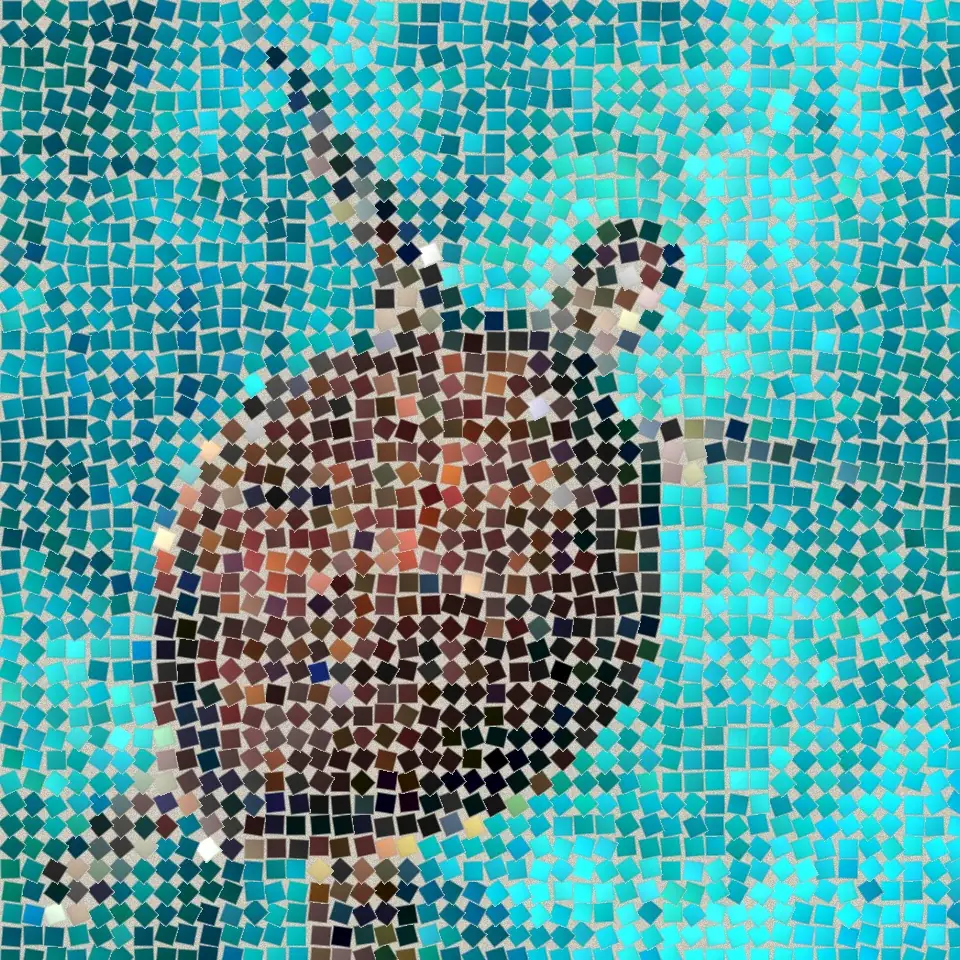
Open a photo and apply Grid mosaic in PictorX. This look is part of Stone Mosaic—adjust the settings on this page, then keep editing with layers, text, and other effects in the same workspace. Try a mosaic look below, or open your own picture.
How it works
- Open this page and try Grid mosaic on the sample, or open your own photo.
- Tune the Grid mosaic settings, or switch to another look in Stone Mosaic.
- Save the result, or keep editing with layers, text, and other effects in PictorX.
What the Grid mosaic effect does
Grid mosaic is one of the looks in PictorX Stone Mosaic. Apply it in your browser, then keep working in the same project—crop, type, or add another effect without starting over.
More looks in Stone Mosaic
This page opens Stone Mosaic with Grid mosaic already selected. Switch looks on the demo to compare styles, or open the full Stone Mosaic page to browse every option in the set.
Looks in this set
Related tools
Stone Mosaic
Turn a photo into a real stone mosaic in your browser: square stones in grout that follow the picture's edges like a Roman mosaic. Free, no upload.
Roman mosaic effect
Apply a Roman mosaic effect to photos free in your browser. Open the Stone Mosaic tools, tune the look, and keep editing in PictorX. No install.
Fine mosaic effect
Apply a Fine mosaic effect to photos free in your browser. Open the Stone Mosaic tools, tune the look, and keep editing in PictorX. No install.
Floor mosaic effect
Apply a Floor mosaic effect to photos free in your browser. Open the Stone Mosaic tools, tune the look, and keep editing in PictorX. No install.
Dark grout effect
Apply a Dark grout effect to photos free in your browser. Open the Stone Mosaic tools, tune the look, and keep editing in PictorX. No install.
Byzantine gold effect
Apply a Byzantine gold effect to photos free in your browser. Open the Stone Mosaic tools, tune the look, and keep editing in PictorX. No install.
Ready to try it?
Open PictorX in your browser — no install, no credit card required to start.
Go to Editor