
Eye color changer
Give any portrait new eyes. The eyes are found for you and each iris is recolored from the photo itself, so its pattern, the pupil and the catchlight stay as they were. Pick a color or a look such as Anime, Cat, Husky, Vampire or Heterochromia, make the eyes larger, change the pupils, add a limbal ring, whiten the whites or fix red eyes, then save the photo or keep editing each eye on a layer of its own. Open a portrait, drop it on the picture or pick an example: the eyes are found and marked with two circles. Pick a color or a look, then fine-tune the size, the pupils, the limbal ring, the whites, the sparkle and the glow. If an eye was not found well, drag its circle onto the eye, or the circle's edge to fit the iris. Hold Compare to see the original. Your photos stay on your device.
How it works
- Open a portrait, drop it on the picture, or start with the example. The eyes are found and marked with two circles.
- Pick an eye color, or a look such as Natural, Anime, Cat, Husky, Vampire or Heterochromia.
- Fine-tune Eye size, Color strength, Pupil, Limbal ring, Brighten iris, Whiten, Sparkle and Glow. If a circle is not on the eye, drag it there, and its edge to fit the iris.
- Hold Compare to see the original, then save a PNG or JPG, or open it in the editor with each eye on a layer of its own.
Sixteen eye colors, and your own
Blue, light blue, ice blue, green, emerald, turquoise, hazel, brown, grey, violet, pink, amber, gold, red, black and white, or any color from the color picker. The new color follows the light of the iris itself: its strands, its darker rim and the lighter ring round the pupil stay, the pupil stays dark and the catchlight stays white, so the eye looks real rather than painted over. Color strength sets how much of the new color shows, and Each eye its own color gives the right eye a color of its own, for heterochromia.
Looks: anime, cat, vampire and more
A look sets everything at once. Natural brightens the iris and the whites; Anime and Doll make the eyes large with big pupils; Husky turns them ice blue; Heterochromia gives each eye its own color; Cat gives amber eyes a slit pupil; Vampire makes them red and glowing; Hearts and Stars draw heart- or star-shaped pupils, and Ghost turns the irises white. Change any setting afterwards to make the look your own.
Size, pupils, sparkle and red eyes
Eye size enlarges each eye from its middle outwards, smoothly into the skin around it, or makes it smaller. Pupil makes the pupils larger or smaller, removes them, or draws a cat's slit, a heart or a star. Limbal ring darkens the rim of the iris, Brighten iris lightens it, Whiten cleans up the whites, Sparkle adds a catchlight and Glow lets the eyes shine. Fix red eyes turns the red pupils of a flash photo dark again. Everything happens in your browser; your photo is not uploaded.
Frequently asked questions
How do I change eye color in a photo?
Open your photo on this page or drop it on the picture. The eyes are found and each iris takes the color you pick, from blue and green to gold and red, or your own with Custom color; Color strength sets how much of it shows. Then save a PNG or JPG. It is free and works in your browser.
What if the eyes are not found, or found in the wrong place?
The eyes are looked for automatically, which works best on a portrait with both eyes open and facing the camera. If a circle is in the wrong place, drag it onto the eye, and drag its edge to make it as large as the iris. When no eyes are found, the circles start in the middle of the photo, ready to place.
Can I give each eye a different color?
Yes. Turn on Each eye its own color and pick a color for the right eye; the left eye keeps the first color. The Heterochromia look starts with one blue and one brown eye.
Can I make cat eyes or anime eyes?
Yes. The Cat look gives amber irises with a slit pupil, and Anime makes the eyes much larger with big pupils and bright catchlights. Pupil can also draw heart or star pupils, and Glow makes the eyes shine, as in the Vampire look.
Can I keep editing the result?
Yes. The pencil opens it in the PictorX photo editor with the photo, the left eye, the right eye and the glow on layers of their own, so you can move, fade or hide each eye. In the editor itself the same tool is under Apps ▸ Photo ▸ Eye Editor.
Related tools
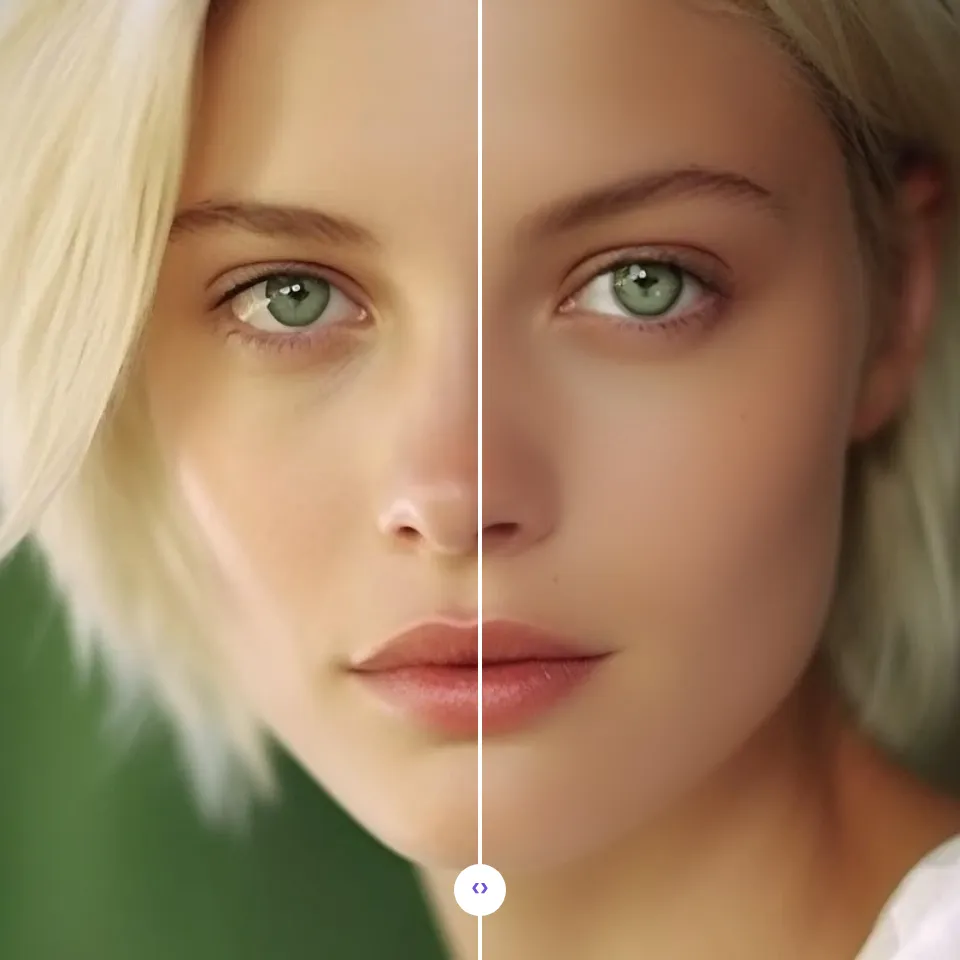
Portrait retouch
Retouch portraits online for free: smooth the skin, remove blemishes, whiten the teeth and brighten the eyes. The face is found for you and your photo stays on your device.
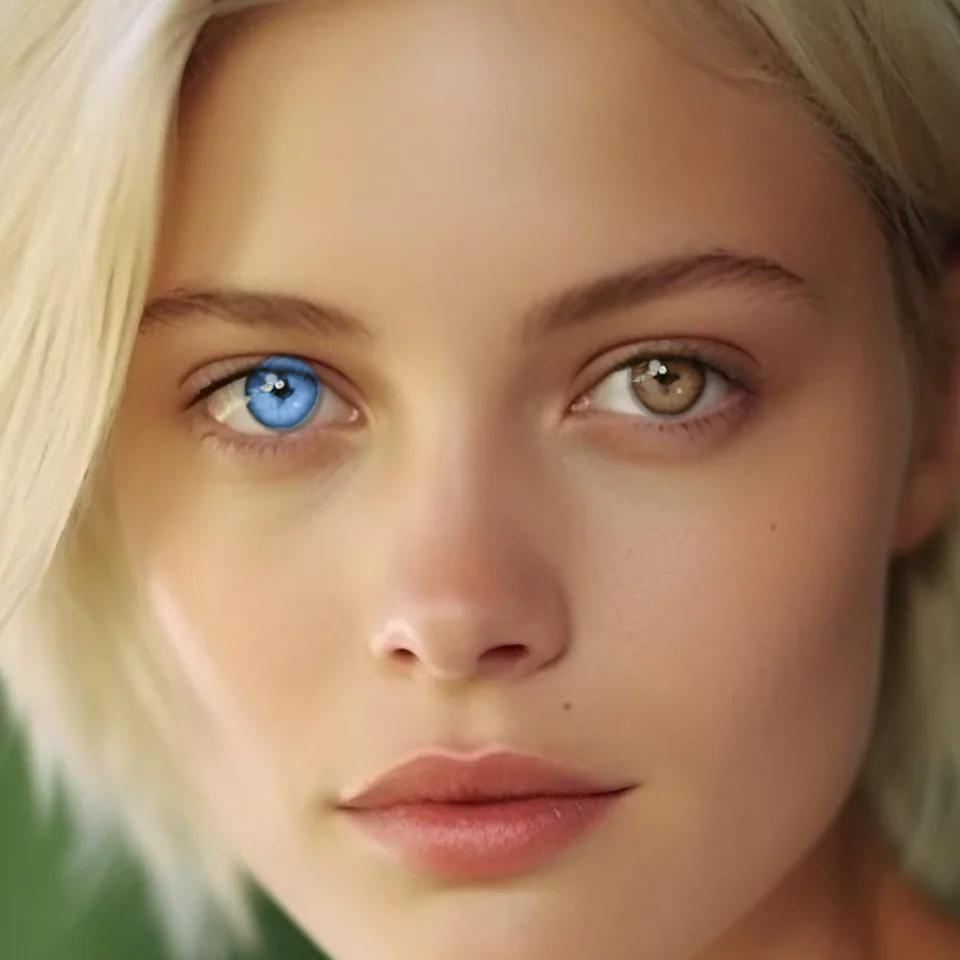
How eye color works
Why eyes are brown, blue, green or grey without any blue or green pigment, what heterochromia and the limbal ring are, why cats have slit pupils, what causes red eye, and how the Eye Editor recolors an iris.
Morph one face into another
Morph one face into another in your browser. Two photos, matching points on the eyes, nose, mouth and chin, and a smooth morph you can play, stop halfway, record as a video or open as layers in the editor.
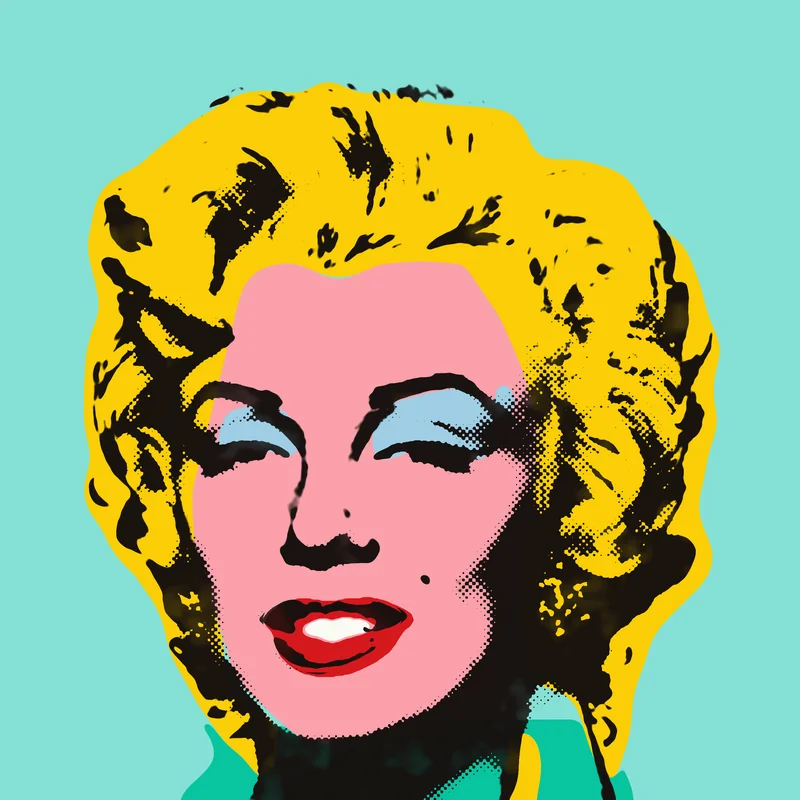
Andy Warhol Prints
Channel Andy Warhol’s Factory energy—bold color grids, repeated icons, and pop-art portraits that feel like silkscreen posters.
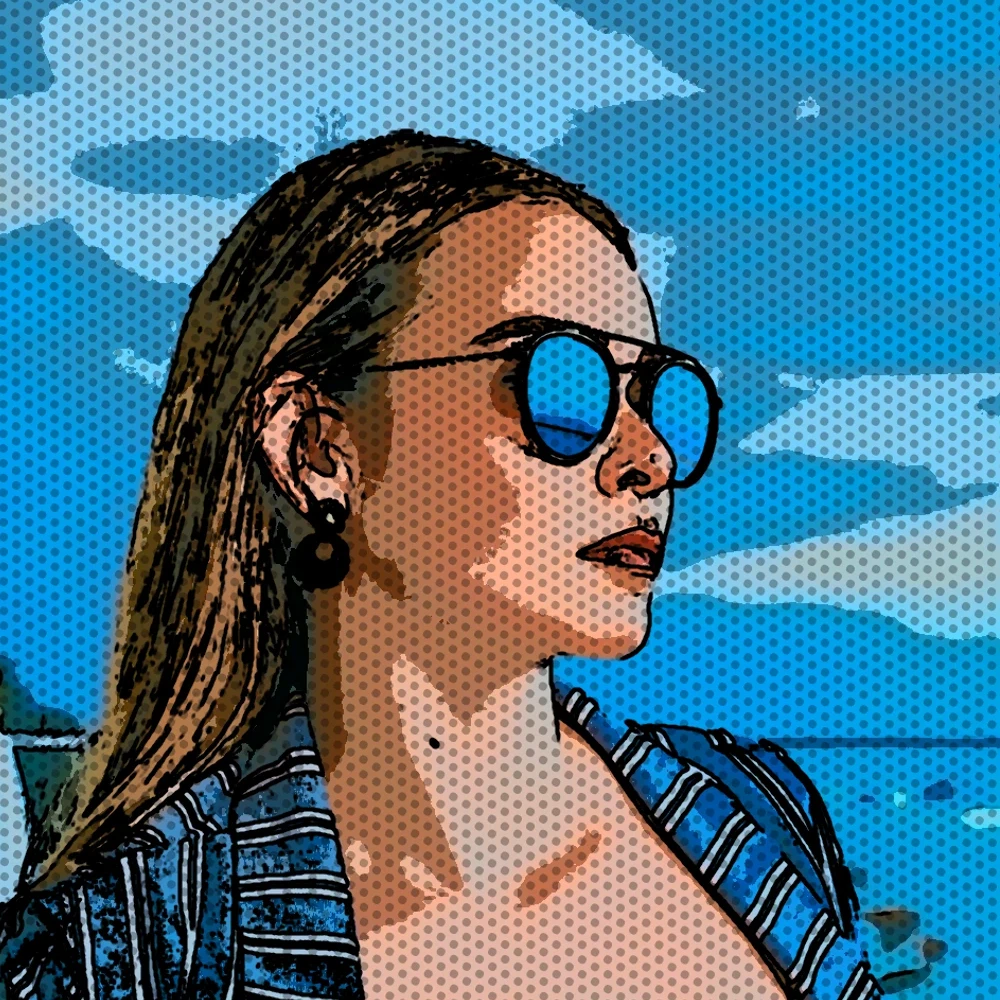
Comic maker
Turn a photo into a comic page in your browser. Zoom different details into 1, 2, 4, or 6 ink panels, then add optional Ben-Day dots and captions.
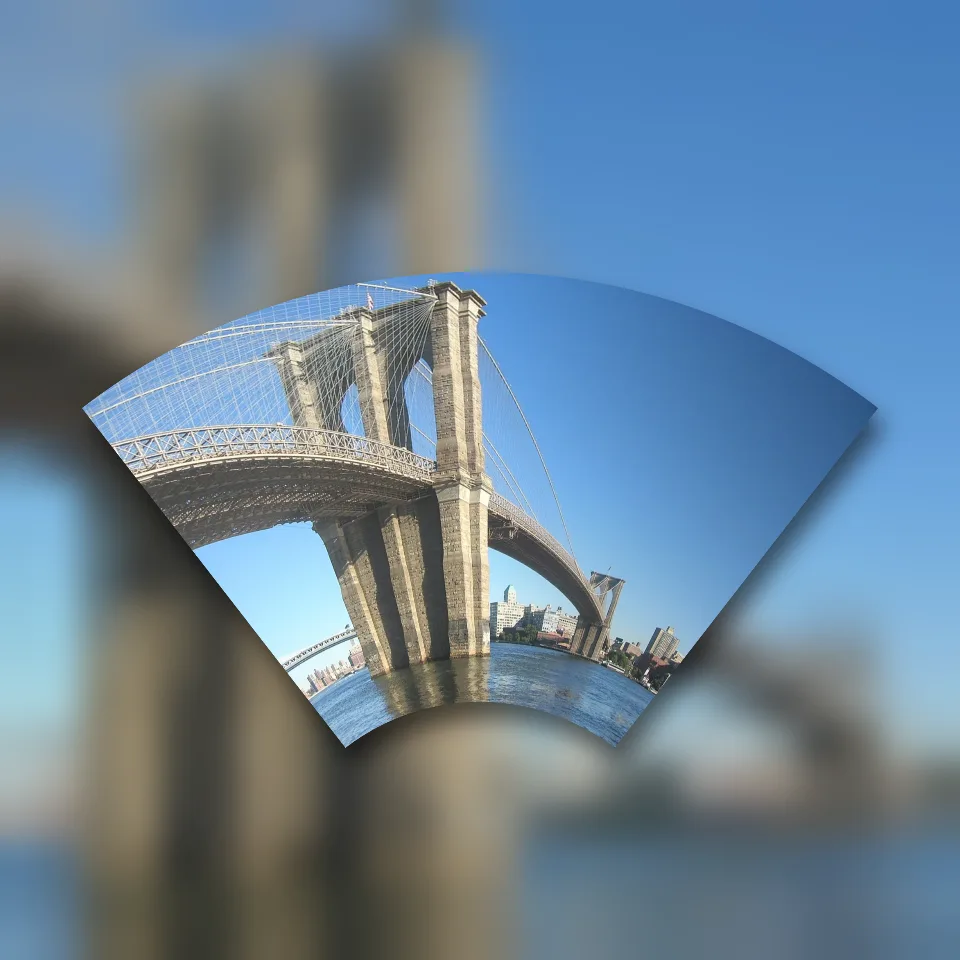
Bend an image online
Bend an image online for free: arc, arch, wave, flag, cylinder, circle or page curl a photo, logo or text, add light and a shadow, and save a transparent PNG.
Ready to try it?
Open PictorX in your browser — no install, no credit card required to start.
Go to Editor