

Try a distort look below, or open your own picture.
Bend an image online
Curve a photo as if it were printed on a bent sheet: choose the direction, set how strong the bend is, and decide what fills the space it leaves. Compare it with Ripple, Twirl, Spherize and the other looks in the same set, right in your browser. Try a distort look below, or open your own picture.
How it works
- Open your photo, or try Bend on the sample.
- Click Properties, choose a Direction and set the Radius.
- Apply, then save the image or keep editing it in PictorX.
Direction and Radius
Direction picks how the photo bends: Up and Down curve it like a smile or a frown, Left and Right curve it sideways. Radius sets how strong the curve is; low values give a gentle arc, high values a deep bow.
Transparent corners or a fill color
Bending leaves empty space along the edges. With Transparent on, that space stays see-through, so the PNG sits cleanly on any background; turn it off to fill it with the Fill color instead.
Looks in this set
Frequently asked questions
How do I bend an image online?
Open your photo on this page, click Properties, choose a Direction (Up, Down, Left or Right) and raise the Radius until the curve looks right. Apply, then Save as image to download it. Everything happens in your browser.
Can I curve text or a logo with it?
Yes. Save the text or logo as an image with a transparent background, open it here and bend it. With Transparent on, the curved result keeps its transparent background, ready to place on another design.
What happens to the empty corners after bending?
With Transparent on they stay see-through, which is best for logos, stickers and text. Turn Transparent off to fill them with a Fill color of your choice, for example white for a photo print.
How is Bend different from Ripple, Twirl and Spherize?
Bend curves the whole photo in one arc. Ripple adds waves, Twirl spins the center like a whirlpool, Spherize bulges it like a ball, and Folds creases it like paper. All of them are in the same set on this page.
Can I bend only part of an image?
Yes. Click Edit to open the photo in the PictorX editor, select the part you want with a selection tool, and apply Bend there: only the selection is curved.
Related tools
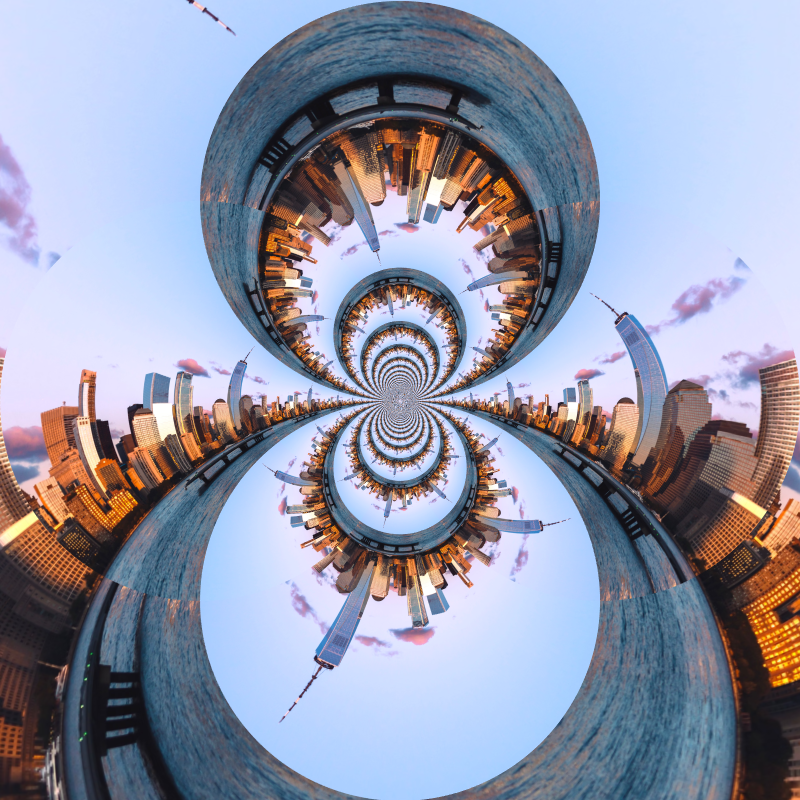
Liquid lens playground
Warp photos with polar coordinates, ripple, glass, spherize, timewarp, twirl, folds, and bend.
Polar coordinates effect
Wrap a photo into a circle or unroll a circle into a strip with the polar coordinates effect. Choose Rect to Polar or Polar to Rect and a start angle.
Polar Inversion effect
Apply a Polar Inversion effect to photos free in your browser. Open the Liquid lens playground tools, tune the look, and keep editing in PictorX. No install.
Ripple effect
Add a water ripple distortion to a photo online: rings spread from the center like a drop in a pond. Set Frequency, Displacement and Amount, then save.
Glass effect
Make a photo look as if seen through wavy, textured glass. Set the Size of the glass pattern, and compare it with Frosted Glass and Refracted Glass.
Refracted Glass effect
Apply a Refracted Glass effect to photos free in your browser. Open the Liquid lens playground tools, tune the look, and keep editing in PictorX. No install.
Spherize effect
Apply a Spherize effect to photos free in your browser. Open the Liquid lens playground tools, tune the look, and keep editing in PictorX. No install.
Ready to try it?
Open PictorX in your browser — no install, no credit card required to start.
Go to Editor