
Portrait retouch
Retouch a portrait in a few seconds. The face is found from the eyes; the skin is smoothed where it has this face's skin color, so the eyes, brows, hair and lips stay sharp, small blemishes are filled, the teeth are whitened, and the eyes can be brightened, enlarged or recolored. Each part is a layer of its own when you keep editing. Open a portrait, drop it on the picture or pick an example: the face is found from the eyes, which are marked with two circles. Smooth skin and Remove blemishes even out the skin, Whiten teeth whitens the teeth in the oval over the mouth, and the eye controls change the eyes. If a marker is not in place, drag it there. Hold Compare to see the original. Your photos stay on your device.
How it works
- Open a portrait, drop it on the picture, or start with the example. The eyes are found and marked with two circles, the mouth with an oval.
- Set Smooth skin and Remove blemishes for the skin, and Whiten teeth for a smile.
- Touch up the eyes: the Natural look brightens the iris and the whites; pick another look, a new eye color or a size.
- Hold Compare to see the original, then save a PNG or JPG, or open it in the editor with the skin, the teeth and each eye on layers of their own.
Smooth skin that still looks like skin
The skin color is learnt from the cheeks, the nose and the forehead of the face in the photo, so only the skin is smoothed: the eyes, the brows, the hair, the lips and the background stay as sharp as they were. The smoothing is a guided filter that keeps the edges of the nose, the mouth and the jaw, and a little of the finest grain is put back, so the skin keeps its texture instead of looking plastic. Remove blemishes fills small spots that are darker or redder than the skin around them.
Whiter teeth, and only the teeth
The teeth are looked for in the oval over the mouth: light, not red, and with lips above and below them, so a closed mouth, the lips and the skin round them are left alone. Whiten teeth takes the yellow out of them and adds a little light. If the oval is not on the mouth, drag it there.
The eyes: the Eye Editor built in
The eye controls are the Eye Editor's: the Natural look brightens the iris, cleans up the whites and adds a catchlight; other looks, sixteen eye colors, each eye its own color, larger or smaller eyes, other pupils, a limbal ring, a glow and red-eye removal are all there. Everything happens in your browser; your photo is not uploaded.
Frequently asked questions
How do I retouch a portrait online?
Open the portrait on this page or drop it on the picture. The face is found from the eyes: Smooth skin evens out the skin, Remove blemishes fills small spots, Whiten teeth whitens a smile, and the eye controls brighten or change the eyes. Hold Compare to see the original, then save the picture. The same app is in the editor under Apps → Photo → Portrait retouch.
Will the skin look plastic?
Not at the usual settings. Only skin of this face's color is smoothed, the edges of the nose, the mouth and the jaw are kept, and a little of the finest grain is put back. Around 30 to 50 looks natural; higher values give a soft, glamour look.
Why are the teeth not whitened?
Teeth are only whitened where they show: in the oval over the mouth, light and not red, with lips above and below. A closed mouth has no teeth to whiten. If the oval is not on the mouth, drag it there, and check that Whiten teeth is above 0.
What if the face is not found?
The face is found from the eyes, which works best on a portrait facing the camera with both eyes open. If a circle is not on an eye, drag it there and drag its edge to fit the iris; the skin and the mouth follow the eyes. Sunglasses hide the eyes: put the circles on the lenses.
Can I keep editing the result?
Yes. The pencil opens it in the PictorX photo editor with the photo, the skin, the teeth, the left eye, the right eye and the glow on layers of their own, so you can lower the smoothing with the Skin layer's opacity, hide a part or paint over it.
Related tools
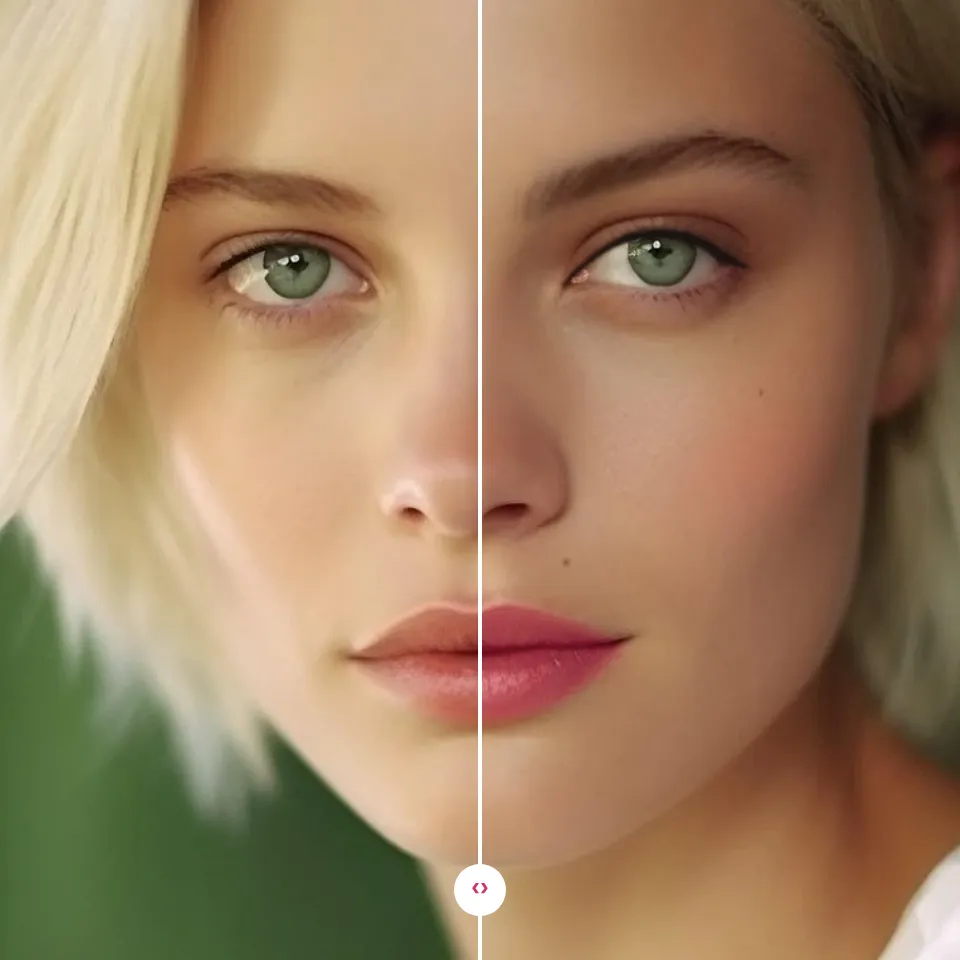
Virtual makeup
Try on makeup on your own photo for free: lipstick, lip gloss, blush, eyeshadow, eyeliner and brows, or a whole look. The face is found for you and your photo stays on your device.
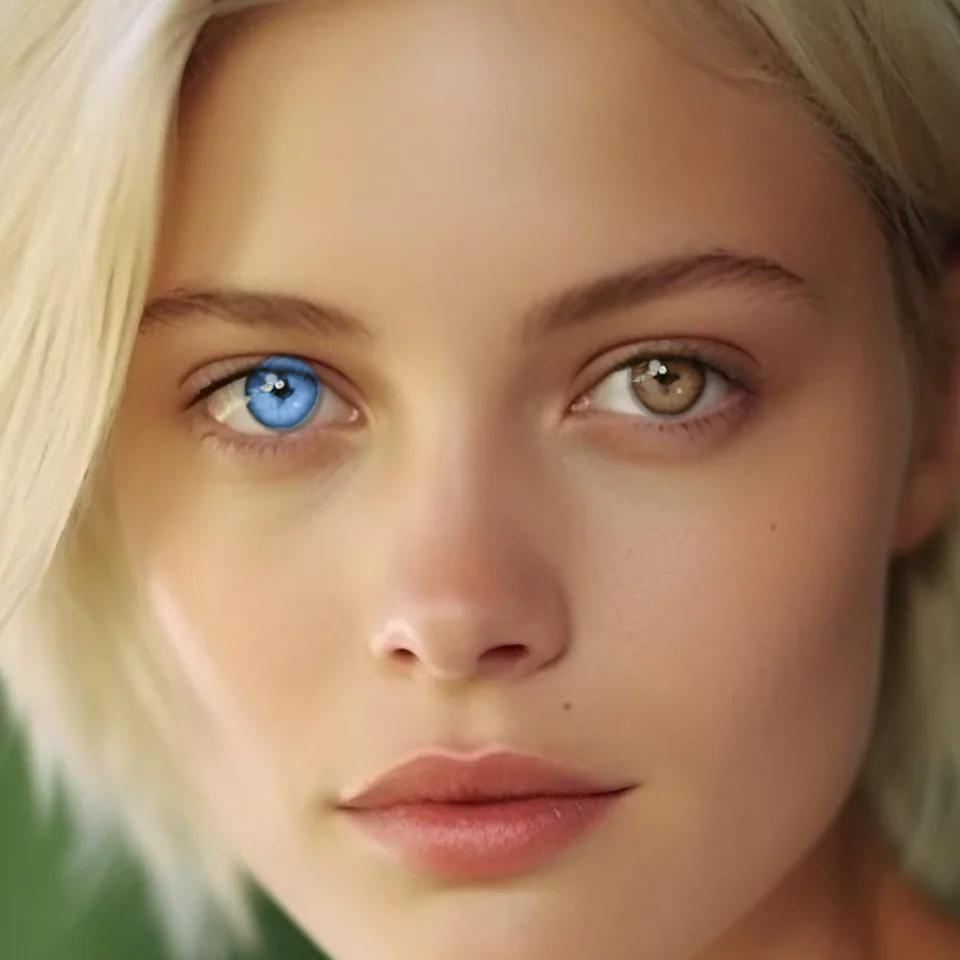
Eye color changer
Change eye color in a photo online for free: blue, green, hazel, grey or any color, each eye its own, cat eyes, anime eyes, larger eyes and a glow. The eyes are found for you.
How eye color works
Why eyes are brown, blue, green or grey without any blue or green pigment, what heterochromia and the limbal ring are, why cats have slit pupils, what causes red eye, and how the Eye Editor recolors an iris.
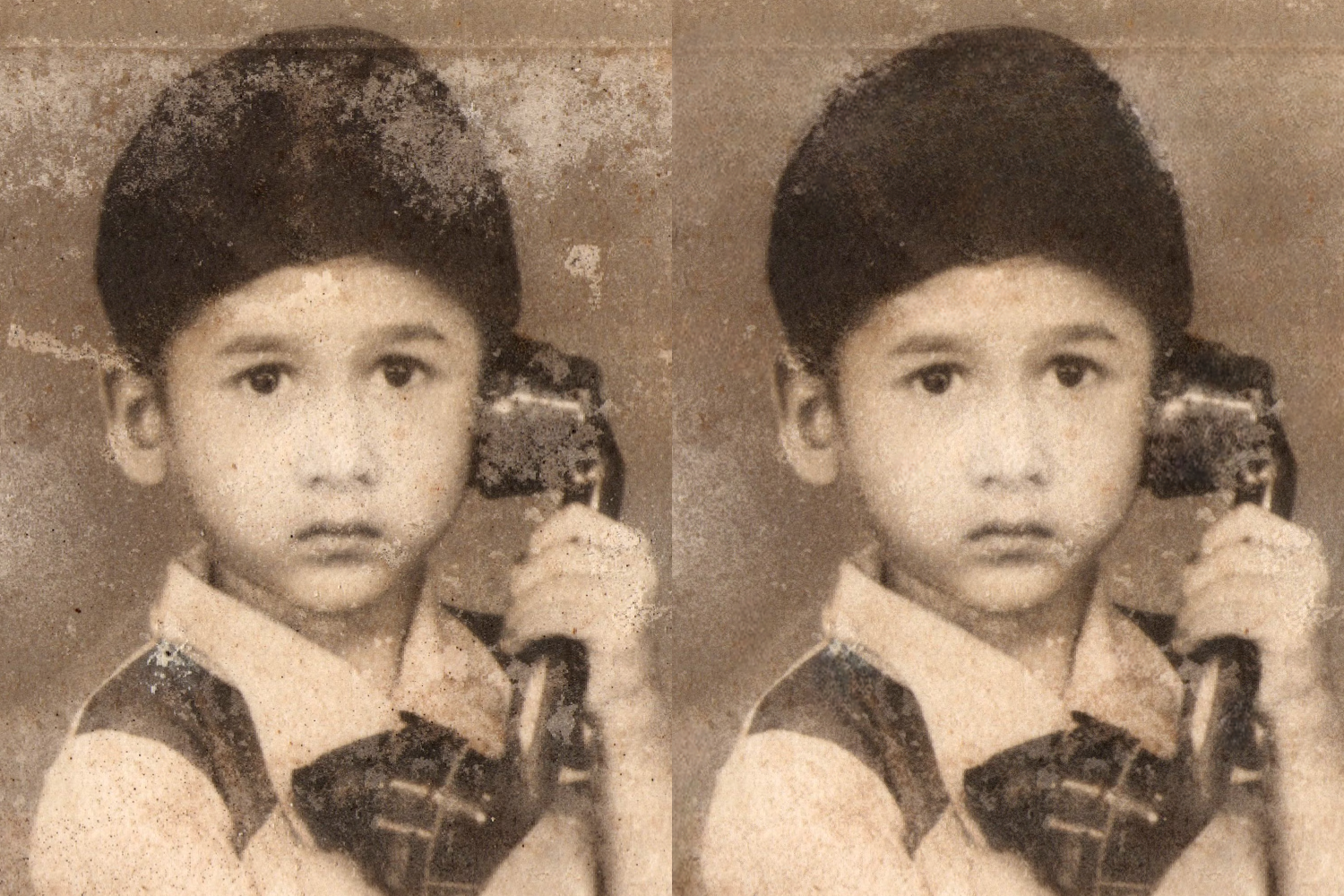
AI image repair online
Repair old or damaged photos with PictorX AI image repair. Restore details in your browser—no install required.
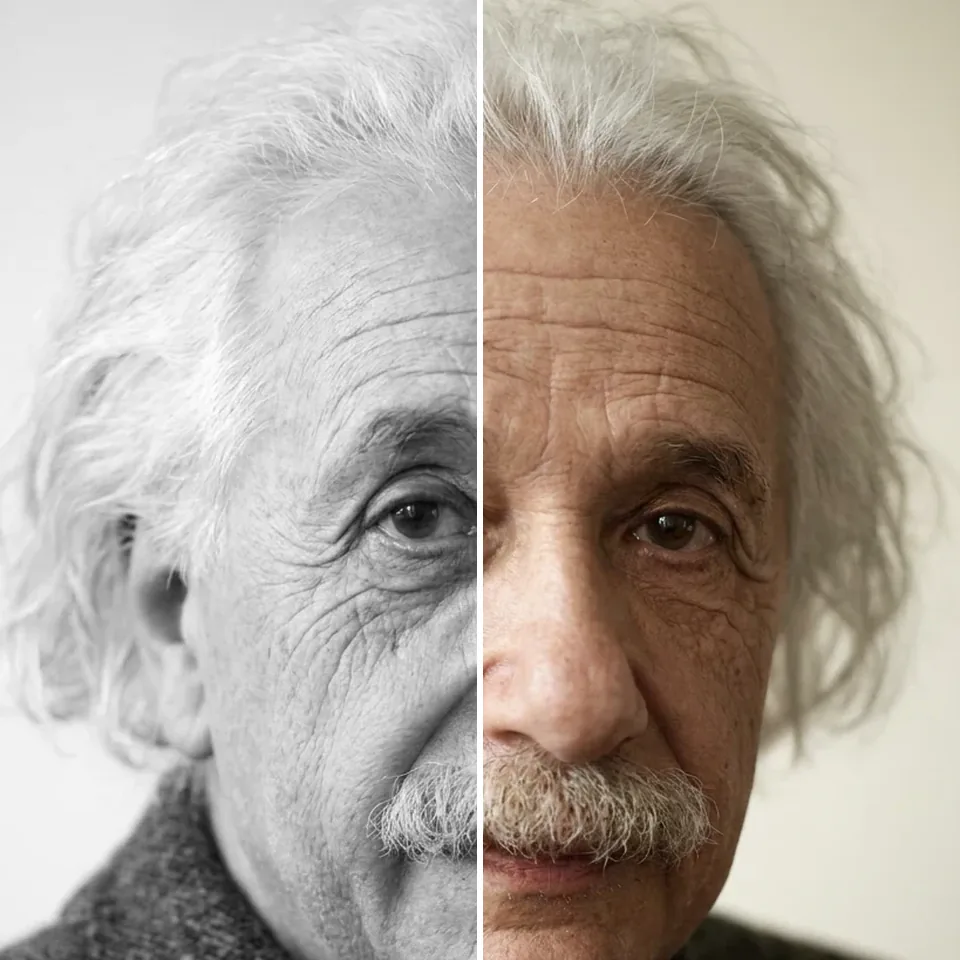
Colorize a black-and-white photo
Colorize black-and-white and old photos in your browser. On-device AI adds natural colour to skin, sky, clothes and foliage while every detail of the original is kept. Tune saturation and warmth, then save.
Morph one face into another
Morph one face into another in your browser. Two photos, matching points on the eyes, nose, mouth and chin, and a smooth morph you can play, stop halfway, record as a video or open as layers in the editor.
Ready to try it?
Open PictorX in your browser — no install, no credit card required to start.
Go to Editor