
Time tracker
See where the hours go. Add projects with their own colours, press Start to time your work, and stop to write the entry. Only one timer runs at a time, and it keeps going after a reload. Add missed time by hand, edit or delete entries, and read the day or week totals on a timesheet and a bar chart. Add a project, then press Start to time your work, or add a manual entry. The timesheet and the chart update at once, and everything is saved in this browser.
How it works
- Add a project with a name and a colour, then press Start when you begin work and Stop when you finish.
- Or add a manual entry with a date, a start and an end, or a duration, and a short note.
- Switch between the day and the week, read the totals per project, and save the timesheet as CSV, JSON, PDF or an image.
One timer, kept by its start time
Starting a new project stops the one that is running and writes that entry. The start time is stored, so a reload or a closed tab does not lose the elapsed time. Press Stop when the work is done.
Private and portable
Your projects and entries stay in this browser only. Save as JSON to back them up or open them on another device, download a CSV for a spreadsheet, or save a PDF or image of the timesheet. Undo and redo cover every change.
Frequently asked questions
Is the time tracker free?
Yes. It is free, needs no account and works in any modern browser.
Where is my timesheet stored?
In the local storage of this browser. Nothing is uploaded. Use Save as JSON to make a backup and Open JSON to restore it, or Download CSV to open the hours in a spreadsheet.
Does the timer keep running if I close the tab?
Yes. The start time is saved, so when you return the elapsed time includes the hours the page was closed. Press Stop when you finish, or start another project to close the last one.
How do I calculate my total hours worked in a week?
Switch the view to Week. The timesheet adds up every entry per project and shows the week total, including a timer that is still running. Download CSV gives one row per entry with the date, start, end and hours as a decimal, ready to sum in Excel or Google Sheets.
Related tools
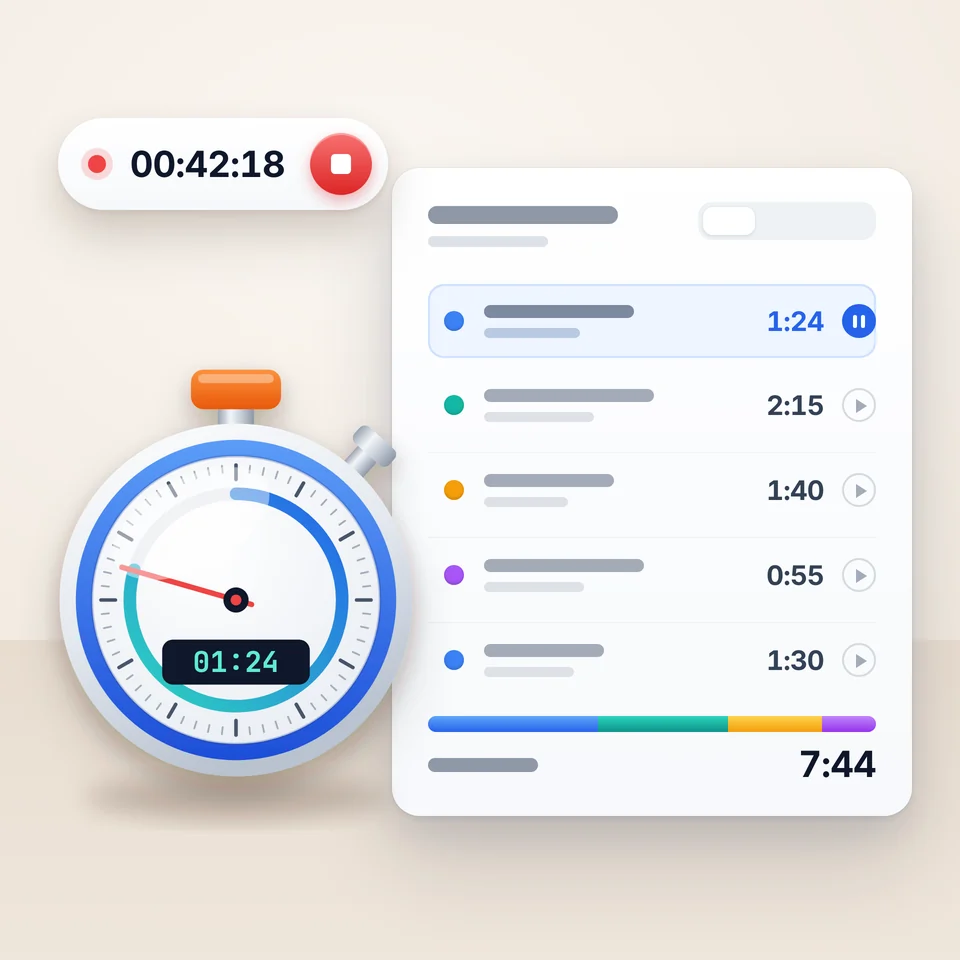
The story of time tracking
Where does time tracking come from? Factory clocks and the timesheet, billable hours in professional firms, and why one running timer keeps a cleaner record.
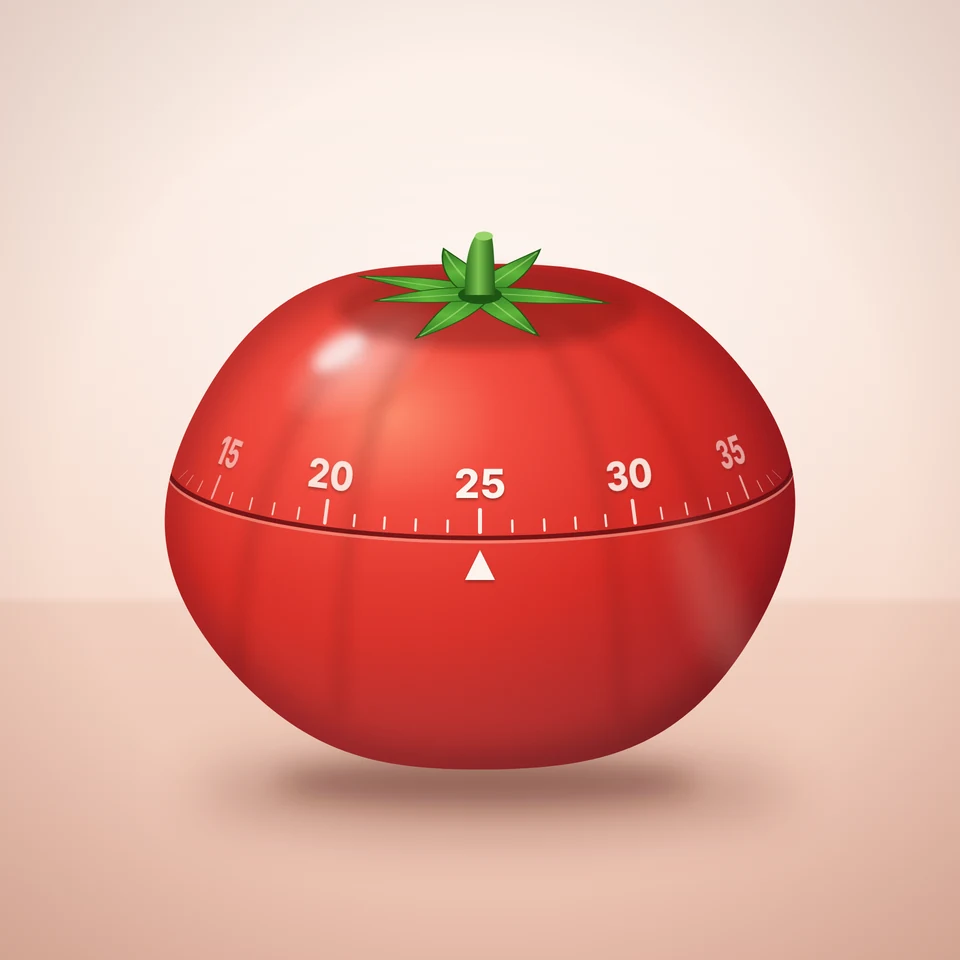
Pomodoro timer
A free Pomodoro timer: 25 minutes of focus, 5-minute breaks and a long break after four sessions, with a progress ring, sound signals, notifications and daily stats.
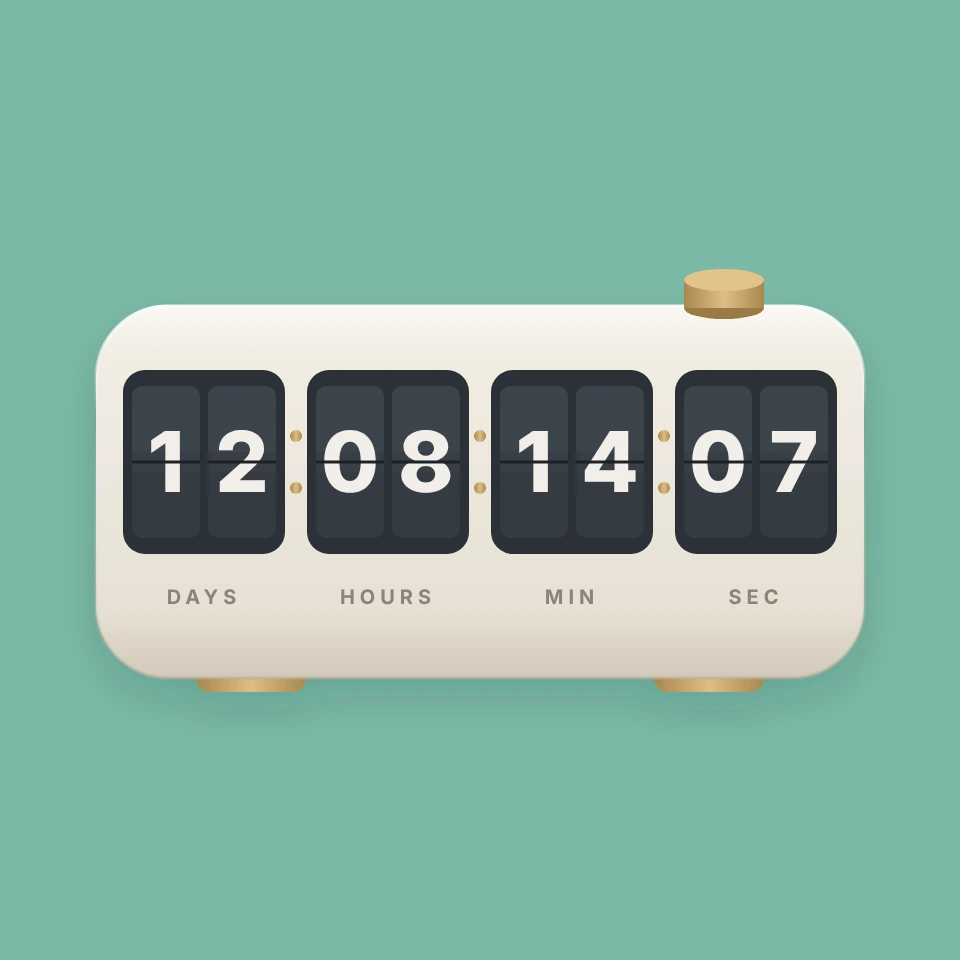
Countdown timer
A free online countdown timer: count down live to an event, product launch or the New Year in any time zone, with flip or clean digits, share links, embed code and confetti.

Habit tracker
A free online habit tracker: add daily or weekly habits, tick off days in a week or month grid, and watch streaks, completion and a heatmap. Saved in your browser.
Ready to try it?
Open PictorX in your browser — no install, no credit card required to start.
Go to Editor