
Display
Colors
Motion
Background
Split-flap departure board
The clatter of an old airport board, with your words. Type a message or a timetable and every flap turns through the alphabet until it lands on its letter, row after row, as on the boards of stations and airports. Write several pages and the board runs them round; pick the style, the colors and the font, then save the picture or record the flipping as a video. In the editor every part is a layer of its own. Type your text and the board flips to it, flap by flap. An empty line starts a new page: Back and Step flip between the pages, Play runs them round and Record saves that as a video. In a timetable, a | between words starts the next column.
How it works
- Type your text, or start with one of the examples: departures, arrivals, a train station, a birthday or a wedding.
- Choose Message for lines of words or Timetable for columns, with a | between the time, the destination and the rest.
- Pick a style, a font and the colors; start a new page with an empty line.
- Save a PNG or JPG, press Play and Record for a video of the flaps with their clatter, or open the board in the editor with every part on a layer of its own.
Flap by flap, like the real thing
Every flap turns through the letters, the numbers and a few signs in order until it reaches its character, so an A lands at once and a Z takes a moment, and only the flaps that change move. Ripple starts the flaps from the left and the top, Speed sets the flips per second.
A timetable or a message
Timetable lines the columns up under their headings, as on a departures board; Message centres your lines and wraps long ones. Fit to text sizes the board to the longest page, or set the columns and rows yourself. Classic black, amber, white flaps, navy, retro cream or red.
Frequently asked questions
How do I make a departure board with my own text?
Type your text in the box: each line is a row of the board. Choose Timetable and put a | between the columns (time, destination, flight, gate, remarks), or Message for lines of words. The board flips to what you type as you type it. The same board is in the editor under Apps → Signs → Split-flap board.
Can the board show more than one message?
Yes. Leave an empty line between messages and each becomes a page. Back and Step flip to the previous and next page, and Play runs the pages round, each held for the seconds you set.
How do I make a video of the flipping board?
Press Play, then Record in the playback bar. With the length set to one loop the video holds all the pages once and joins up at the end; turn Sound on for the clatter of the flaps.
Why do some letters take longer than others?
As on a real split-flap display, each flap turns through its characters in a fixed order, from the blank through A to Z, the numbers and a few signs, so a letter far down the wheel takes more flips to come round.
Can I keep editing the board?
Yes. The pencil opens it in the PictorX photo editor with the background, the board, the title and each column heading as text, the flaps, and each row of letters on layers of their own, so you can recolor, move or hide any part.
Split-flap departure board: how do I record a video?
Press the red Record button in the playback bar: it films what the stage shows. Press it again to stop, and the video is saved to your device. Recording is free; you only need to sign in. Without a subscription the video carries a small PictorX logo in a corner. The button beside Record opens the video options: the shape (as shown, square, story 9:16 or wide 16:9), the length (until you stop, one seamless loop, or 5, 10, 15 or 30 seconds for social media) and the file: MP4, WebM or an animated GIF. For the sound, choose the app's own sounds or one of three music tracks: calm, bright or beat. With a fixed length or One loop the video is made frame by frame, so it runs smoothly even on a slow device, and One loop joins its end to its start without a seam.
Related tools
Cinema Marquee Sign
Put your words on a glowing movie theater marquee with black plastic letters, a painted header, and chasing light bulbs. Save a PNG.
Neon Sign Maker
Type a word and turn it into a glowing neon sign on brick, tiles, wood, or concrete. Pick tube color, font, glow, and backplate, then save a PNG.
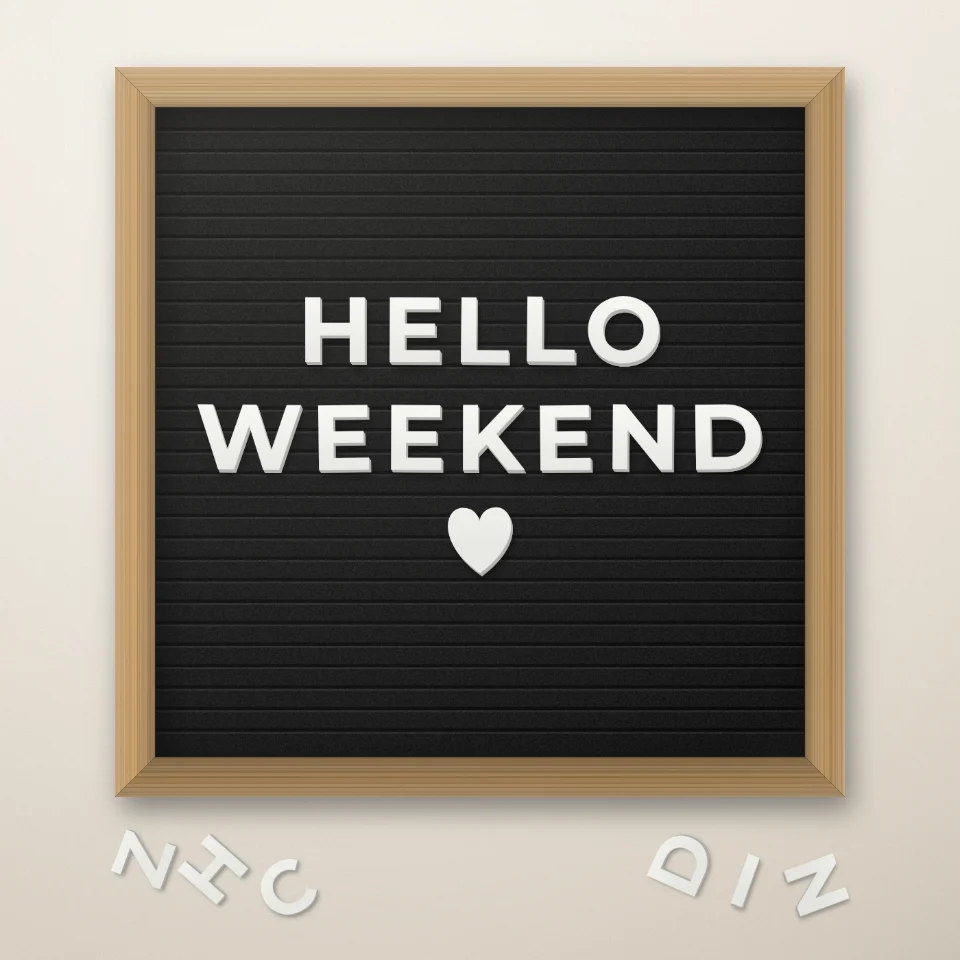
Letter Board Quote Maker
Type a quote on a felt letter board with white or gold plastic letters, a wooden frame, and hearts or stars. Save a PNG for Instagram.
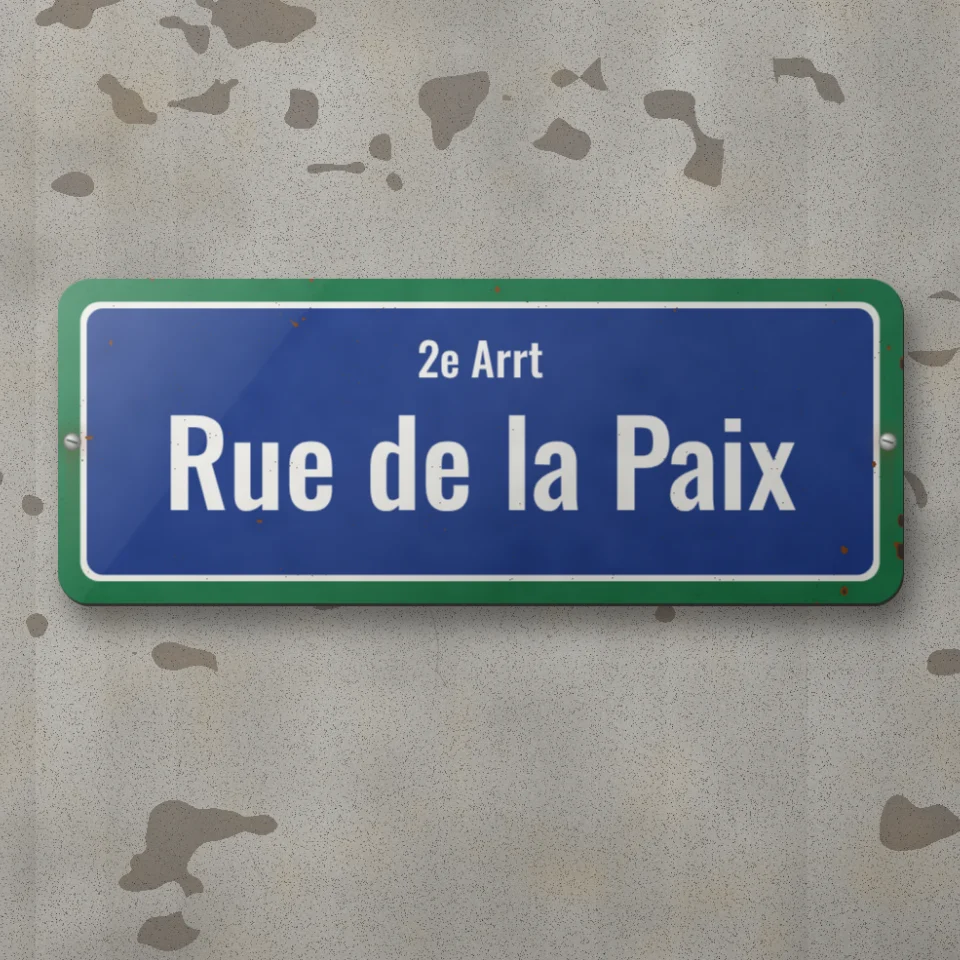
Street Sign & Plaque Maker
Make a custom street sign, blue plaque, brass nameplate, or house number tile on a real-looking wall. Add rust and wear, then save a PNG.
Ready to try it?
Open PictorX in your browser — no install, no credit card required to start.
Go to Editor