
Text diff checker
Paste two versions of a text, some code or a list and see at once what changed. Removed lines turn red, added lines green, and inside a changed line the exact words or characters are marked. Compare side by side or inline, ignore case, spaces or blank lines when they do not matter, jump from change to change, and copy the result as a unified diff for git or patch. Everything runs in your browser. Paste or type the original text on the left and the changed text on the right, or open a text file into either side. The differences show as you type: removed lines in red, added lines in green, and changed lines with the changed words or characters marked. Use the arrows to jump from change to change, and Copy unified diff for a patch with three lines of context.
How it works
- Paste or type the original text on the left and the changed text on the right, or open a text file into either side.
- Choose side by side or inline, highlight by line, word or character, and tick what to ignore: case, leading and trailing spaces, all whitespace or blank lines.
- Read the counts of added, removed and changed lines, jump through the changes with the arrows, and copy the unified diff.
How the differences are found
The checker looks for the longest sequence of lines that both texts share in the same order: those lines are unchanged, and every other line was removed or added. It uses Myers' diff algorithm, the one behind git diff, which finds the smallest set of changes quickly when the texts are similar. A removed line that faces an added one is shown as one changed line, and the same algorithm then runs on its words or characters to mark exactly what changed inside it.
Unified diff and patches
Copy unified diff gives the changes in the format of diff -u and git diff: a --- line for the original, a +++ line for the changed text, and hunks that start with a header such as @@ -12,7 +12,8 @@, meaning that 7 lines from line 12 of the original become 8 lines from line 12 of the new text. Inside a hunk, lines starting with a space are context, lines starting with - are removed and lines starting with + are added; three lines of context surround every change. Tools such as patch and git apply can apply it to the original file.
Frequently asked questions
Can I compare Word documents or PDFs?
Not directly. Open file reads a file as plain text, which suits .txt, .csv, .json, .md and source code. Word documents and PDFs store their text in a binary format, so copy the text out of each document and paste it into the two sides instead.
What do the ignore options do?
Ignore case treats A and a as the same. Ignore leading and trailing spaces compares lines without the spaces at their start and end, which hides changes in indentation. Ignore all whitespace removes every space and tab before comparing, so a+b and a + b match. Ignore blank lines skips empty lines on both sides. Lines that differ only in what is ignored count as unchanged.
What is the difference between line, word and character highlighting?
The texts are always compared line by line, so the counts are in lines. The highlight setting decides what is marked inside a changed line: nothing more than the line (Lines), the words that changed (Words), or the single characters (Characters), which is handy for typos, numbers and code.
How long can the texts be?
Up to 50,000 lines per side, and files up to 5 MB. Long texts are compared in the background so the page stays responsive; a few thousand lines take a fraction of a second. Very different texts take longest, because the work grows with the number of changes.
Related tools
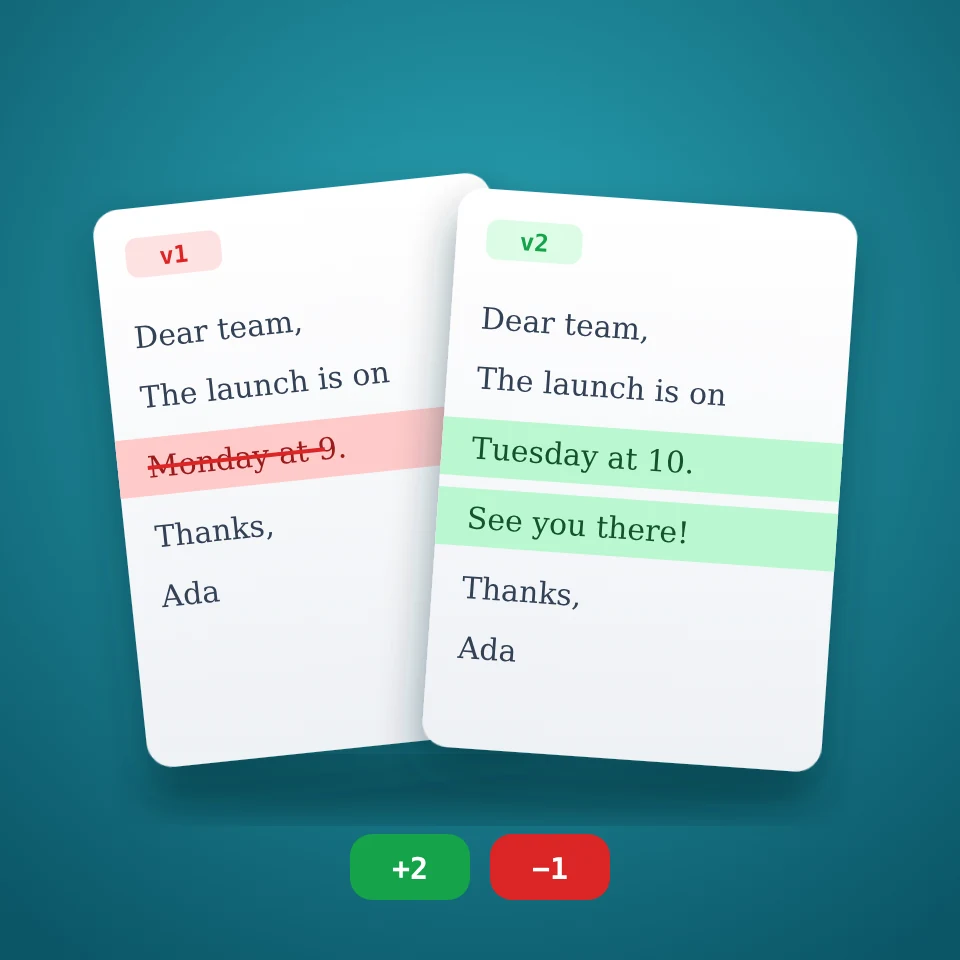
How text diff works
How a diff tool compares two texts: the longest common subsequence, edit scripts, Myers' O(ND) algorithm used by git, word-level highlights, ignore options and the unified diff format with its @@ hunks.
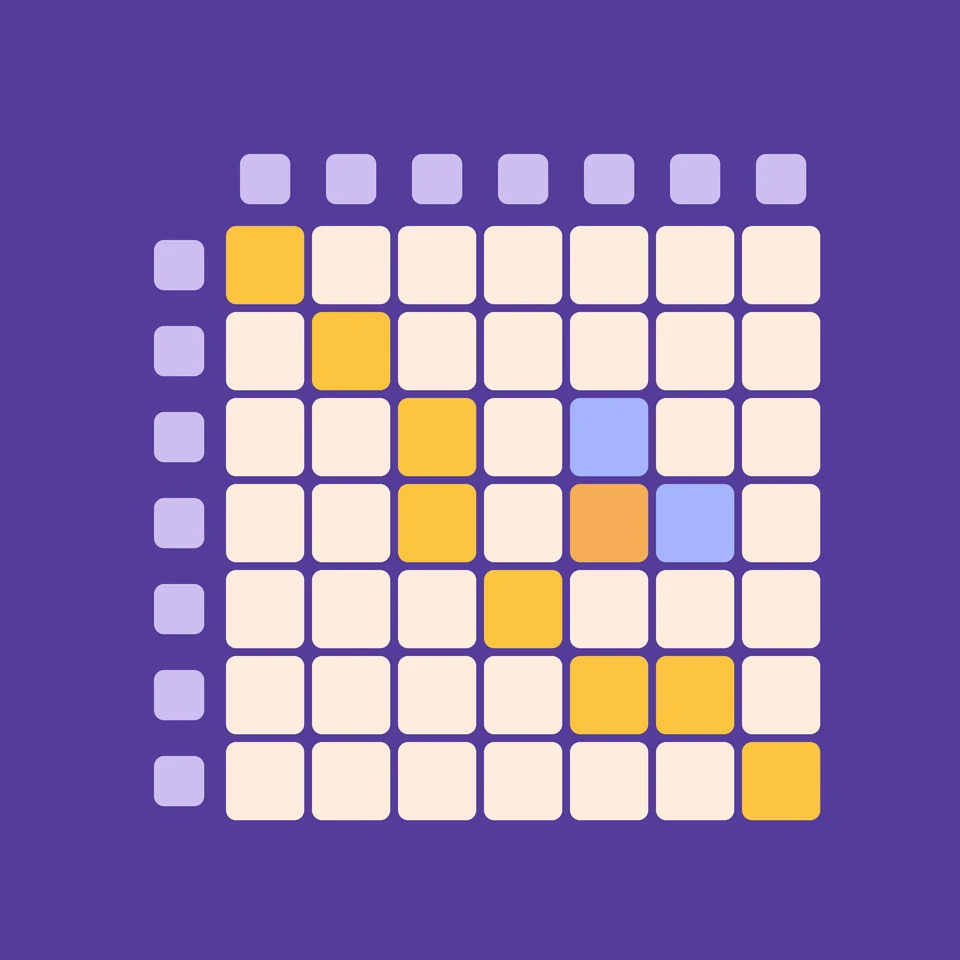
Longest common subsequence (LCS)
Watch the longest common subsequence of two words found step by step. See each cell compare two letters, fill from its neighbours, and trace the shared letters back from the corner.
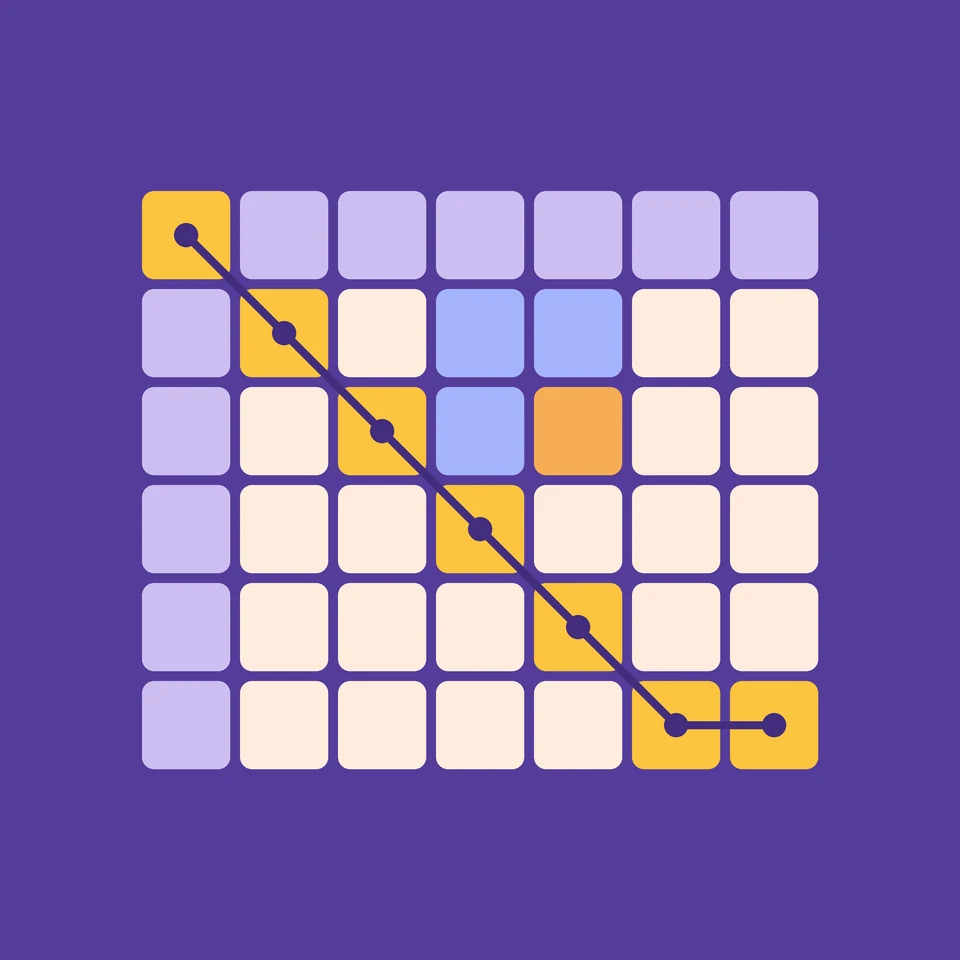
Edit distance (Levenshtein distance)
Find the edit distance between two words and watch the Levenshtein table fill step by step. See each cell choose between insert, delete and replace, and read the edits back from the corner.

Code Snippet Manager
A free code snippet manager in your browser: save snippets with a title, language and tags, search and filter them, read them with syntax highlighting, copy them in one click, and export or import the library as JSON.
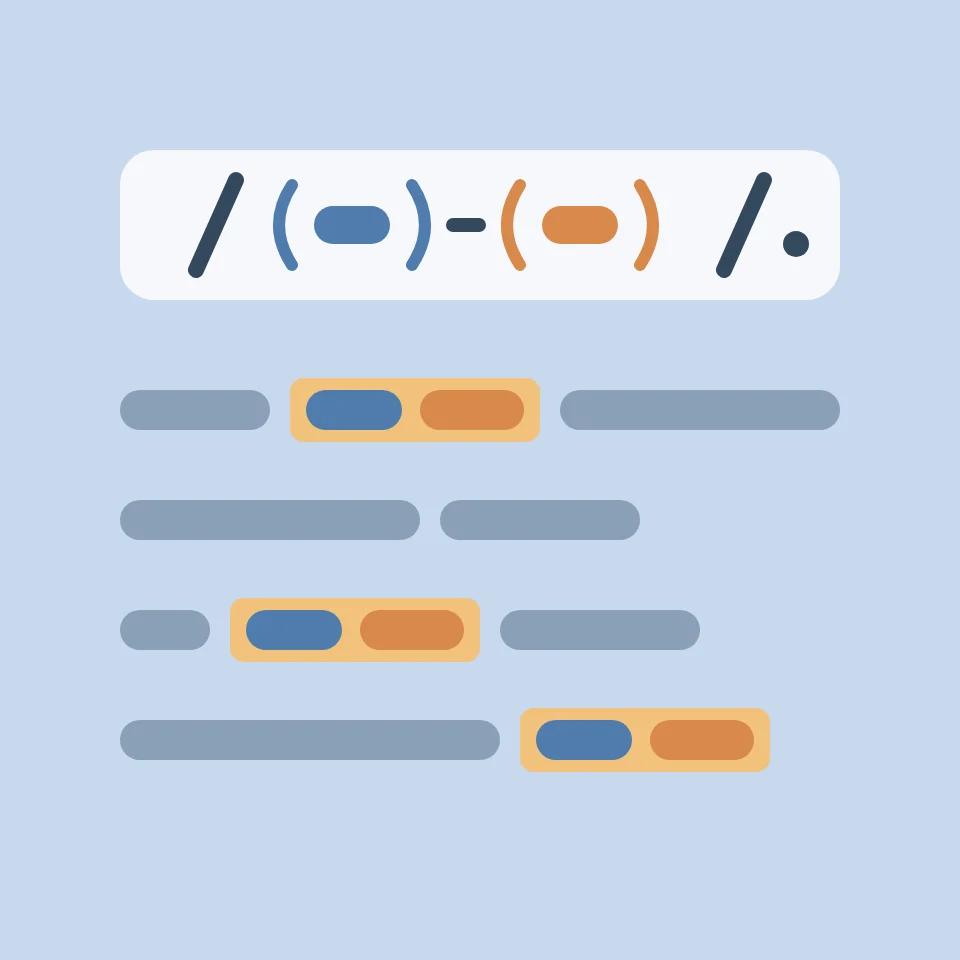
Regex tester
A free online regex tester: see every match and capture group as you type, try a replacement with $1 or $<name>, split text, and read your pattern explained piece by piece, with JavaScript flags and examples.
Ready to try it?
Open PictorX in your browser — no install, no credit card required to start.
Go to Editor