

Try a color look below, or open your own picture.
Halftone effect
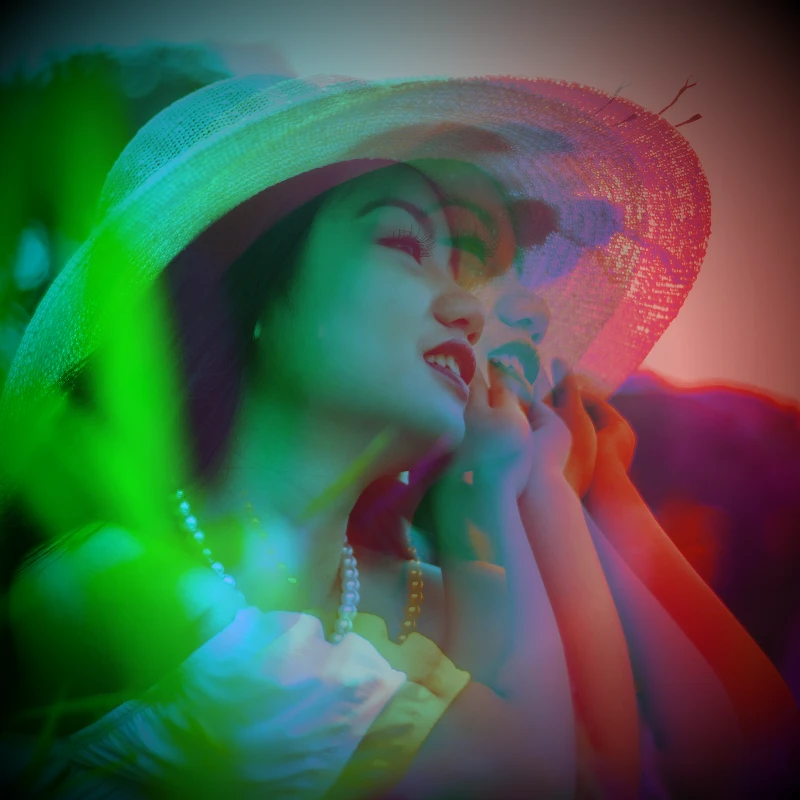
Open a photo and apply Halftone in PictorX. This look is part of Color effects—adjust the settings on this page, then keep editing with layers, text, and other effects in the same workspace. Try a color look below, or open your own picture.
How it works
- Open this page and try Halftone on the sample, or open your own photo.
- Tune the Halftone settings, or switch to another look in Color effects.
- Save the result, or keep editing with layers, text, and other effects in PictorX.
What the Halftone effect does
Halftone is one of the looks in PictorX Color effects. Apply it in your browser, then keep working in the same project—crop, type, or add another effect without starting over.
More looks in Color effects
This page opens Color effects with Halftone already selected. Switch looks on the demo to compare styles, or open the full Color effects page to browse every option in the set.
Looks in this set
Related tools
Color effects
Recolor a photo from Effects → Color with neon edges, heat maps, and two- or three-color palettes.
Invert Image Colors Online
Invert the colors of any image online: black becomes white, red becomes cyan and every color flips to its opposite. Transparency is kept.
Add a Color Tint to a Photo
Tint a photo online with any color. Pick the tint color, set the strength and give the picture a cool blue, warm amber or colored-glass look.
Holga1 effect
Apply a Holga1 effect to photos free in your browser. Open the Color effects tools, tune the look, and keep editing in PictorX. No install.
Holga2 effect
Apply a Holga2 effect to photos free in your browser. Open the Color effects tools, tune the look, and keep editing in PictorX. No install.
Heatmap Photo Effect
Turn a photo into a heat map online: dark areas become blue, midtones green and yellow, and bright areas red, like a thermal camera image.
Holographic Photo Filter
Add a holographic rainbow foil to any photo or transparent PNG online. Set the strength and get a shiny, iridescent sticker or card look.
Colors
How does color work on screens and in print? Light and mixing, RGB, CMYK, HSL and HSV, hex codes, the color wheel, gradients, contrast and accessibility.
Ready to try it?
Open PictorX in your browser — no install, no credit card required to start.
Go to Editor