
Color
Ombre
Shine
Hair color changer
See yourself with a new hair color before you dye it. The hair is found for you by an AI model that runs in your browser, and it is recolored with its own strands, shadows and shine kept, so it still looks like hair. Pick one of seventeen colors or your own, blend to a second color towards the tips for an ombre, and save the photo or keep editing the color and the shine on layers of their own. Open a photo, drop it on the picture or pick an example: the hair is found for you. Pick a color, set Strength, and add an ombre to the tips or more shine. Hold Compare to see the original. Your photos stay on your device.
How it works
- Open a photo, drop it on the picture, or start with the example. The hair is found for you.
- Pick a hair color, or your own with the color picker, and set Strength.
- Raise Ombre and pick a tips color for an ombre, and Shine for glossier hair.
- Hold Compare to see the original, then save a PNG or JPG, or open it in the editor with the hair color and the shine on layers of their own.
The hair, found for you
The hair is found by MediaPipe's Hair Segmenter, an open model that runs in your browser. Its mask is scaled to your photo and aligned to the strands along the edges, so loose hairs and the hairline are recolored too while the face, the skin and the background stay as they were. A photo with hair that shows clearly, not under a hat or in deep shadow, works best.
Color that still looks like hair
The new color takes the lightness and hue of the color you pick, but every strand keeps its own light and dark, so the texture, the shadows and the highlights stay. When dark hair goes light, the strands are spread a little more so they still show. Ombre blends from the root color to the tips color down the hair, and Shine lightens the highlights for a glossy finish. Everything happens in your browser; your photo is not uploaded.
Frequently asked questions
How do I change my hair color in a photo?
Open your photo on this page or drop it on the picture. The hair is found for you; pick a color, or your own with the color picker, and set Strength. Hold Compare to see the original, then save the picture. The same app is in the editor under Apps → Photo → Hair color.
Will it look like real hair?
The hair keeps its own strands, shadows and highlights; only its color changes, to the lightness and hue you pick. Natural shades such as brown, auburn or golden blonde look most real; very light colors on very dark hair look best at a lower Strength.
How do I make an ombre?
Raise Ombre and pick a Tips color. The hair keeps the first color at the roots and blends to the tips color towards the ends; the higher Ombre, the more of the second color shows.
Why is some hair not colored, or something else colored?
The hair is found by an AI model, which works best when the hair shows clearly. Hair under a hat, in deep shadow or against a background of the same color can be missed or mixed up. Lower Strength to soften the result, or keep editing the Hair color layer in the editor and erase what should not be colored.
Can I keep editing the result?
Yes. The pencil opens it in the PictorX photo editor with the photo, the hair color and the shine on layers of their own, so you can fade the color, erase parts of it or switch off the shine.
Related tools
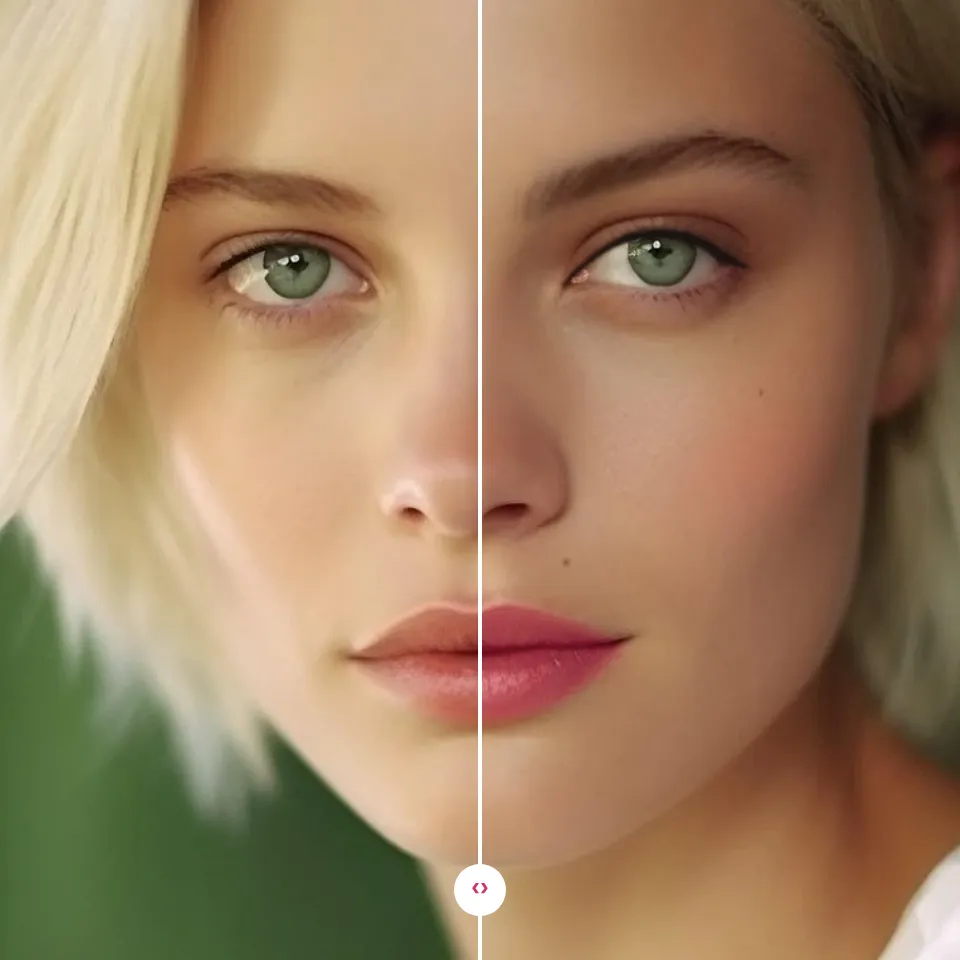
Virtual makeup
Try on makeup on your own photo for free: lipstick, lip gloss, blush, eyeshadow, eyeliner and brows, or a whole look. The face is found for you and your photo stays on your device.
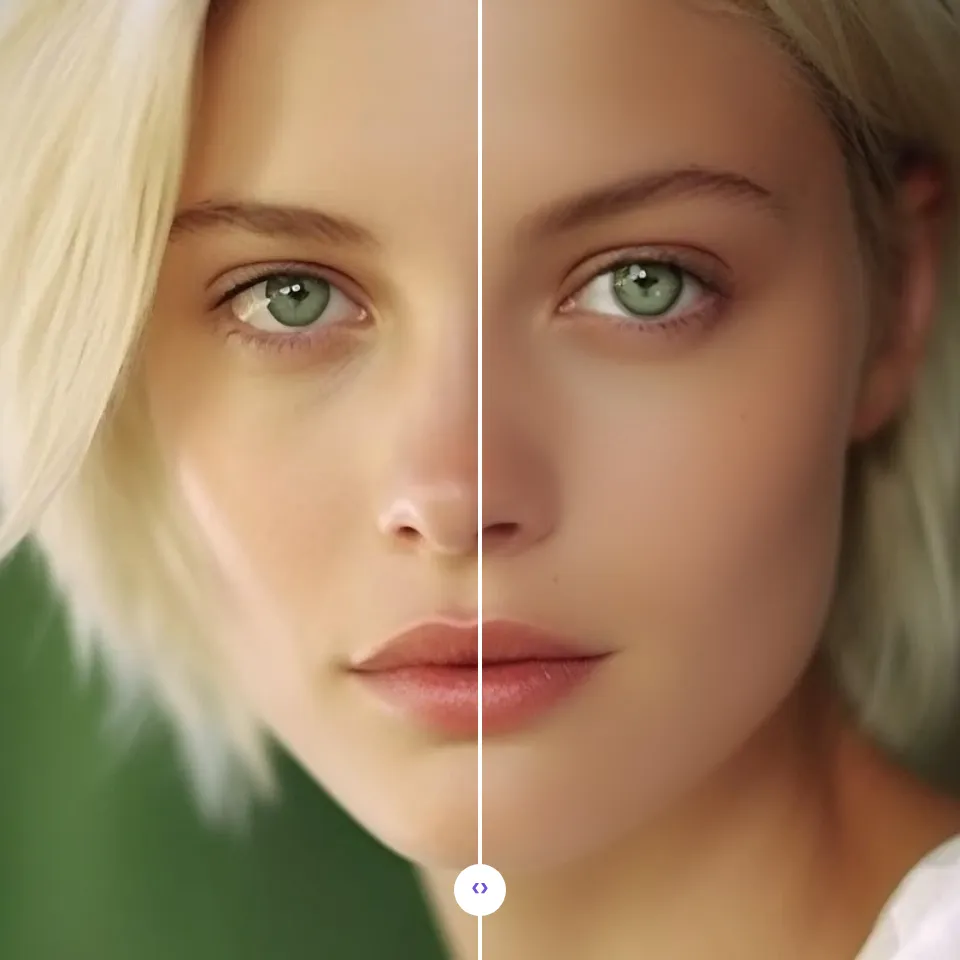
Portrait retouch
Retouch portraits online for free: smooth the skin, remove blemishes, whiten the teeth and brighten the eyes. The face is found for you and your photo stays on your device.
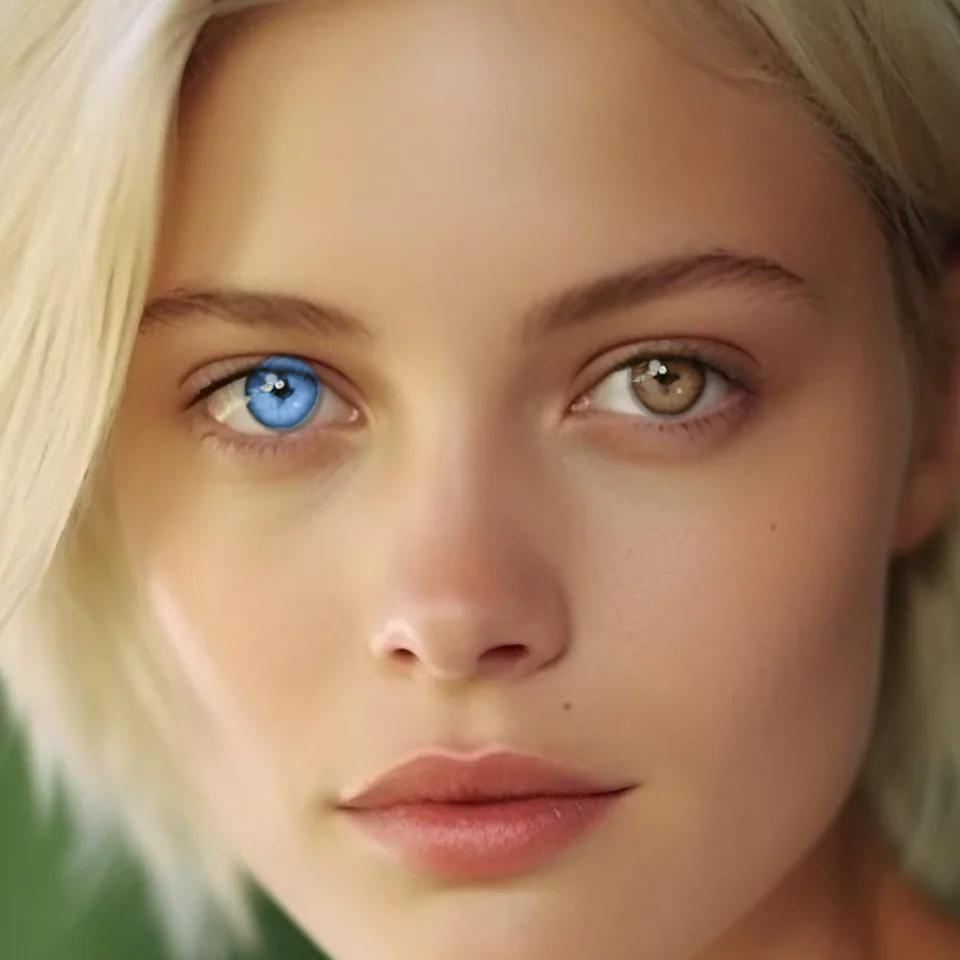
Eye color changer
Change eye color in a photo online for free: blue, green, hazel, grey or any color, each eye its own, cat eyes, anime eyes, larger eyes and a glow. The eyes are found for you.
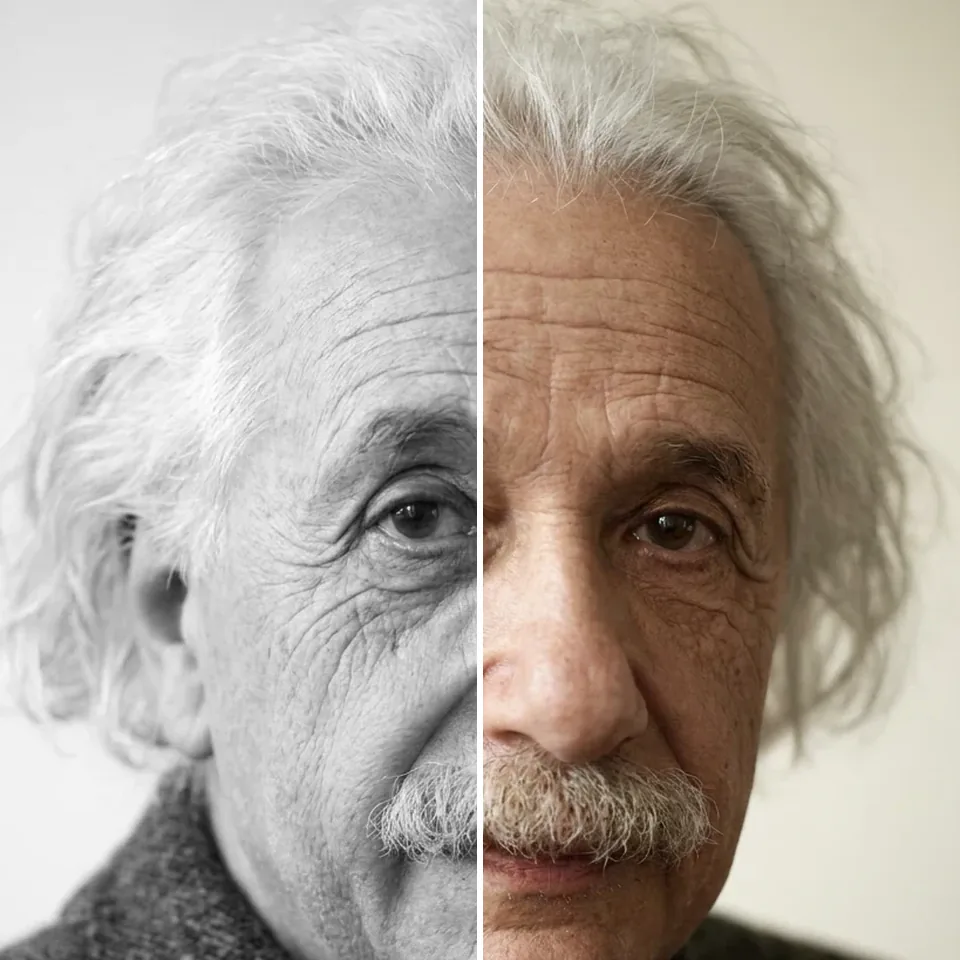
Colorize a black-and-white photo
Colorize black-and-white and old photos in your browser. On-device AI adds natural colour to skin, sky, clothes and foliage while every detail of the original is kept. Tune saturation and warmth, then save.
Ready to try it?
Open PictorX in your browser — no install, no credit card required to start.
Go to Editor