
Invoice
| Description | Qty | Unit price | VAT % | Amount |
|---|
VAT reverse-charged: the customer accounts for the VAT.
VAT calculator
Type an amount, choose a country rate or your own, and see the net amount, the VAT and the total straight away, whether your price includes VAT or not. Add invoice lines with different rates for a subtotal, the VAT per rate and a printable overview. Type an amount and pick a country rate or your own rate, then say whether the amount includes or excludes VAT. Switch to Invoice lines to add rows, see the VAT per rate and print or copy a simple invoice overview.
How it works
- Choose a country to load its VAT rates, or pick Custom rate and type your own percentage.
- Type an amount and say whether it excludes or includes VAT. The calculator works both ways.
- For an invoice, switch to Invoice lines, fill in the names, number and date, add rows, then print the overview or copy it as text.
Including or excluding VAT
From a net price, the VAT is net x rate / 100 and the total is net x (1 + rate / 100). From a price that already includes VAT, the net amount is total / (1 + rate / 100) and the VAT is the difference. At 21%, 121.00 including VAT is 100.00 net plus 21.00 VAT. Amounts are rounded to cents, the way most invoices show them.
A simple invoice overview
In Invoice lines mode every row has a description, a quantity, a unit price and its own VAT rate. The overview groups the lines by rate, so you see the subtotal, the VAT at each rate and the total, with a reverse charge option for business customers abroad. Print it, save it as an image or copy it as text into an email. It is a handy check, not a replacement for your accounting software or tax adviser.
Frequently asked questions
How do I remove VAT from a price?
Choose Including VAT and type the price. The calculator divides it by 1 plus the rate, so at 21% it divides by 1.21, and shows the net amount and the VAT separately.
Why not just take 21% off the total?
Because the VAT was calculated on the net amount, not on the total. 21% of 121.00 is 25.41, but the real VAT is 21.00. Dividing by 1.21 gives the right answer.
Are my invoice details sent anywhere?
No. Everything is calculated in your browser, and your last settings and lines are only kept in this browser's local storage.
Related tools
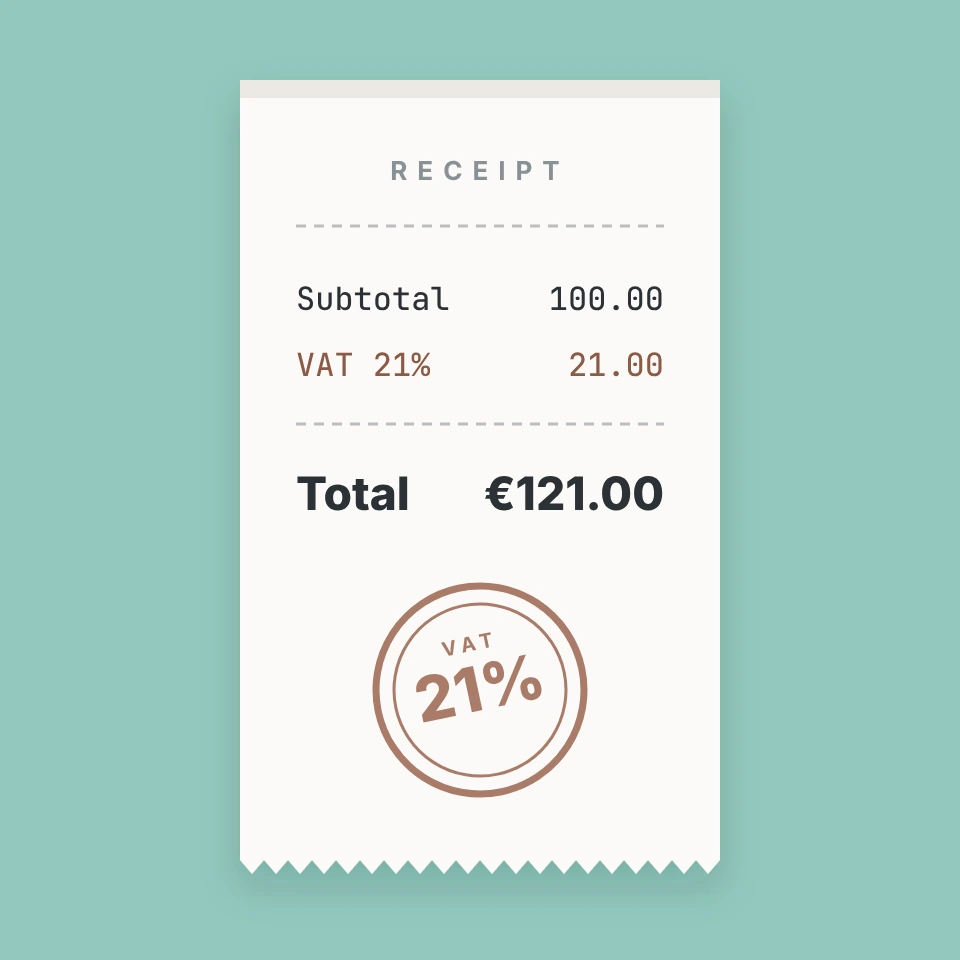
VAT, from a French idea to a tax in 170 countries
What VAT is, how to work out prices including and excluding VAT, how the reverse charge works and how VAT spread from France in 1954 to more than 170 countries.
Calculator
A free online calculator with a basic and a scientific mode: trigonometry, logarithms, powers, roots, factorials, memory and history, with the correct order of operations.
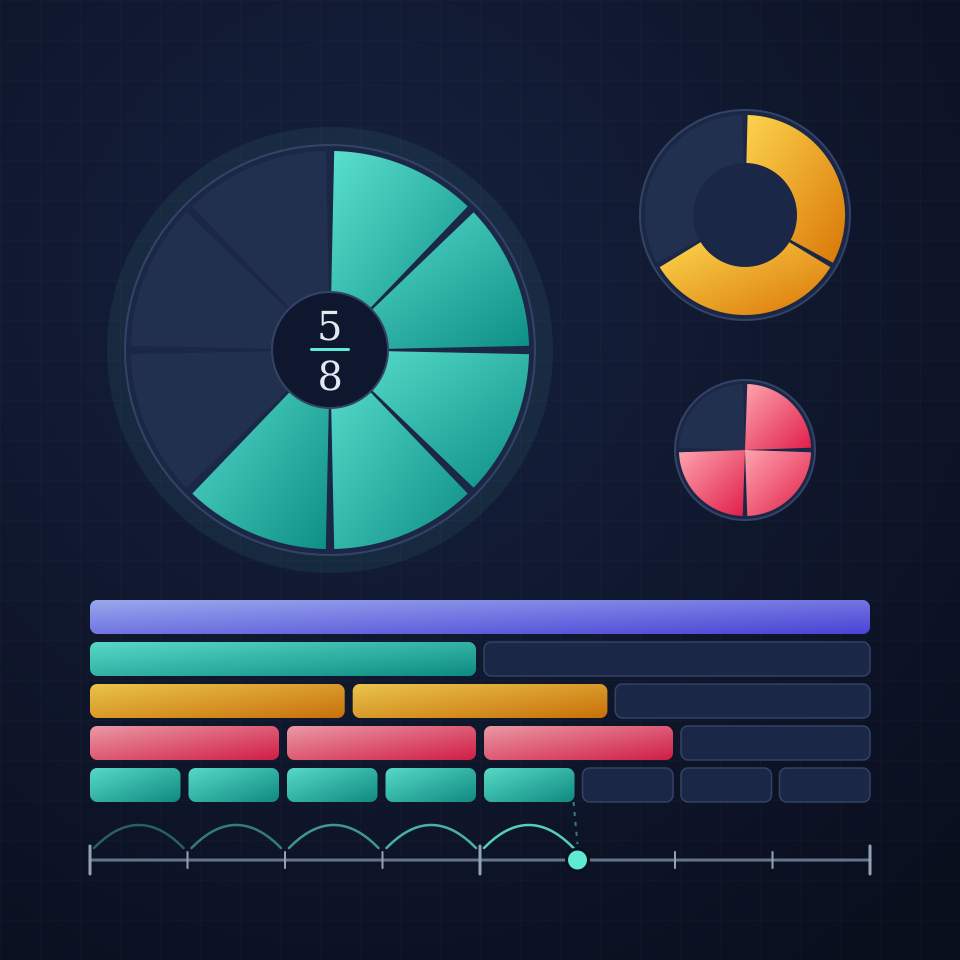
Fraction calculator
A free online fraction calculator: add, subtract, multiply, divide, simplify and compare fractions and mixed numbers, with the steps explained and a picture.

Statistics calculator
A free online statistics calculator: paste numbers and get the mean, median, mode, variance, standard deviation, quartiles and a histogram instantly.
Ready to try it?
Open PictorX in your browser — no install, no credit card required to start.
Go to Editor