
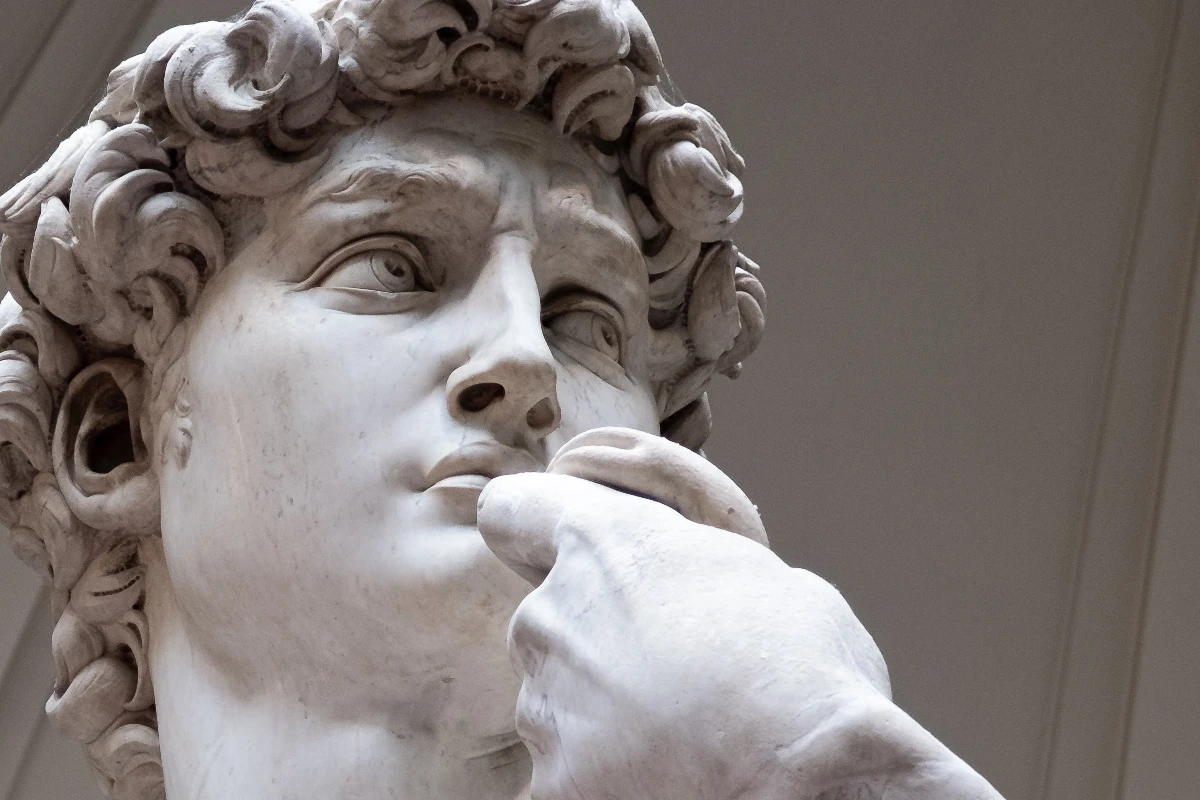
试试下方的风格化效果,或打开你自己的图片。
图片碎裂效果
Open a photo and apply 碎裂 in PictorX. This look is part of 风格化效果—adjust the settings on this page, then keep editing with layers, text, and other effects in the same workspace. 试试下方的风格化效果,或打开你自己的图片。
它是如何运作的
- Open this page and try 碎裂 on the sample, or open your own photo.
- Tune the 碎裂 settings, or switch to another look in 风格化效果.
- Save the result, or keep editing with layers, text, and other effects in PictorX.
What the 碎裂 effect does
碎裂 is one of the looks in PictorX 风格化效果. Apply it in your browser, then keep working in the same project—crop, type, or add another effect without starting over.
More looks in 风格化效果
This page opens 风格化效果 with 碎裂 already selected. Switch looks on the demo to compare styles, or open the full 风格化效果 page to browse every option in the set.
Looks in this set
常见问题
碎裂效果对图片有什么作用?
它像打碎的玻璃一样把照片切成三角形碎片,并让每块碎片从图像中心向外移动。靠近边缘的碎片移动得更远、旋转得更多,所以画面看起来像在爆裂开来,而中心依然清晰可辨。
如何在线碎裂图片?
在本页打开你的照片,“碎裂”已经选中。点击“属性”:“单元格大小”(1 到 100%)设置碎片大小,“位移”(1 到 100%)设置碎片分开的距离,“角度”设置每块碎片的旋转量。然后点击“另存为图片”。
如何得到轻微裂纹或强烈爆炸的效果?
想要轻微的裂纹效果,请使用较大的“单元格大小”、约 5% 到 10% 的低“位移”和较小的“角度”。想要爆炸效果,请调低“单元格大小”得到许多小碎片,并提高“位移”和“角度”。使用“按住以显示原图”可与未处理的照片比较。
可以把照片碎裂成方块,或使用透明背景吗?
可以。开启“正方形”可把照片碎裂成方形瓷砖而不是三角形,越靠近边缘瓷砖越大。默认情况下,原照片在碎片后面依然可见。开启“透明背景”可让空隙留空,这样就能在编辑器中把碎裂的照片放到其他背景上。
碎裂和晶格化有什么区别?
“晶格化”在不规则的单元中重新上色,但一切保持原位。“碎裂”会移动并旋转碎片,所以图像真的像被打碎了。同一“风格化效果”工具集中的“爆炸方块”则把照片碎裂成方块,而不是玻璃碎片。
相关工具
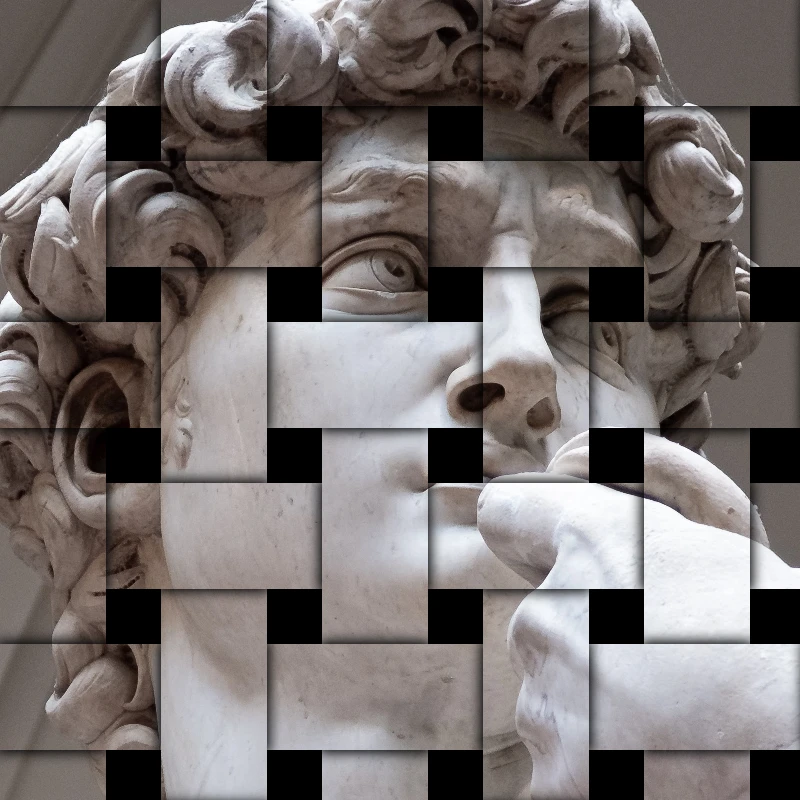
风格化效果
为照片添加破碎、故障、火焰、浮雕、晕影和其他工作室风格外观。
RGB 分离效果
在线为照片添加 RGB 分离效果:把红、绿、蓝通道错开,形成彩色边缘镶边。可选择通道、半径和角度。
浮雕 effect
Apply a 浮雕 effect to photos free in your browser. Open the 风格化效果 tools, tune the look, and keep editing in PictorX. No install.
照片雕刻效果
在线把照片变成雕版画:用交叉影线、平行线、圆形或波浪以双色绘制明暗。可设置阈值、线宽和线间距。
蓝图滤镜
在线把照片变成蓝图:轮廓变成蓝色纸上的浅色线条,可选加上技术网格。还可以更改背景颜色。
毛玻璃 effect
Apply a 毛玻璃 effect to photos free in your browser. Open the 风格化效果 tools, tune the look, and keep editing in PictorX. No install.
塑料包装效果
在线给照片添加塑料包装效果:光泽高光随图像形状起伏,仿佛被封在透明薄膜里。可调整高光强度。
了解更多万花筒知识
万花筒如何运作?布儒斯特的发明及其希腊语名称、镜子如何形成图案、单元与远景万花筒,以及数字万花筒滤镜。
准备好尝试了吗?
在浏览器中打开 PictorX — 无需安装,无需信用卡即可启动。
前往编辑器