

Prøv en stylize se nedenfor, eller åbne dit eget billede.
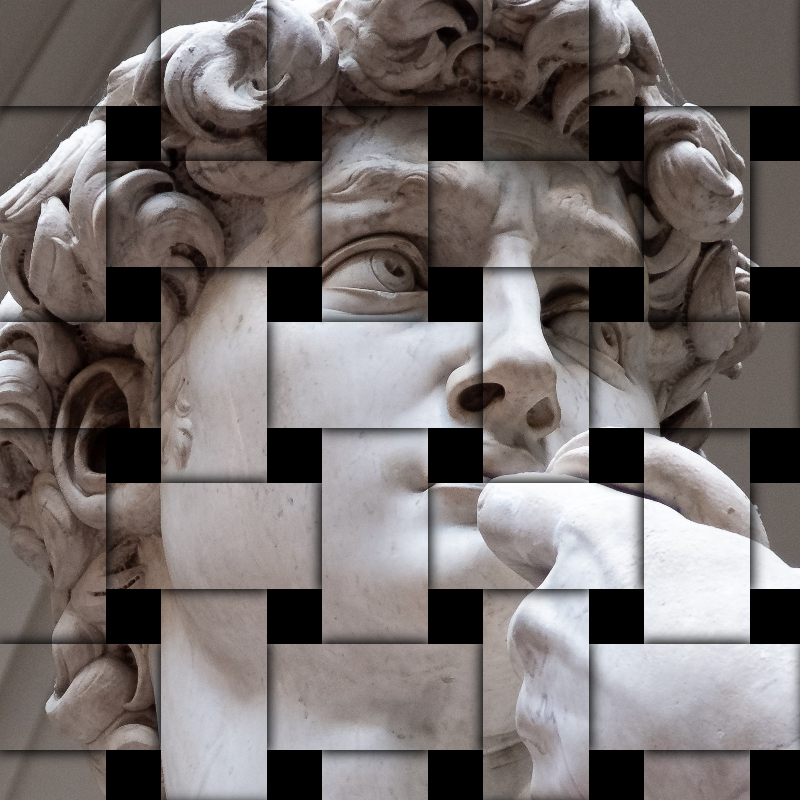
Splint effect
Open a photo and apply Splint in PictorX. This look is part of Stylize-effekter—adjust the settings on this page, then keep editing with layers, text, and other effects in the same workspace. Prøv en stylize se nedenfor, eller åbne dit eget billede.
Sådan virker det
- Open this page and try Splint on the sample, or open your own photo.
- Tune the Splint settings, or switch to another look in Stylize-effekter.
- Save the result, or keep editing with layers, text, and other effects in PictorX.
What the Splint effect does
Splint is one of the looks in PictorX Stylize-effekter. Apply it in your browser, then keep working in the same project—crop, type, or add another effect without starting over. Nothing is uploaded for this effect.
More looks in Stylize-effekter
This page opens Stylize-effekter with Splint already selected. Switch looks on the demo to compare styles, or open the full Stylize-effekter page to browse every option in the set.
Looks in this set
Ofte stillede spørgsmål
Is the Splint effect free?
Yes. Open this page in a modern browser to try Splint as part of the free PictorX editing workflow.
Can I keep editing after I apply Splint?
Yes. Apply Splint, then keep using layers, text, and other PictorX tools in the same workspace.
How do I open Splint from Stylize-effekter?
This page loads Stylize-effekter with Splint selected. You can also open Stylize-effekter and choose Splint from the looks.
Relaterede værktøjer
Stylize-effekter
Tilføj splinter, glitch, ild, emboss, vignette, og andre studio stylize ser til billeder. Brug PictorX gratis i din browser uden software installation kræves.
RGB-split effect
Apply a RGB-split effect to photos free in your browser. Open the Stylize-effekter tools, tune the look, and keep editing in PictorX. No install.
Præg effect
Apply a Præg effect to photos free in your browser. Open the Stylize-effekter tools, tune the look, and keep editing in PictorX. No install.
Indgraveret effect
Apply a Indgraveret effect to photos free in your browser. Open the Stylize-effekter tools, tune the look, and keep editing in PictorX. No install.
Blåtryk effect
Apply a Blåtryk effect to photos free in your browser. Open the Stylize-effekter tools, tune the look, and keep editing in PictorX. No install.
Frostet glas effect
Apply a Frostet glas effect to photos free in your browser. Open the Stylize-effekter tools, tune the look, and keep editing in PictorX. No install.
Plastfolie effect
Apply a Plastfolie effect to photos free in your browser. Open the Stylize-effekter tools, tune the look, and keep editing in PictorX. No install.
Kalejdoskoper
Hvordan kalejdoskoper arbejde: Brewsters opfindelse, vinklede spejle, radial symmetri, og digitale kalejdoskop filtre kan du prøve på et billede i PictorX.
Er du klar til at prøve?
Åbn PictorX i din browser - ingen installation, ingen kreditkort kræves for at starte.
Gå til Editor