
Code to Image
Paste a snippet and see it as a picture: comments, strings, numbers and keywords in a theme, inside a window or a plain card. Save a PNG for a slide or a post. The code stays in this browser. Pega un fragmento, elige un idioma y un tema, y guarda una imagen para una diapositiva o una publicación. Aleatorio elige otro fragmento y otro aspecto. El código se queda en este navegador.
Cómo funciona
- Paste a snippet, or start from the sample, and choose the language.
- Pick a theme, a window or a plain card, and a backdrop.
- Save a PNG for a slide or a post. The snippet stays in this browser.
A picture of the code
The colours follow the groups an editor uses: comments, strings, numbers, keywords and names that are called. They make the shape of a snippet easy to see on a slide. They do not check that the code runs.
Frame, backdrop and size
A window adds the three dots and a title. Plain is only the card. The backdrop can be a flat colour or a gradient. Line numbers, padding and the type size change how the picture sits on a page.
Preguntas frecuentes
Does this run my code?
No. It draws the snippet with a visual theme. The colours do not mean the code was checked.
Is my code uploaded?
No. The picture is drawn in your browser, and the last snippet stays there.
Which languages can I use?
JavaScript, TypeScript, Python, C#, Java, C++, Go, Rust, HTML, CSS, JSON, SQL and Bash are coloured. Anything else can be shown as plain text.
How do I put it on a slide?
Save a PNG and drop it into the slide or the post. A window frame and a gradient backdrop read well on a screen.
Herramientas relacionadas
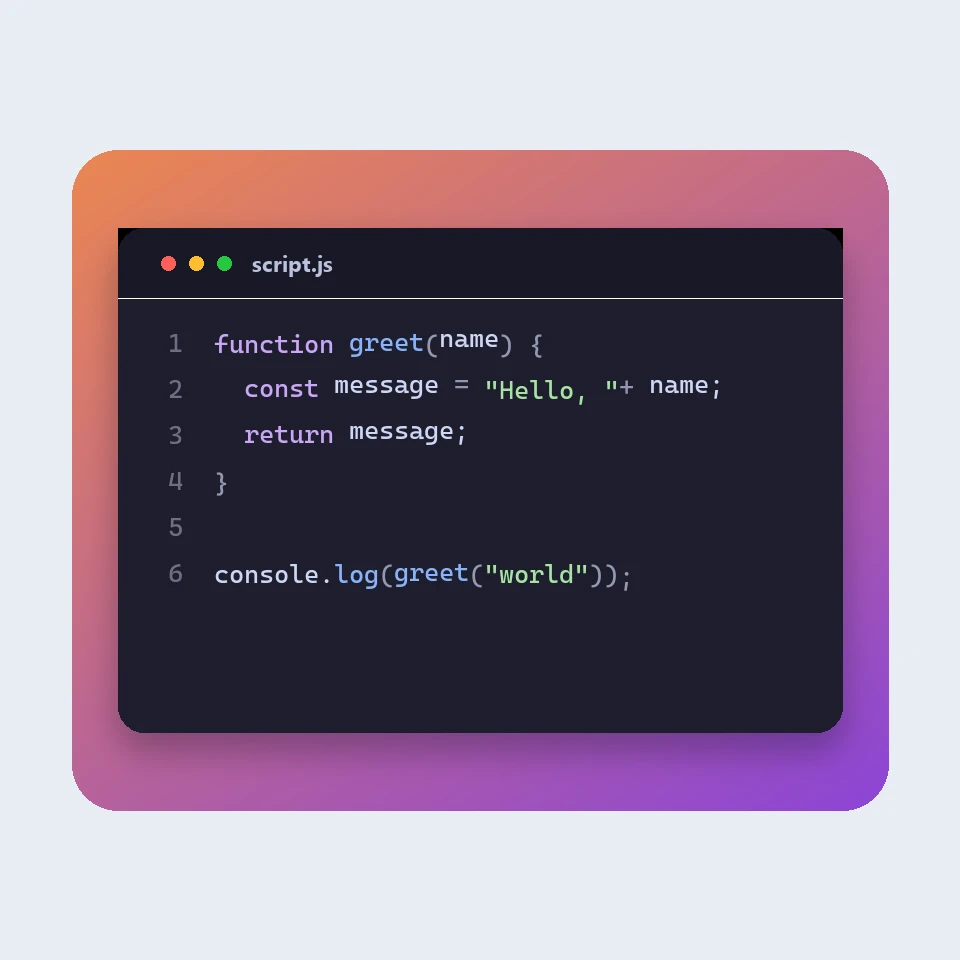
How a code picture is made
How a snippet becomes a picture for a slide or a post: a window, a colour theme, line numbers and a backdrop. The colours are visual. The code is not run or uploaded.
Formateador JSON
Formateador y validador JSON gratuito: embellece o minifica JSON, encuentra la línea y la columna de un error, ordena claves, recorre un árbol, copia rutas y convierte arrays a CSV, todo en tu navegador.
Editor de Markdown
Un editor de Markdown en línea gratuito con vista previa en vivo: vista dividida con desplazamiento sincronizado, tablas y listas de tareas como en GitHub, resaltado de código, barra de formato, modo concentración, recuento de palabras y tiempo de lectura, guardado automático y descarga en .md o .html.
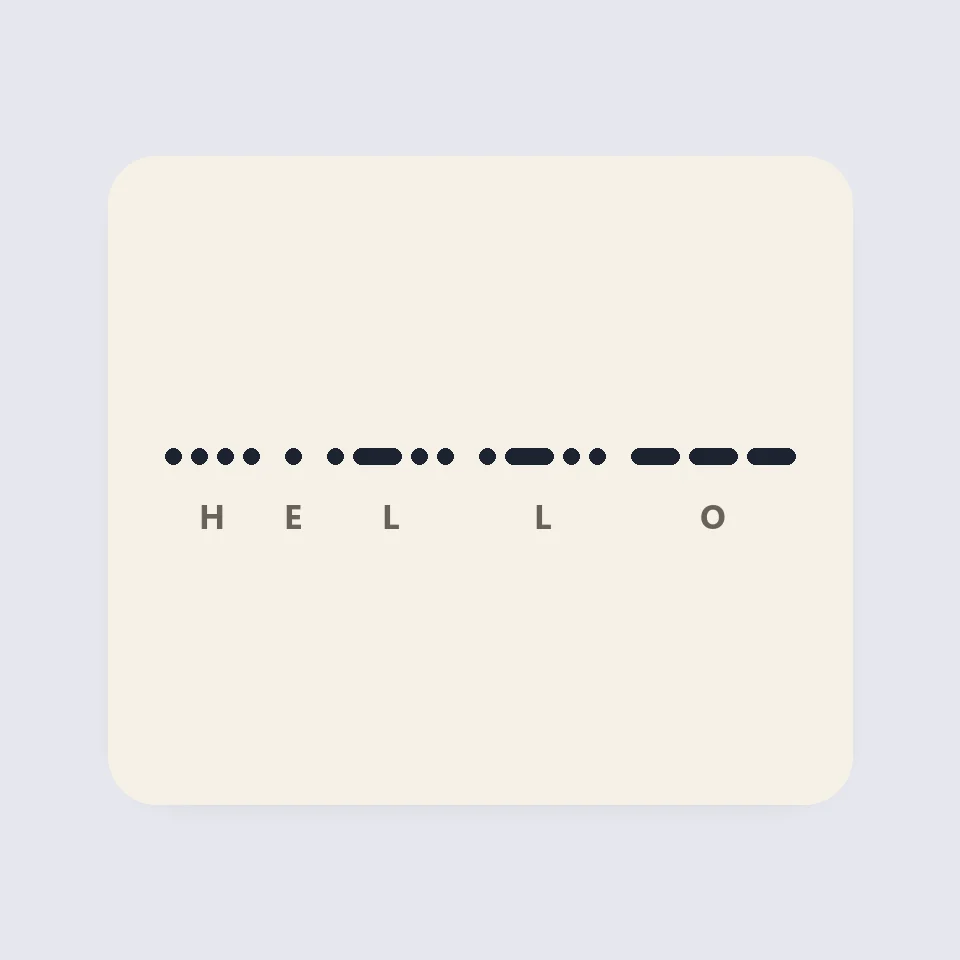
Visual Morse Code
Turn text into a Morse code design of dots and dashes. Play it as a flashing lamp, copy the code, and save a card for a lesson, a note, or a page.
¿Listo para probarlo?
Abre PictorX en tu navegador: sin instalación ni tarjeta de crédito para empezar.
Ir al editor