
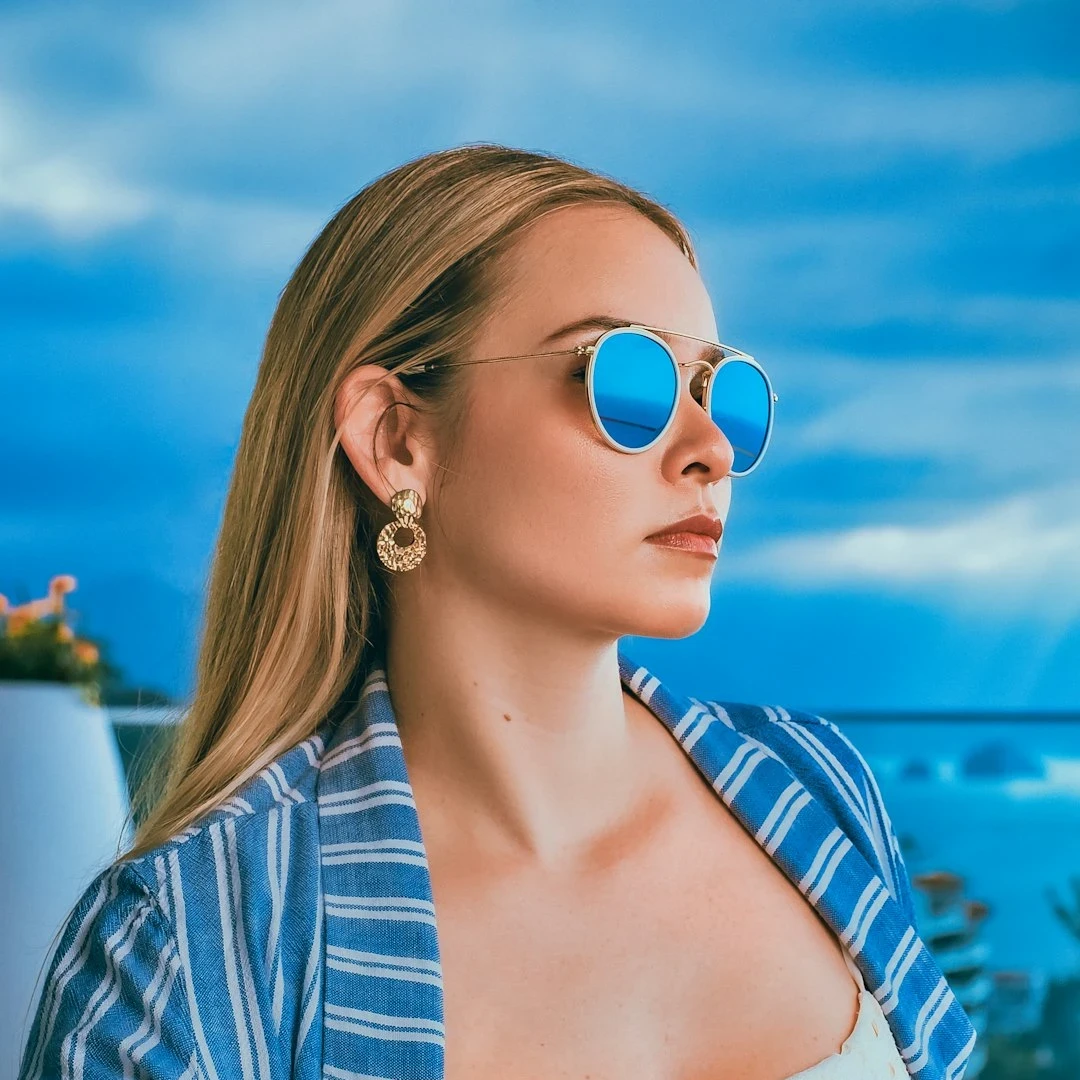
Try an artistic look below, or open your own picture.
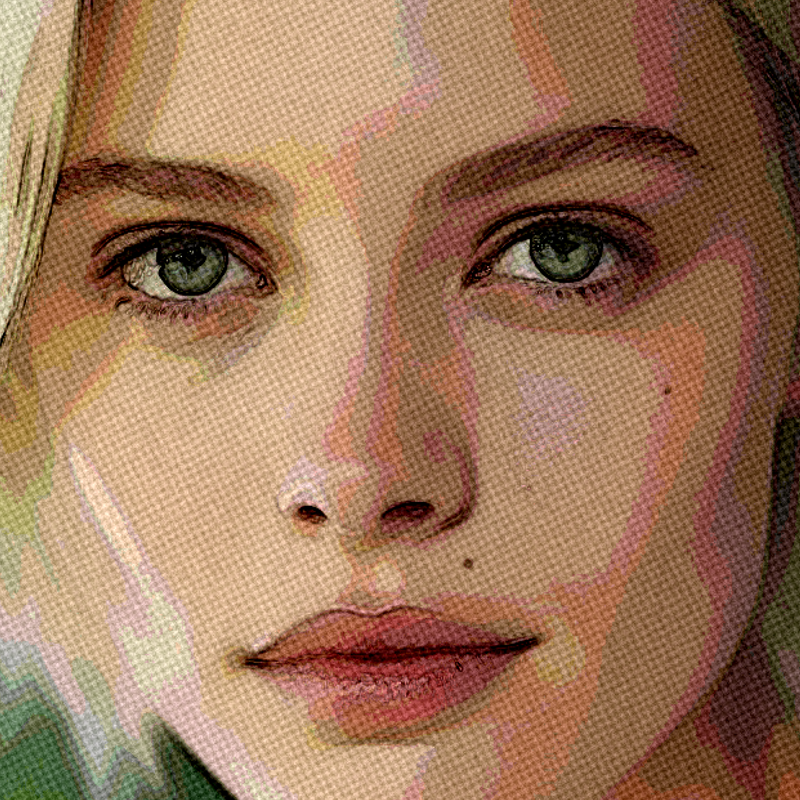
Rough Pastels effect
Open a photo and apply Rough Pastels in PictorX. This look is part of Artistic effects—adjust the settings on this page, then keep editing with layers, text, and other effects in the same workspace. Try an artistic look below, or open your own picture.
How it works
- Open this page and try Rough Pastels on the sample, or open your own photo.
- Tune the Rough Pastels settings, or switch to another look in Artistic effects.
- Save the result, or keep editing with layers, text, and other effects in PictorX.
What the Rough Pastels effect does
Rough Pastels is one of the looks in PictorX Artistic effects. Apply it in your browser, then keep working in the same project—crop, type, or add another effect without starting over. Nothing is uploaded for this effect.
More looks in Artistic effects
This page opens Artistic effects with Rough Pastels already selected. Switch looks on the demo to compare styles, or open the full Artistic effects page to browse every option in the set.
Looks in this set
Frequently asked questions
Is the Rough Pastels effect free?
Yes. Open this page in a modern browser to try Rough Pastels as part of the free PictorX editing workflow.
Can I keep editing after I apply Rough Pastels?
Yes. Apply Rough Pastels, then keep using layers, text, and other PictorX tools in the same workspace.
How do I open Rough Pastels from Artistic effects?
This page loads Artistic effects with Rough Pastels selected. You can also open Artistic effects and choose Rough Pastels from the looks.
Related tools
Artistic effects
Transform photos with oil painting, watercolor, pencil, comic ink, pastels, paper cut-out, and other studio art looks. Use PictorX free in your browser with no software install required.
Watercolor effect
Apply a Watercolor effect to photos free in your browser. Open the Artistic effects tools, tune the look, and keep editing in PictorX. No install.
Oil Painting effect
Apply a Oil Painting effect to photos free in your browser. Open the Artistic effects tools, tune the look, and keep editing in PictorX. No install.
Pencil Sketch effect
Apply a Pencil Sketch effect to photos free in your browser. Open the Artistic effects tools, tune the look, and keep editing in PictorX. No install.
Comic effect
Apply a Comic effect to photos free in your browser. Open the Artistic effects tools, tune the look, and keep editing in PictorX. No install.
Colored Pencil effect
Apply a Colored Pencil effect to photos free in your browser. Open the Artistic effects tools, tune the look, and keep editing in PictorX. No install.
Aboriginal Art effect
Apply a Aboriginal Art effect to photos free in your browser. Open the Artistic effects tools, tune the look, and keep editing in PictorX. No install.
Kaleidoscopes
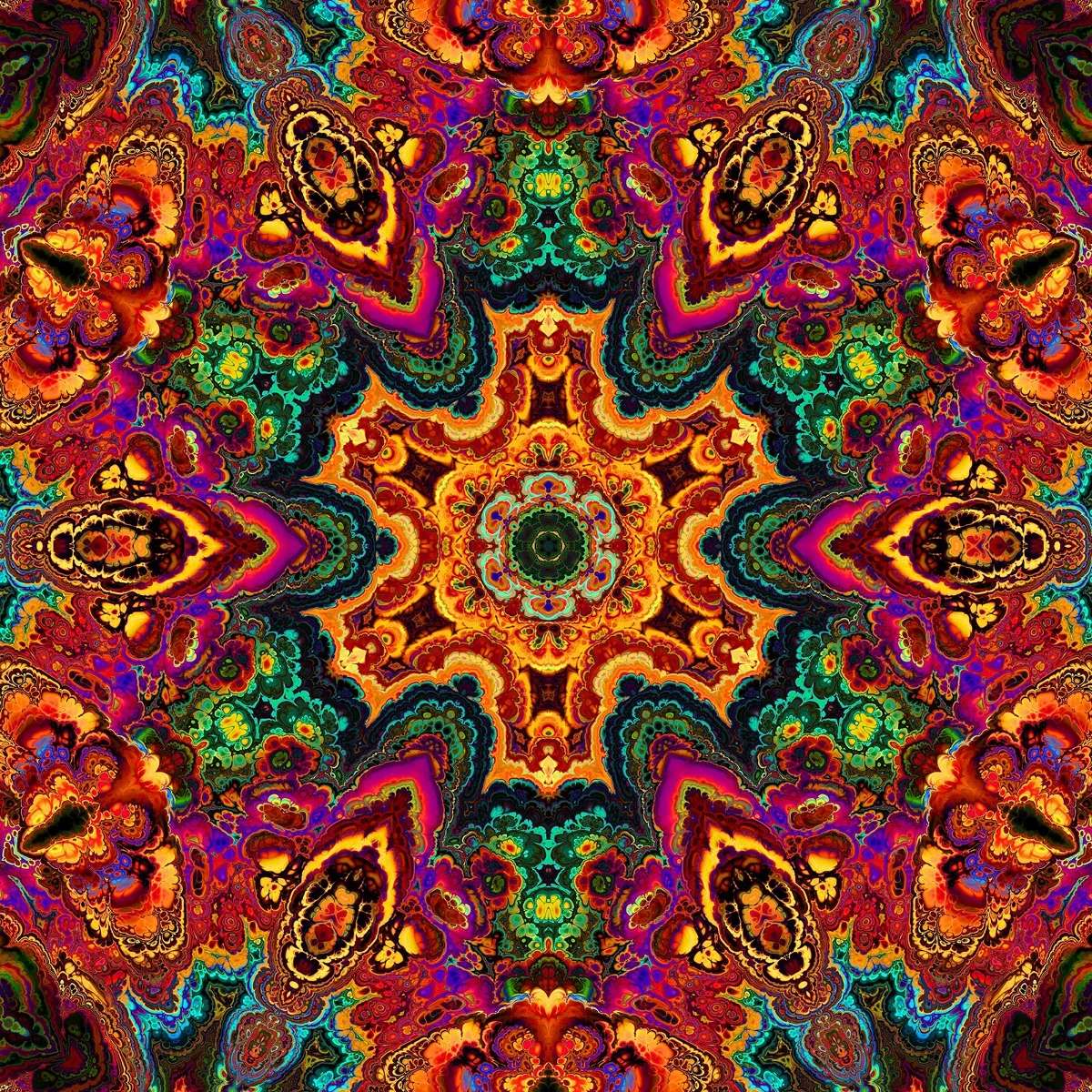
How kaleidoscopes work: Brewster’s invention, angled mirrors, radial symmetry, and digital kaleidoscope filters you can try on a photo in PictorX.
Ready to try it?
Open PictorX in your browser — no install, no credit card required to start.
Go to Editor