

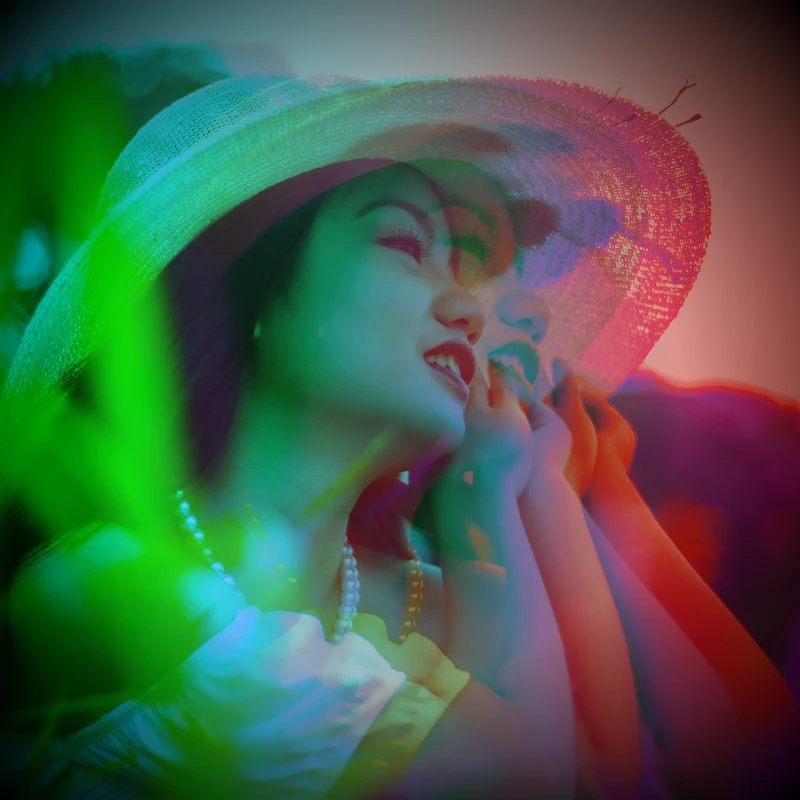
试试下方的色彩效果,或打开你自己的图片。
反相颜色 effect
Open a photo and apply 反相颜色 in PictorX. This look is part of 电光梦境滤镜—adjust the settings on this page, then keep editing with layers, text, and other effects in the same workspace. 试试下方的色彩效果,或打开你自己的图片。
它是如何运作的
- Open this page and try 反相颜色 on the sample, or open your own photo.
- Tune the 反相颜色 settings, or switch to another look in 电光梦境滤镜.
- Save the result, or keep editing with layers, text, and other effects in PictorX.
What the 反相颜色 effect does
反相颜色 is one of the looks in PictorX 电光梦境滤镜. Apply it in your browser, then keep working in the same project—crop, type, or add another effect without starting over. Nothing is uploaded for this effect.
More looks in 电光梦境滤镜
This page opens 电光梦境滤镜 with 反相颜色 already selected. Switch looks on the demo to compare styles, or open the full 电光梦境滤镜 page to browse every option in the set.
Looks in this set
常见问题
Is the 反相颜色 effect free?
Yes. Open this page in a modern browser to try 反相颜色 as part of the free PictorX editing workflow.
Can I keep editing after I apply 反相颜色?
Yes. Apply 反相颜色, then keep using layers, text, and other PictorX tools in the same workspace.
How do I open 反相颜色 from 电光梦境滤镜?
This page loads 电光梦境滤镜 with 反相颜色 selected. You can also open 电光梦境滤镜 and choose 反相颜色 from the looks.
相关工具
电光梦境滤镜
通过效果 → 颜色为照片注入电影感。效果 → 颜色 → 霓虹发光让霓虹边缘脉动,效果 → 颜色 → 热力图映射数据感热力图,效果 → 颜色 → 双色调锁定双色调氛围,效果 → 颜色 → 三色调锁定三色调氛围。叠加滤镜、调节不透明度,把普通照片变成海报级电光梦境。 在浏览器中免费使用 PictorX,无需安装软件。
色调 effect
Apply a 色调 effect to photos free in your browser. Open the 电光梦境滤镜 tools, tune the look, and keep editing in PictorX. No install.
Holga1 effect
Apply a Holga1 effect to photos free in your browser. Open the 电光梦境滤镜 tools, tune the look, and keep editing in PictorX. No install.
Holga2 effect
Apply a Holga2 effect to photos free in your browser. Open the 电光梦境滤镜 tools, tune the look, and keep editing in PictorX. No install.
热力图 effect
Apply a 热力图 effect to photos free in your browser. Open the 电光梦境滤镜 tools, tune the look, and keep editing in PictorX. No install.
全息 effect
Apply a 全息 effect to photos free in your browser. Open the 电光梦境滤镜 tools, tune the look, and keep editing in PictorX. No install.
X光 effect
Apply a X光 effect to photos free in your browser. Open the 电光梦境滤镜 tools, tune the look, and keep editing in PictorX. No install.

了解更多色彩知识
色彩在屏幕与印刷中如何工作:RGB、CMYK、HSL、十六进制、色轮、渐变、对比度,以及 PictorX 工具。
准备好尝试了吗?
在浏览器中打开 PictorX — 无需安装,无需信用卡即可启动。
前往编辑器