

摆放 1 到 8 张照片,然后点击开始,把它们做成贴纸。
贴纸拼贴
将 1 到 8 张照片变成模切贴纸。设备上的人工智能会删除每个背景并应用贴纸制作器外观。在画布周围拖动贴纸,从角落调整它们的大小,然后选择透明、纯色或渐变背景。 拖动即可移动。使用角手柄调整大小。开始将照片变成贴纸。
它是如何运作的
- 在此页面上打开 1-8 张照片,或从混合样本集开始。
- 单击开始。设备上的人工智能会剪切每个主题并构建白色贴纸轮廓。
- 拖动贴纸进行排列,从角落调整大小,选择透明、纯色或渐变背景,然后保存。
贴纸,不是网格
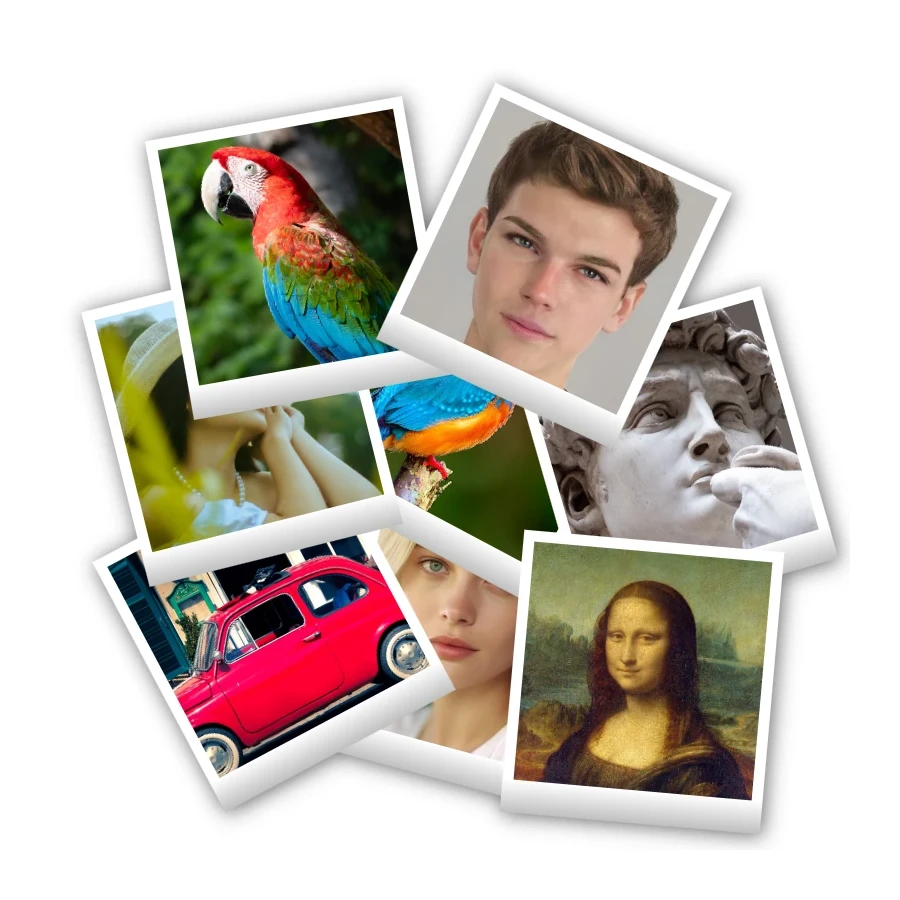
照片拼贴将图片打包到单元格中。宝丽来拼贴画将每个镜头放入即时胶片框架中。贴纸拼贴画将人物和物体隔离开来,将它们包裹在模切轮廓中,然后将它们散布在画布上,就像一张可剥离的贴纸一样。
移动、调整大小并选择背景
After the stickers appear, click one to select it, drag to move, and pull a corner handle to scale. Transparent keeps a clear PNG. Solid fills the canvas with a color from the picker. Gradient blends that color into a second stop. Shuffle rearranges the stickers; Reset restores the samples.
常见问题
我可以在贴纸拼贴中放入多少张照片?
该制作者拍摄 1 至 8 张照片。一张贴纸即可填满画布;四到八张可以形成更完整的纸张。一次打开多张图片,或使用“打开”替换选定的贴纸。
How is this different from Sticker Maker?
Sticker Maker turns one photo into a single die-cut sticker. This collage runs that same on-device cutout on up to eight photos, then lets you arrange and resize the stickers on a shared backdrop.
我可以保留透明背景吗?
是的。选择“透明”,然后另存为 PNG,以便聊天、商店和打印文件保持贴纸周围清晰的背景。
我的照片会离开设备吗?
Background removal runs on-device in supported browsers, the same as Remove background and Sticker Maker, so the photos are not uploaded to PictorX servers for that step.
相关工具

准备好尝试了吗?
在浏览器中打开 PictorX — 无需安装,无需信用卡即可启动。
前往编辑器