

Selective Color effect
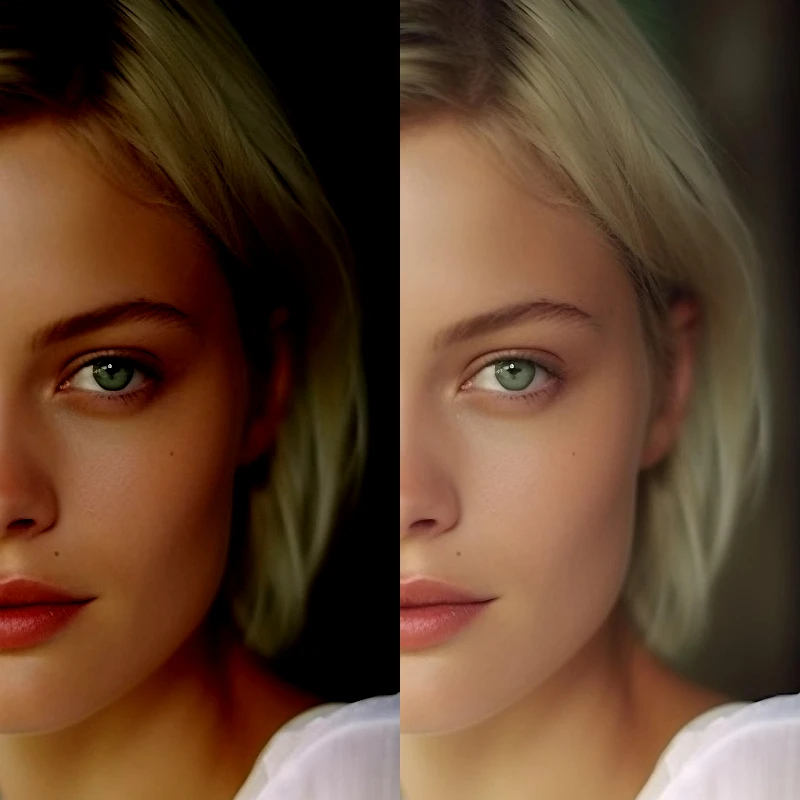
Open a photo and apply Selective Color in PictorX. This look is part of Adjust—adjust the settings on this page, then keep editing with layers, text, and other effects in the same workspace. Try an adjustment below, or open your own picture.
How it works
- Open this page and try Selective Color on the sample, or open your own photo.
- Tune the Selective Color settings, or switch to another look in Adjust.
- Save the result, or keep editing with layers, text, and other effects in PictorX.
What the Selective Color effect does
Selective Color is one of the looks in PictorX Adjust. Apply it in your browser, then keep working in the same project—crop, type, or add another effect without starting over.
More looks in Adjust
This page opens Adjust with Selective Color already selected. Switch looks on the demo to compare styles, or open the full Adjust page to browse every option in the set.
Looks in this set
Related tools
Adjust
Correct exposure and color from Image → Adjust.
Posterize an Image Online
Posterize a photo online: set the number of tone levels and turn smooth gradients into flat bands of color for a screen print or poster look.
Auto Tone effect
Apply a Auto Tone effect to photos free in your browser. Open the Adjust tools, tune the look, and keep editing in PictorX. No install.
Auto Contrast effect
Apply a Auto Contrast effect to photos free in your browser. Open the Adjust tools, tune the look, and keep editing in PictorX. No install.
Auto Color effect
Apply a Auto Color effect to photos free in your browser. Open the Adjust tools, tune the look, and keep editing in PictorX. No install.
Brightness / Contrast effect
Apply a Brightness / Contrast effect to photos free in your browser. Open the Adjust tools, tune the look, and keep editing in PictorX. No install.
Adjust Hue and Saturation Online
Shift the hue of every color and raise or lower saturation online. Make the colors of a photo more vivid, more muted or fully gray.
Ready to try it?
Open PictorX in your browser — no install, no credit card required to start.
Go to Editor