
Layout
Crop
Guides
Download
Instagram grid and carousel maker
Turn one photo into a big picture across your profile grid, or into a panorama that runs on from slide to slide in a carousel. Pick three columns and up to six rows, or two to ten slides, and the tile shape: square, 4:5 or the 3:4 a profile grid shows today. Drag the photo to place it and zoom in, see the cut lines and the order to post the tiles in, check the result in a preview of a profile or of the slides, and download the tiles at 1080 pixels wide, numbered, in one ZIP. Open a photo, drop it on the picture or pick an example. Pick Grid for a profile grid or Carousel for a seamless carousel, drag the photo to place it and zoom with the wheel or the slider. Preview shows the profile grid or the slides; Download tiles saves the numbered tiles as a ZIP. Your photos stay on your device.
How it works
- Open a photo, drop it on the picture, or start with the example.
- Pick Grid and the number of rows, or Carousel and the number of slides, and the tile ratio.
- Drag the photo to place it, zoom with the wheel or the slider, or pick Whole photo to fit it on a background color.
- Check Preview, then press Download tiles and post the tiles in their number order, 1 first.
The right order, the right shape
A profile shows the newest post first, at the top left, so a grid has to be posted backwards: the bottom-right tile first. The numbers on the tiles and in the file names are that posting order, so the picture comes together as you post. A profile grid shows every post cut to 3:4, so 3:4 tiles (1080 × 1440) join up exactly there; 4:5 and square tiles lose a little at their edges in the grid but show whole when opened. A carousel is one post: its slides are numbered left to right and continue seamlessly from one to the next.
Preview, download and keep editing
Preview shows the tiles in a generic profile, with the gaps between them and a row of older posts, or the carousel as slides to swipe with dots underneath. Download tiles saves every tile at 1080 pixels wide as a JPG or PNG in one ZIP, ready to post, and Save keeps the whole picture. The pencil opens it in the editor with the photo, the background, the cut lines and the numbers on layers of their own. Everything happens in your browser; your photo is not uploaded.
Frequently asked questions
How do I split a photo into a grid for my profile?
Open your photo on this page, pick Grid and the number of rows, and drag the photo to place it. Press Download tiles to get the tiles in a ZIP, then post them in their number order, starting with 1. The same app is in the editor under Apps → Photo → Grid & carousel.
In what order do I post the tiles?
Start with tile 1 and go up. A profile shows the newest post first at the top left, so the last tile of the grid, at the bottom right, has to go up first. The numbers on the picture and in the file names (grid-01.jpg, grid-02.jpg …) are this order.
Which tile ratio should I pick?
For a profile grid pick 3:4 (1080 × 1440): the grid shows each post cut to 3:4, so the tiles join up exactly. 4:5 (1080 × 1350) and square (1080 × 1080) tiles also work, but the grid cuts a little off their edges. For a carousel every slide shows whole, so pick the shape you like.
How does a seamless carousel work?
Pick Carousel and two to ten slides: the photo runs across all of them, and each slide continues where the last one ended, so swiping reveals a panorama. A wide photo works best; Preview lets you swipe through the slides before you post.
What if my photo does not fill the grid?
With Fill frame the photo covers every tile and the rest is cut off; drag it and zoom to choose the part you want. With Whole photo it fits inside the grid and the empty part gets the background color you pick.
Related tools

Instagram post maker
Design Instagram posts and story graphics free with PictorX. Templates, text effects, and AI cutouts in your browser.
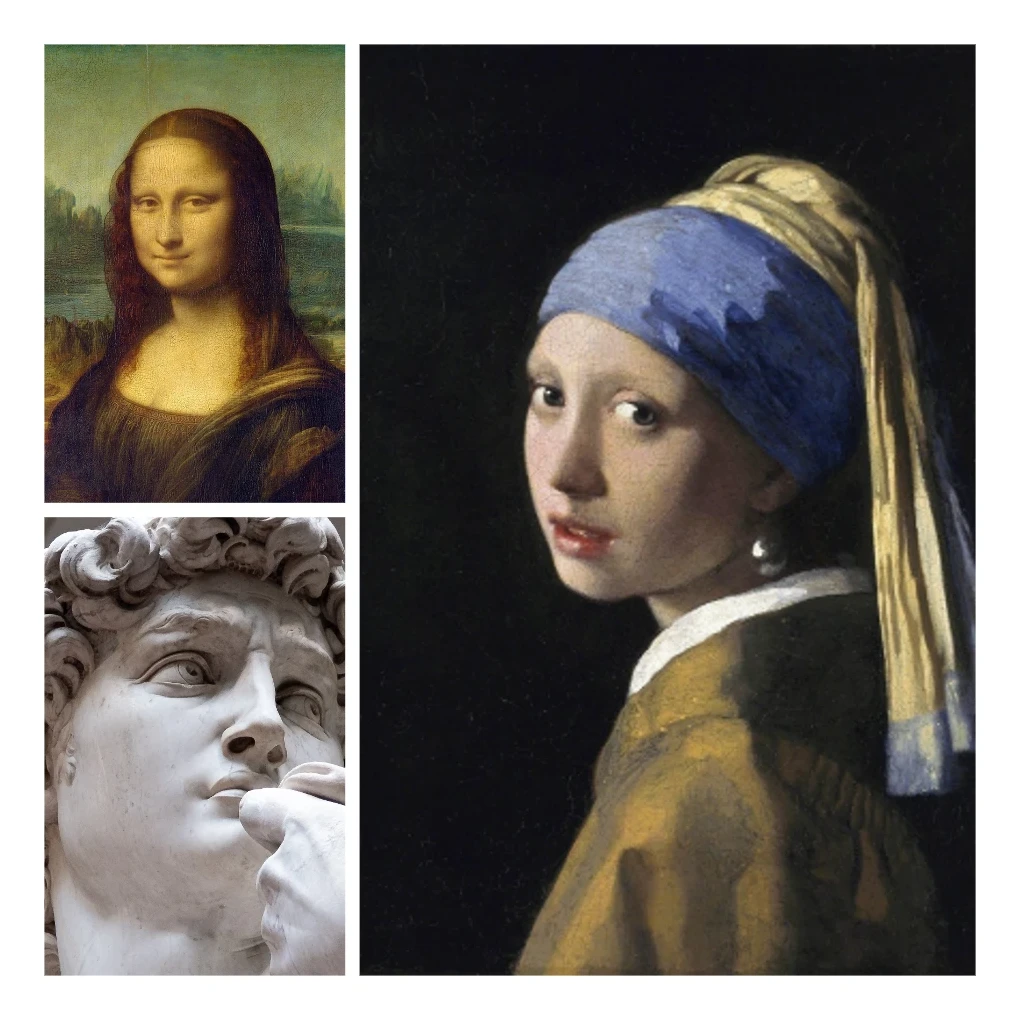
Photo collage
Make photo collages free online with PictorX. Combine 2 to 20 photos, pick a layout, and export.
Crop tool
Crop a photo online for free: keep just the part of the image or layout you want and cut away the rest. Works in your browser, nothing to install.
Ready to try it?
Open PictorX in your browser — no install, no credit card required to start.
Go to Editor