
Free LinkedIn banner maker
Your LinkedIn cover is prime real estate. Build a clean, on-brand banner in PictorX with your photo, headline, and colors—then export and upload to your profile.
How it works
- Open PictorX and start from a wide canvas or social template.
- Add your photo, logo, and a short professional headline.
- Export a high-resolution image and upload it as your LinkedIn cover.
Recommended LinkedIn banner size
LinkedIn cover images display best around 1584×396 pixels. Design a bit larger if you like, keep important text away from the edges and profile-photo overlap on the left, and check the crop on both desktop and mobile before publishing.
What to put on a LinkedIn banner
Lead with one message: your role, offer, or personal brand line. Add a subtle photo or abstract background, your logo if you have one, and optional contact or website text in a readable size. Avoid cluttered collages—recruiters glance for seconds.
Make space with AI uncrop
If your best headshot is too tight for a wide banner, use PictorX uncrop to extend the background, then place typography in the new empty area. Pair that with background removal when you want a crisp cutout of yourself or a product.
Frequently asked questions
Can I reuse my company brand colors?
Yes. Match hex colors from your brand guide when styling shapes and text.
What if text is hidden behind my profile photo?
Keep important type on the right and away from the left overlap. Preview the crop on both desktop and mobile before you upload.
Can I use a photo of myself on the banner?
Yes. Remove the background if you want a clean cutout, or uncrop a tight headshot so there is room for a headline.
What size should I export?
Design around 1584×396 pixels (or larger with the same 4:1 ratio) and export a sharp PNG or JPG for LinkedIn.
Related tools
Free online logo maker
Design a simple logo free online with PictorX. Combine shapes, text, and icons—then export PNG for your brand.
Free resume & CV maker
Create a clean resume or CV free with PictorX templates. Edit text and layout in your browser, then export for applications.
AI uncrop & outpaint images
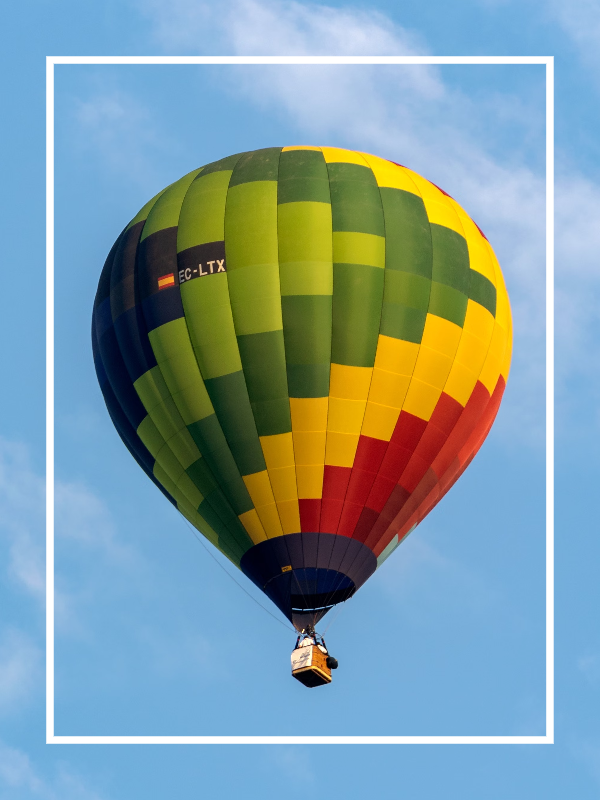
Expand photos beyond the frame with PictorX AI uncrop. Outpaint backgrounds free in your browser for banners and thumbnails.
Ready to try it?
Open PictorX in your browser — no install, no credit card required to start.
Design a LinkedIn banner