
Selection superpowers tool
Isolate exactly what you need—nothing more, nothing less. Draw rectangular and elliptical marquees, freehand lasso paths, or let Select → Wand and Select → SELECT QUICK SELECTION chase similar pixels for you. Feather edges, grow or shrink selections, invert them, and crop with Tools → Crop or Select → Crop and Insert as New Layer. From sky replacements to sticker cutouts, precision starts with the right selection.

How it works
- Open PictorX in your browser and load an image or start a new design.
- Choose Selection superpowers from the editor tools and adjust the result to fit your composition.
- Continue editing with layers, effects, and text, then export when you are ready.
How to use the Selection superpowers tool
Isolate exactly what you need—nothing more, nothing less. PictorX keeps the tool in the same browser workspace as your layers, photos, text, and design elements, so you can refine a composition without switching applications.
Keep creating in PictorX
Use Selection superpowers as one step in a complete editing workflow. Adjust the composition, add text or graphics, and keep every change editable while you turn an image into a finished design.
Frequently asked questions
What can I select?
A region, a layer, or the exact area you want to move, cut, or adjust.
Can I soften the edge of a selection?
Yes. Refine the edge so cutouts and adjustments blend instead of looking punched out.
Is selection only for background removal?
No. Use it for filters, transforms, and editing one part of a layout.
Can I transform just the selected area?
Yes. Move or scale the selection without changing the rest of the image.
Related tools
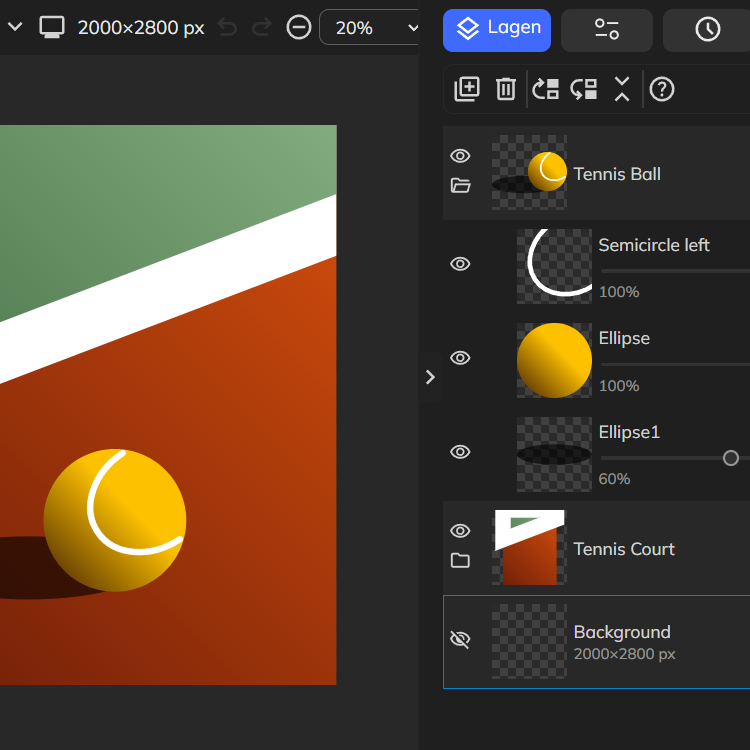
Layers & Blend Modes
Stack images, text, and shapes with full layer support. Use PictorX free in your browser with no software install required.

Paint & draw tools
Paint, erase, and refine pixels directly on raster layers. Use PictorX free in your browser with no software install required.
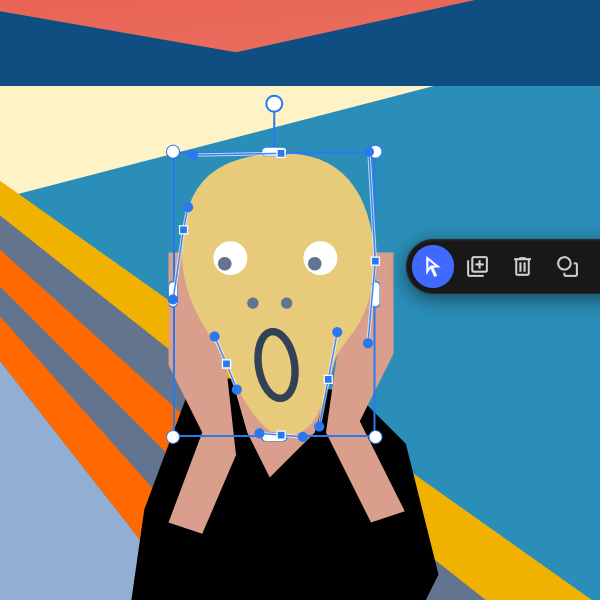
Paths, points & curves
Reshape shape and line paths at the anchor level. Use PictorX free in your browser with no software install required.
Ready to try it?
Open PictorX in your browser — no install, no credit card required to start.
Use Selection superpowers