
Transformă o fotografie în decupaje, culoare fovistă sau o singură linie fluidă Matisse — alege stilul și paleta, apoi ajustează dimensiunea formelor.
Filtru foto Matisse - decupaje, culoare fovistă și linie
Matisse simplified the world into a few flat, singing shapes. This filter does the same with your photo: it reduces it to a handful of colour shapes with calm, drawn outlines, then cuts them from painted paper, paints them in arbitrary Fauve colour, sets them in a red room, or draws them with a single brush line. All processed on-device. Transformă o fotografie în decupaje, culoare fovistă sau o singură linie fluidă Matisse — alege stilul și paleta, apoi ajustează dimensiunea formelor.
Cum funcţionează
- Open PictorX in your browser and load a photo — portraits, landscapes and still lifes with a few clear shapes work best.
- Choose Matisse, then pick a Style (Cut-Outs, Fauve, Harmony in Red or Line Drawing) and a Palette, and adjust Shape Size, Colors, Ornaments, Line Work and Paper Texture.
- Export the picture, or keep editing with layers and other effects in the same workspace.
Why few, flat shapes read as Matisse
Matisse spent his life simplifying: fewer colours, larger areas, firmer outlines. The filter groups your photo into a handful of colour shapes and smooths every outline into a calm curve, so the picture keeps its composition while losing photographic detail. Colors sets how many shapes there are; Shape Size sets how simple their outlines become.
Four styles and six palettes
Cut-Outs cuts the shapes from gouache-painted paper with scissor-like edges and scatters seaweed and leaf forms on the ground, as in Jazz and the late cut-outs. Fauve paints in broad strokes of arbitrary colour, after Woman with a Hat (1905). Harmony in Red sets the shapes in a flat red room with dark-blue arabesques, after The Dessert: Harmony in Red (1908), and Line Drawing reduces everything to a few fluent brush lines. Palettes: Photo, Jazz, Blue Nudes, Fauve, Harmony in Red and Nice.
Privacy and keep editing
Processing stays in your browser—photos are not uploaded to PictorX servers for this filter. After Matisse, continue with layers, text, Kandinsky, Paul Klee, Pointillism, or export.
Întrebări frecvente
What does the Matisse filter do?
It turns a photo into a picture in the manner of Henri Matisse—paper cut-outs, Fauve colour, Harmony in Red or a line drawing—built from your photo's own shapes, not a copy of a museum painting. Style, Palette, Shape Size, Colors, Ornaments and Line Work shape the look.
Is this a real Matisse?
No. It is a digital homage for your own photos. Matisse's own works are in museums such as the Centre Pompidou in Paris, the Musée Matisse in Nice and the Museum of Modern Art in New York.
What photos work best?
Photos with a few large, clear shapes: portraits suit Line Drawing and Fauve, landscapes and plants suit Cut-Outs, and interiors or still lifes suit Harmony in Red. Fewer Colors give bolder results.
Can I keep editing after applying Matisse?
Yes. Continue with layers, text, other artistic looks, or export from the same PictorX workspace.
Unelte conexe
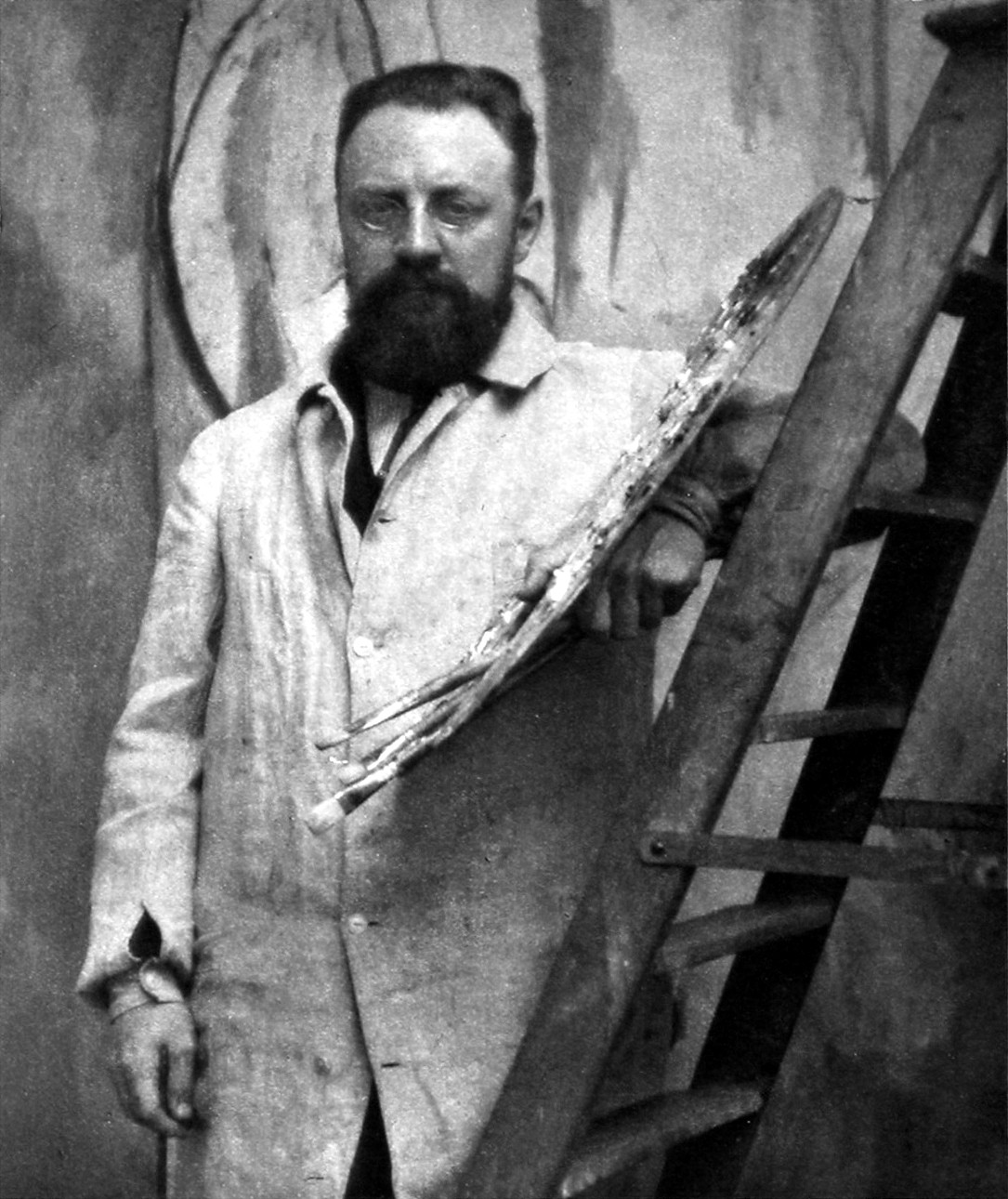
Henri Matisse
Un scurt ghid despre Henri Matisse: de la funcționar la pictor, fovii din 1905, Armonie în roșu și Dansul, anii de la Nisa, desenele sale liniare, desenul cu foarfeca din decupaje și un omagiu digital pe care îl poți încerca în PictorX.
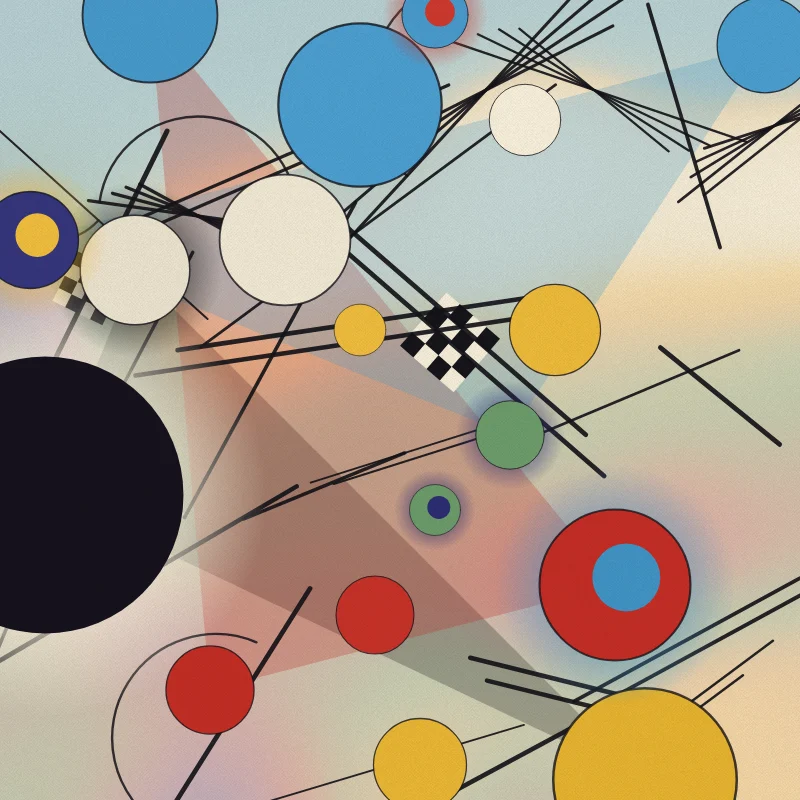
Filtru foto Kandinsky - cercuri, linii și culoare
Transformă o fotografie într-o abstracție în stilul lui Wassily Kandinsky în browser: cercuri și linii din Compoziția VIII, pătrate cu cercuri concentrice, Câteva cercuri pe negru sau o Improvizație liberă.
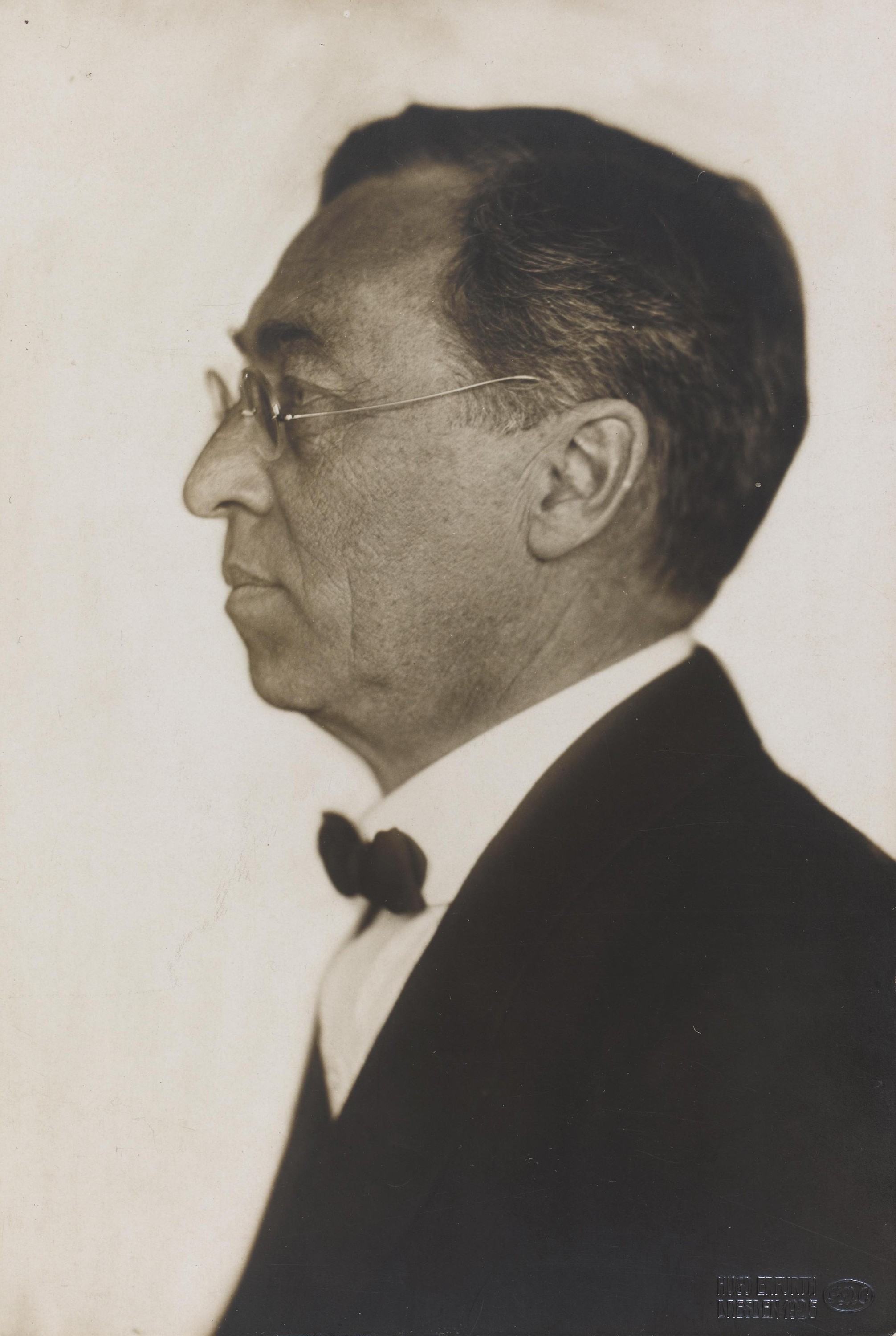
Wassily Kandinsky
Un scurt ghid despre Wassily Kandinsky: de la Moscova la München, Murnau și Der Blaue Reiter, culoarea ca muzică, pătrate cu cercuri concentrice, Bauhaus și Compoziția VIII, Câteva cercuri și un omagiu digital pe care îl poți încerca în PictorX.
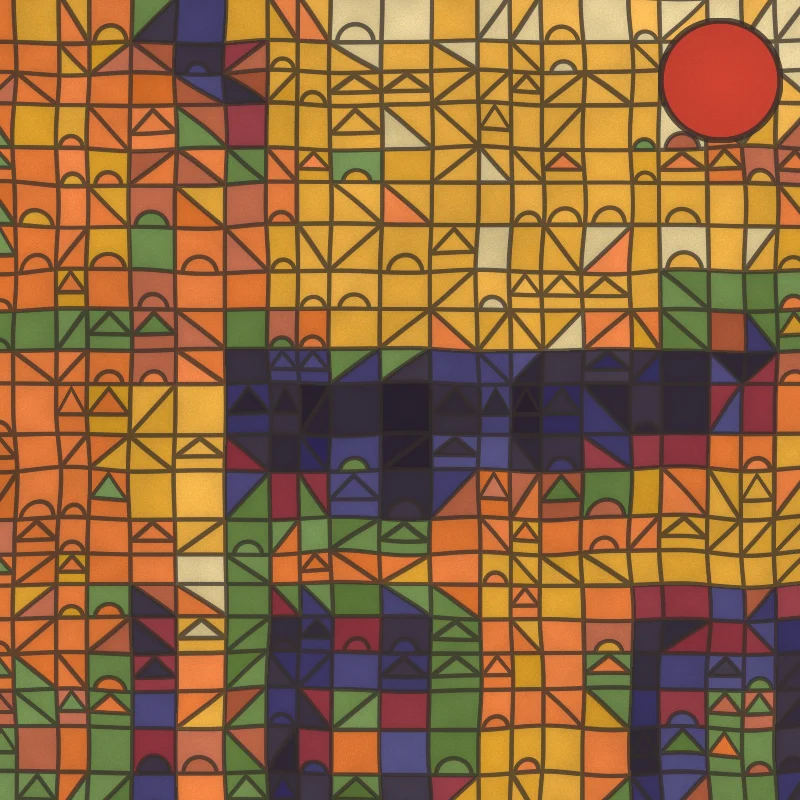
Filtru foto Paul Klee - pătrate magice, castele și linii
Transformă o fotografie într-o pictură în stilul lui Paul Klee în browser: pătrate magice de culoare, plăci Castel și soare, puncte Ad Parnassum, o linie la plimbare sau acuarele tunisiene.
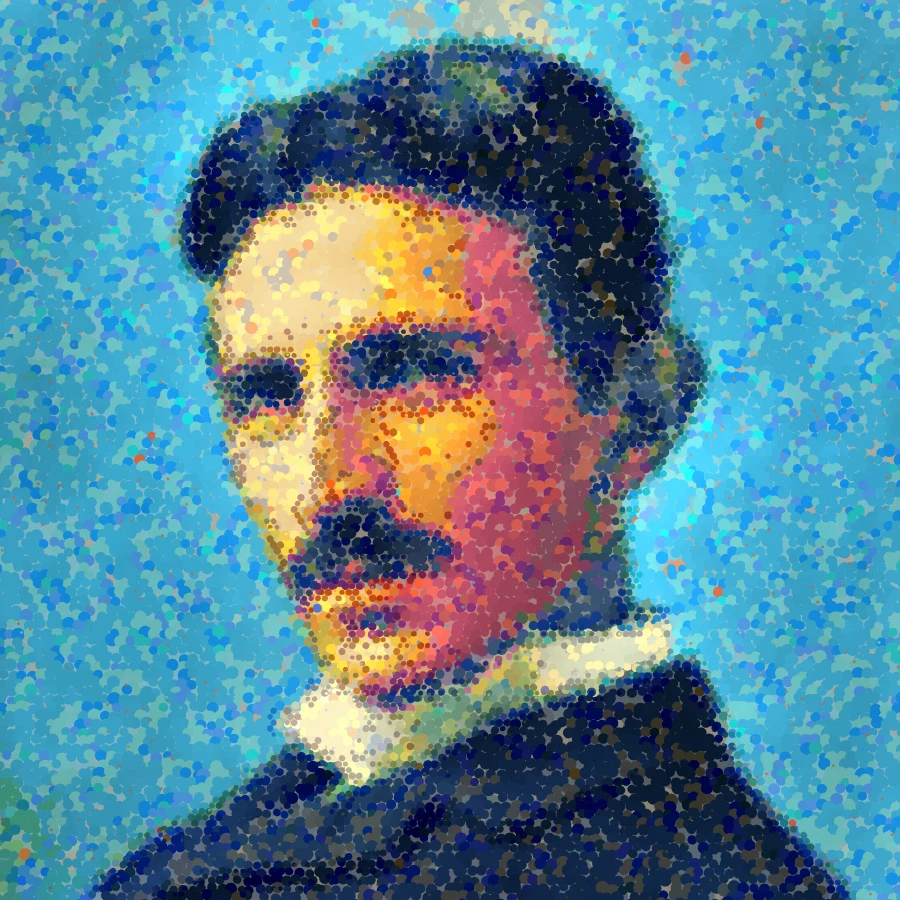
Filtru foto pointilist - puncte de culoare optice
Transformă o fotografie în puncte în stil Seurat sau tușe mozaic în stil Signac în browser. Reglează mărimea punctului, acoperirea, amestecul optic, detaliul, impasto, stilul, paleta și fondul pânzei.
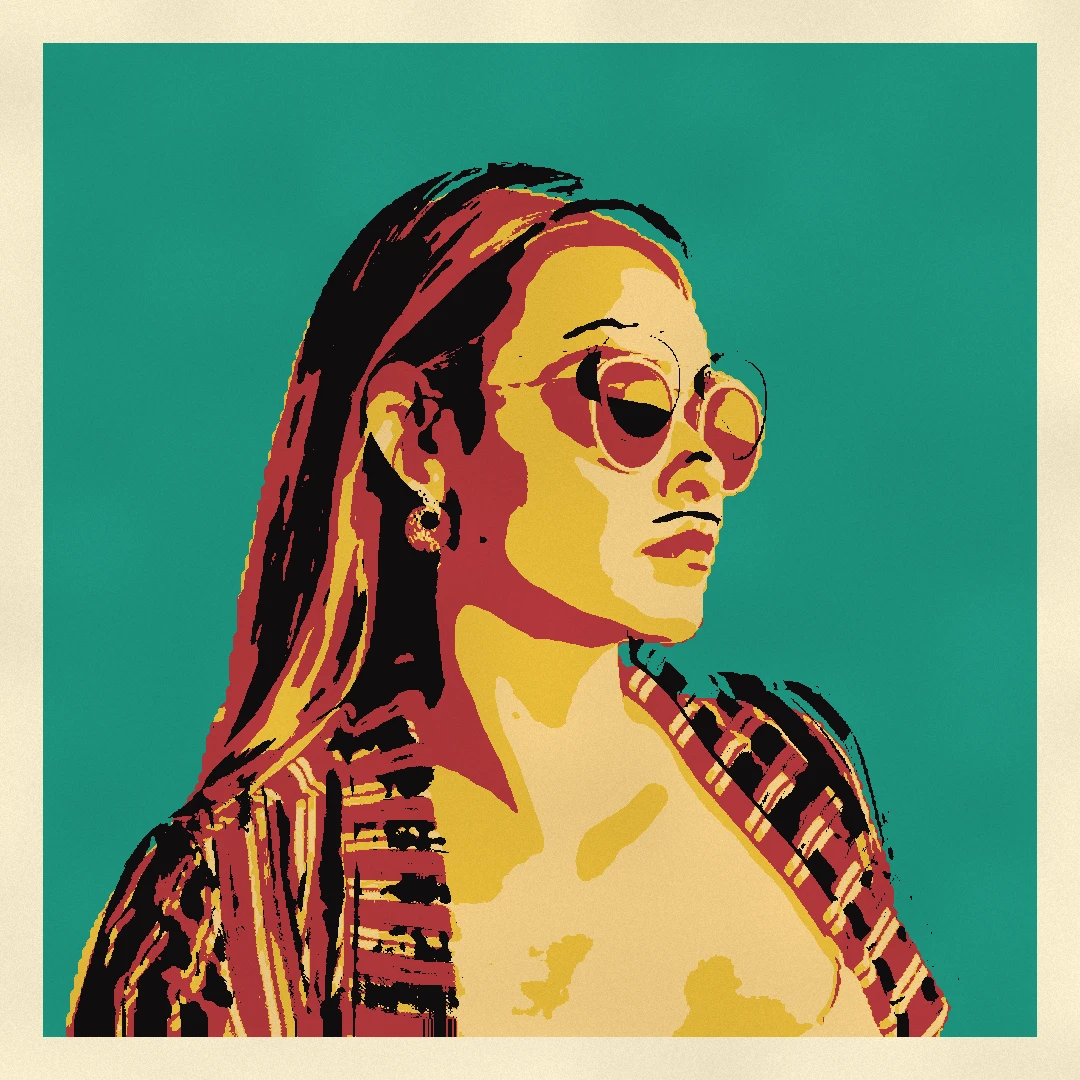
Filtru foto pop art
Transformă o fotografie în pop art în browser: benzi desenate în stil Lichtenstein cu puncte Ben-Day și explozie WHAAM!, grile serigrafiate în stil Warhol, semitonuri CMYK, duotonuri Riso și autocolante pop.
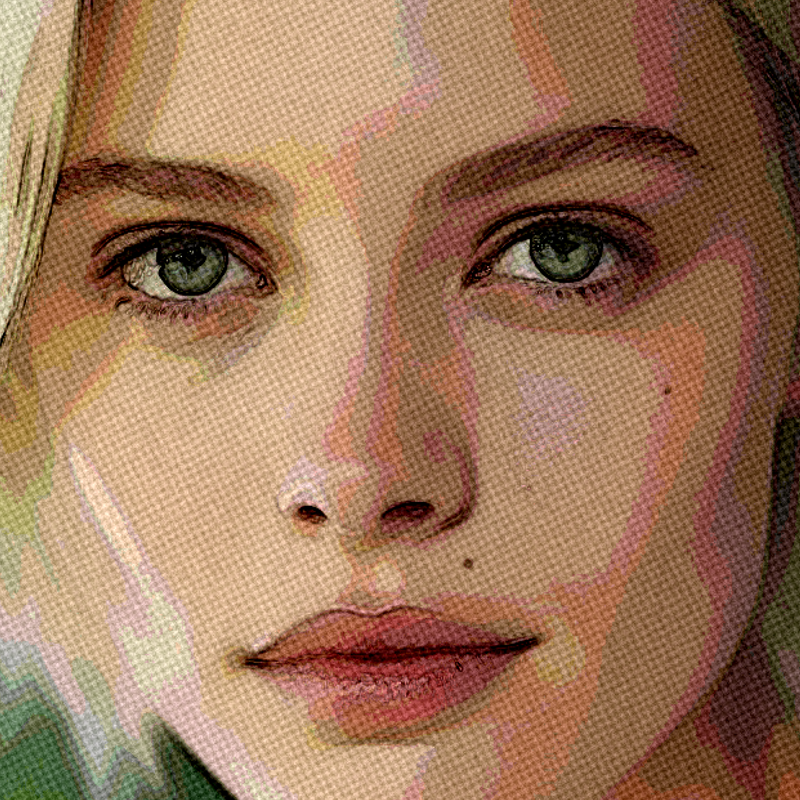
Efecte artistice
Transforma fotografii cu pictură în ulei, acuarelă, creion, cerneală comică, pasteluri, hârtie tăiat-out, și alte imagini de artă studio.
Eşti gata să încerci?
Deschide PictorX în browser-ul tău
Du-te la editor