
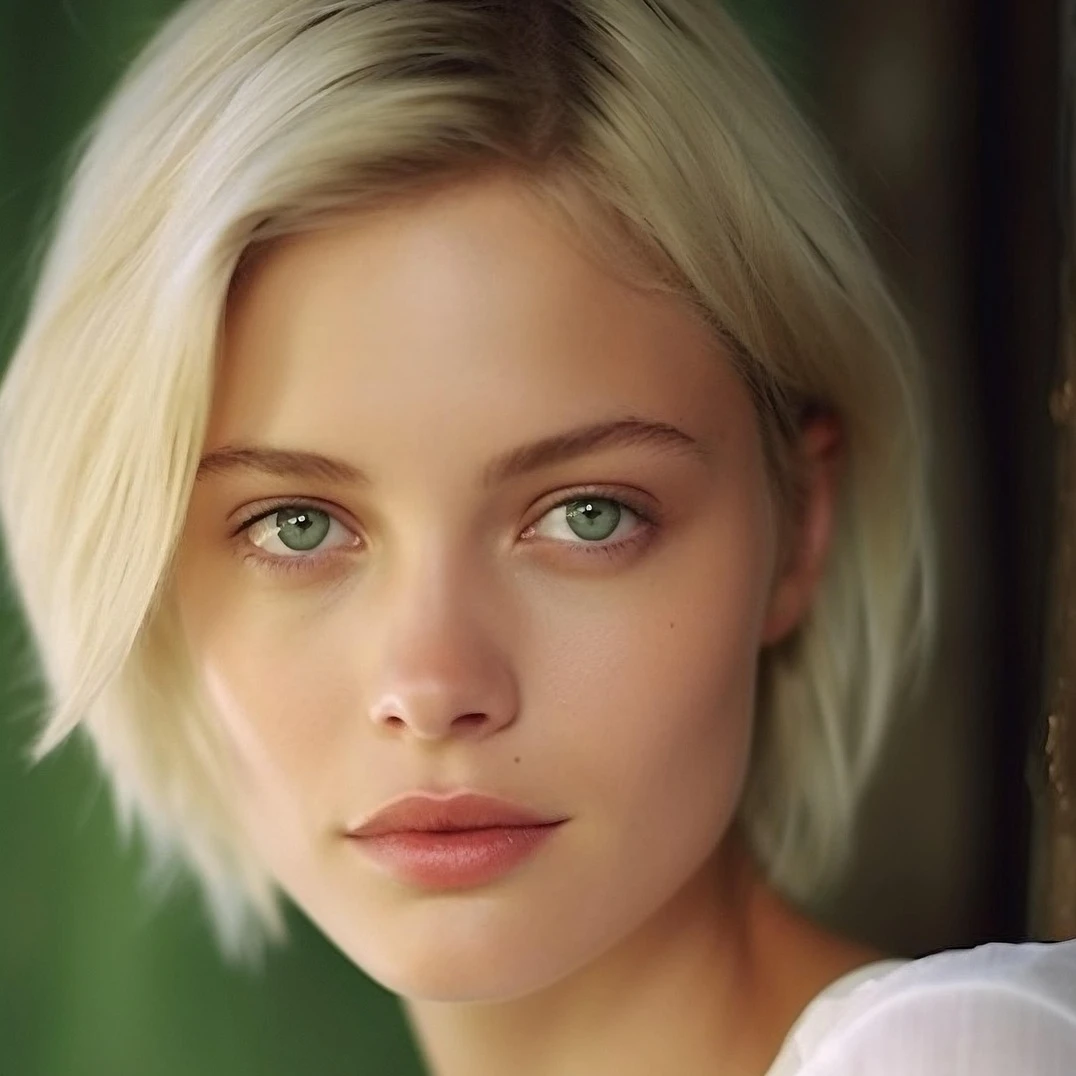
Încercați o ajustare de mai jos, sau deschide propria imagine.
Vibranţă effect
Open a photo and apply Vibranţă in PictorX. This look is part of Ajustează—adjust the settings on this page, then keep editing with layers, text, and other effects in the same workspace. Încercați o ajustare de mai jos, sau deschide propria imagine.
Cum funcţionează
- Open this page and try Vibranţă on the sample, or open your own photo.
- Tune the Vibranţă settings, or switch to another look in Ajustează.
- Save the result, or keep editing with layers, text, and other effects in PictorX.
What the Vibranţă effect does
Vibranţă is one of the looks in PictorX Ajustează. Apply it in your browser, then keep working in the same project—crop, type, or add another effect without starting over. Nothing is uploaded for this effect.
More looks in Ajustează
This page opens Ajustează with Vibranţă already selected. Switch looks on the demo to compare styles, or open the full Ajustează page to browse every option in the set.
Looks in this set
Întrebări frecvente
Is the Vibranţă effect free?
Yes. Open this page in a modern browser to try Vibranţă as part of the free PictorX editing workflow.
Can I keep editing after I apply Vibranţă?
Yes. Apply Vibranţă, then keep using layers, text, and other PictorX tools in the same workspace.
How do I open Vibranţă from Ajustează?
This page loads Ajustează with Vibranţă selected. You can also open Ajustează and choose Vibranţă from the looks.
Unelte conexe
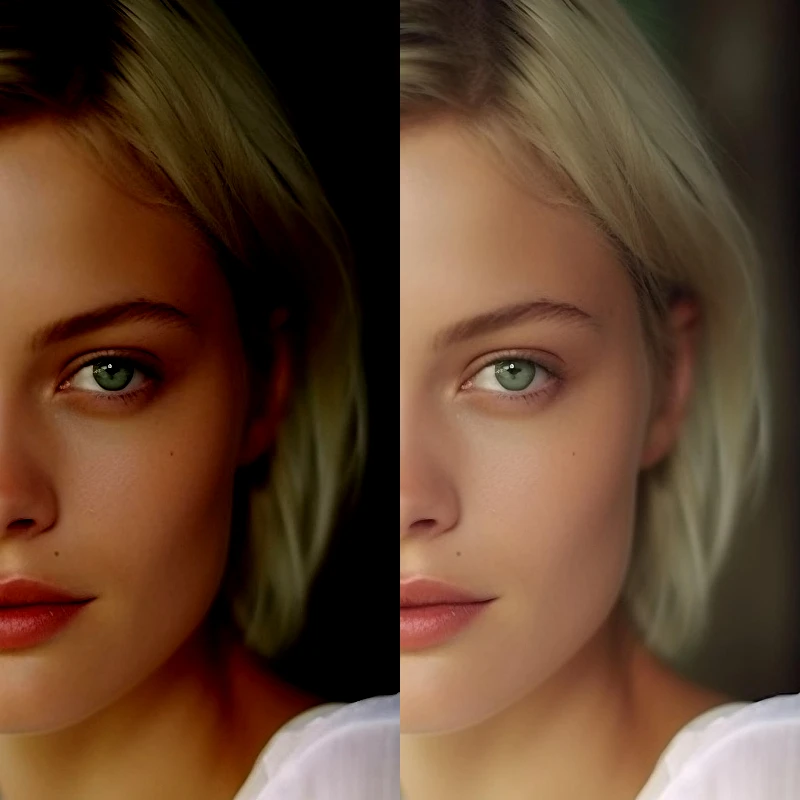
Ajustează
Expunerea şi culoarea corectă din Imagine → Ajustează. Utilizaţi XRBrand5X gratuit în browser-ul dvs. fără a fi necesară instalarea software-ului.
Posterizează effect
Apply a Posterizează effect to photos free in your browser. Open the Ajustează tools, tune the look, and keep editing in PictorX. No install.
Luminozitate / contrast effect
Apply a Luminozitate / contrast effect to photos free in your browser. Open the Ajustează tools, tune the look, and keep editing in PictorX. No install.
Hue / Saturaţie effect
Apply a Hue / Saturaţie effect to photos free in your browser. Open the Ajustează tools, tune the look, and keep editing in PictorX. No install.
Niveluri effect
Apply a Niveluri effect to photos free in your browser. Open the Ajustează tools, tune the look, and keep editing in PictorX. No install.
Curbe effect
Apply a Curbe effect to photos free in your browser. Open the Ajustează tools, tune the look, and keep editing in PictorX. No install.
Echilibrul culorii effect
Apply a Echilibrul culorii effect to photos free in your browser. Open the Ajustează tools, tune the look, and keep editing in PictorX. No install.
Eşti gata să încerci?
Deschide PictorX în browser-ul tău
Du-te la editor